Share via

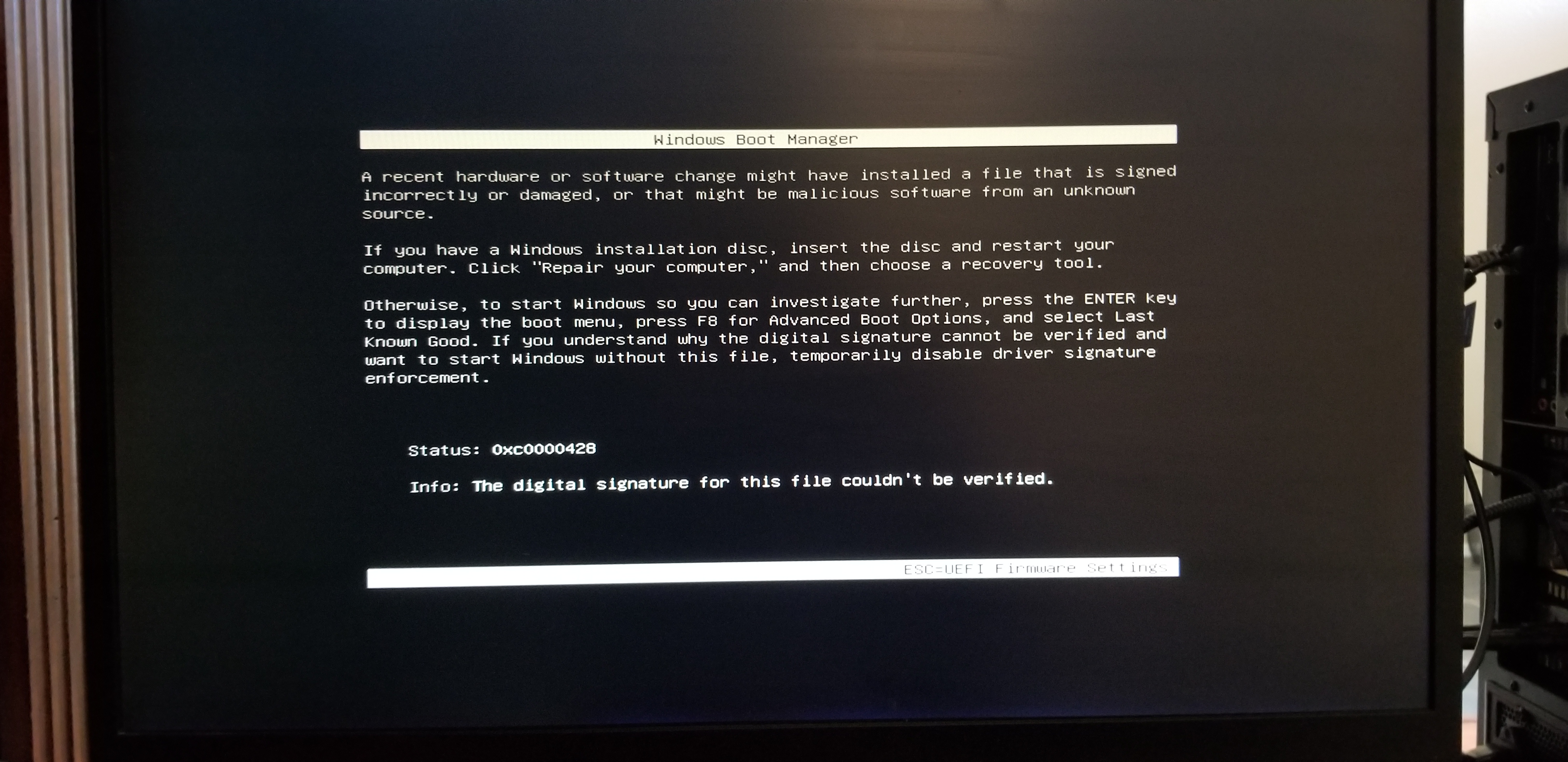
Windows Boot Manager screen with the error code/ Statis: 0xc0000428 after overclocking (Attempted Multiple Fixes and will Continue my Troubleshooting)

Anonymous
2019-01-01T04:03:21+00:00

Summary

  • Rebooted computer after overclocking from UEFI to see a Windows Boot Manager screen with the error code/ Statis: 0xc0000428
  • Found boot drive/ SSD booted windows fine on a different computer
  • Booting off of a USB drive that had the windows recovery tool resulted in a Windows Boot Manager screen with the error code/ Statis: 0xc0000428  
    • This even occurs if when no other drives are plugged in or if just the SSD is plugged in
  • Redownloading the windows recovery tool on the SSD from problem Computer (Plugged in the different Computer)

So earlier in the day I was overclocking my CPU, everything was fine until I launched a game an and my computer crashed, that.s all fine and good, as is takes time to find settings that are stable. I booted back into the UEFI and lowered the clock speed of my CPU, I proceeded to save and quit the UEFI to get back into windows to test the stability of the overclock. 

After the motherboard logo went away I was visited by the Windows Boot Manager Statis 0xc0000428

I was in no panic, as I had youtube on my side.

Things That Have Been attempted To Resolve Issue

  • Download of Windows creation tool on a separate computer
    • Downloaded windows with that tool on a USB drive
  • Reset Motherboard CMOS
  • Switched SATA Cables

Things Found From Troubleshooting.

  • My SSD with windows does not work In said desktop
  • When on a laptop and its HDD is transplanted with the SSD from the desktop, windows boots properly with no issues.
  • Booting from a 64GB SanDisk USB, on the desktop with problems, with a fresh copy of Windows from the windows media creation tool results in the 0xc0000428 error code, same as the SSD.
  • Plugging In the Laptops HDD into the desktop where the problem originated also results in "Windows Boot Manager" screen and subsequently Error code '0xc0000428'.

At the moment I will redownload windows to the USB drive using the windows media creation tool again, but I will do so using the SSD from the Problem Desktop.

Specs Of The Problem PC

  • Ryzen 5 2600
  • GXT 980TI
  • ROG B350 Gaming-F Motherboard
  • One 8GB stick of ram
  • 240GB SadDisk SSD
  • 1TB Western Digital HDD.
  • 850 Gold PSU from Corsair.
Windows for home | Windows 10 | Performance and system failures

Locked Question. This question was migrated from the Microsoft Support Community. You can vote on whether it's helpful, but you can't add comments or replies or follow the question.

0 comments No comments

5 answers

Sort by: Most helpful
  1. Anonymous
    2019-01-17T08:33:50+00:00

    Hi Saber,

    Thank you for your reply,

    Since you are facing the issue after overclocking, you should contact the manufacturer for support.

    However, Post your query in TechNet Forum and also contact your PC manufacturer since you are facing the issue after overclocking.

    Thanks,

    Suman.B

    Microsoft Community - Moderator

    Was this answer helpful?

    0 comments No comments
  2. Anonymous
    2019-01-02T02:14:26+00:00

    Dear Suman, please read this thread as it is my exact same issue to the letter, but less convoluted than how I worded it. The gentlemans issue was not addressed as the answers provided where not helpful. 

    Perhaps you can share this thread on other websites like TomsHardware as I did. 

    https://answers.microsoft.com/en-us/windows/forum/windows\_10-update/windows-10-error-0xc0000428/b77e3af0-7dab-4960-8f26-87a599d9a495

    Thank You, SaberVA.

    Was this answer helpful?

    0 comments No comments
  3. Anonymous
    2019-01-01T21:42:46+00:00

    To also note, 

    The computer Im having problems with (My desired computer), lets call it **Com1,**will not boot into windows at all.

    It will not even boot into the recovery drive. (I have no restore point, it's a fresh copy of windows on a USB) 

    All edits(AKA the methods recommend) where made, and will have to be made) with the boot drive from Com1used as the primary drive  on a laptop, lets lets call it Com2.

    If that makes any sense.

    Was this answer helpful?

    0 comments No comments
  4. Anonymous
    2019-01-01T21:28:57+00:00

    Dear Suman,

    Above is the screen that pops up when booting from the Windows Boot Manager on my SSD.

    I am additionally confronted with tbis screen when I boot from USB stick with the windows recovery tool (shows up with and without the SSD plugged in to power and SATA). 

    This screen also apears when booting off the HDD from my laptop.

    When in this screen, the only key that registers is the Esc key wich brings me back into my UEFI. 

    Im certain that nothing is wrong with my SSD as when said SSD was placed into my laptop with no additional drives, windows booted fine.

    My Motherboard sees all of my drives including the external thumb drive.

    To further test my motherboards cabability to read data, and possibly fix my issue, I downloaded the latest Bios drives from my motherboards manufacturer website. 

    This was successfully executed, and proved the thumb drive in question was not faulty. (The error code persists) 

    My computer is not an OEM build/ prebuilt computer. I built it myself.

    Method 1 was attempted, and did not solve the issue.

    When attempting Method 2,"bootrec" was not recognized as an internal or external command. 

    Method 3 has yet to be attemped, though I doubt this method will work.

    I thank you, and would appreciate your or anyone elses continued help. 

    SaberVA.

    Was this answer helpful?

    0 comments No comments
  5. Anonymous
    2019-01-01T12:21:36+00:00

    Hi Saber,

    Thank you for writing to Microsoft Community Forums.

    Appreciate the troubleshooting steps you have performed.

    What’s the complete error message you are receiving?

    Method 1: Perform CHKDSK.

    Select the Start button. In the search box on the taskbar, type command prompt. Right click and choose Command Prompt as admin from the list of results. In the window that appears, type chkdsk /r: and press the Enter key. Repairs automatically start on your hard drive, and you’ll be asked to restart your device.

    Method 2: Rebuild Boot Manager

    After opening the Command Prompt, use the following commands one by one and press Enter:

    C: 

    cd boot

    attrib bcd -s -h -r 

    bootrec /rebuildbcd

    The last command rebuilds the Boot Manager.

    It has also been suggested to use the following commands if needed:

    bootrec  /fixMBR

    bootrec  /fixBoot

    These commands repair the Master Boot Record.

    Method 3: Temporarily disable Driver Signature Enforcement.

    1. Hold down the Shift key while choosing the “Restart” option in Windows. Your computer will restart with Advanced Options. From the list of options displayed, select the “Troubleshoot” tile
    2. Next, select “Advanced options” and hit the “Startup Settings” tile.
    3. Next, select the “Restart” button to restart your PC on the Startup Settings screen.
    4. You will see the following screen on restart. Press the 7 keyboard key to activate the “Disable driver signature enforcement” option.

    Once done, your PC will reboot with driver signature enforcement disabled, and you’ll be able to install unsigned drivers.

    Check disk disclaimer.

    Important: While performing chkdsk on the hard drive, if any bad sectors are found on the hard drive then chkdsk tries to repair that sector if any data available on that might be lost.

    Thanks,

    Suman.B

    Microsoft Community - Moderator

    Was this answer helpful?

    0 comments No comments
