Share via

Powershell/Powershell admin missing

Anonymous
2018-12-15T19:23:05+00:00

When finding a solution to remove skype today I came across a post here where the solution was found to use a powershell command. So I went to open it up and found out it was missing. I looked into it and found some other people with a similar problem, and they went to check this directory:

C:\Users\*username*\AppData\Roaming\Microsoft\Windows\Start Menu\Programs\Windows PowerShell

It appears that mine is empty as you can see in this picture
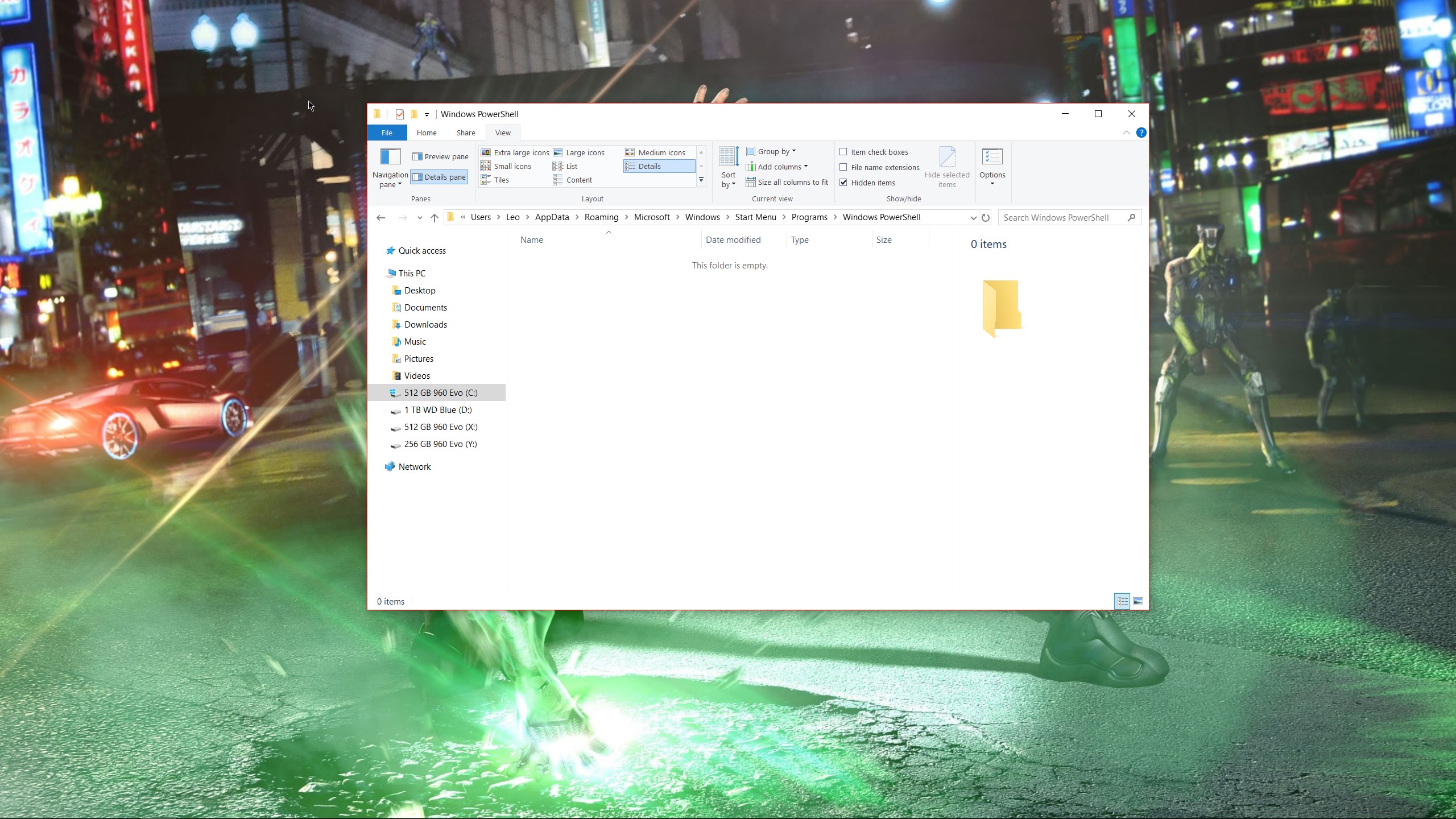
Also besides just the start menu the Windows PowerShell folders under program files and program files x86 didn't have any application files in them, although they still had many other files under the Modules folder. I'm not sure what is supposed to be in these so if there is anything I need to get please help me with that too.

What should I do to re-install the 4 files that are supposed to be here?

{Windows PowerShell, Windows PowerShell ISE, Windows PowerShell (x86), Windows PowerShell ISE (x86)}

If it helps I only need the 64 bit versions, and admin of coarse

Thanks!

Edit: Just noticed the 4 files that are supposed to be under the start menu are all shortcuts, so it looks like I will need the apps to install into the program files folders as well.

Windows for home | Windows 10 | Performance and system failures

Locked Question. This question was migrated from the Microsoft Support Community. You can vote on whether it's helpful, but you can't add comments or replies or follow the question.

0 comments No comments
Answer accepted by question author
  1. Anonymous
    2018-12-15T19:38:35+00:00

    Leo,

    I've looked into it further and the WMF software is only available on Windows 8/8.1, Server 2012, and 7 as you said.

    Until then, could you uncheck the item, restart, and check it again, and restart again?

    Keep me posted. I'm going to look into this further.

    1 person found this answer helpful.
    0 comments No comments

11 additional answers

Sort by: Most helpful
  1. Anonymous
    2018-12-15T19:56:28+00:00

    Leo,

    Just to make sure, have you tried the steps above? Opening PowerShell from File Explorer and/or the Run window (command is "powershell")

    Thanks for your patience by the way, takes a lot to go through this stuff.

    2 people found this answer helpful.
    0 comments No comments
  2. Anonymous
    2018-12-15T19:38:11+00:00

    Note:

    The link you gave me says it only supports these OS:

    Windows 7 Service Pack 1, Windows 8.1, Windows Server 2008 R2, Windows Server 2012, Windows Server 2012 R2

    0 comments No comments
  3. Anonymous
    2018-12-15T19:35:39+00:00

    Hello Leo,

    Hope I can help you get PowerShell back. I wouldn't have an idea how it would happen in the first place, but see if you can try this. Hit Windows key + R to go into Run, enter: optionalfeatures

    In the new Turn on Windows features on or off box, check Windows PowerShell 2.0, click OK, then restart if you're prompted to.

    Kind of an out there suggestion since Windows 10 by design should already come with PowerShell, but you can install WMF (Windows Management Framework) and see if it does the job, should be the same version on Windows 10: https://www.microsoft.com/en-us/download/detail...

    Keep me posted and let me know if you need any help.

    Thanks Ethan!

    Under the features menu powershell 2.0 is checked on and so is its engine, so it appears I need to do something else. My windows 10 did come with powershell in-case you were wondering, as I used it at some point before and I'm not sure how it got removed.

    Should I try installing that WMF software you mentioned?

    0 comments No comments
  4. Anonymous
    2018-12-15T19:26:15+00:00

    Hello Leo,

    Hope I can help you get PowerShell back. I wouldn't have an idea how it would happen in the first place, but see if you can try this. Hit Windows key + R to go into Run, enter: optionalfeatures

    In the new Turn on Windows features on or off box, check Windows PowerShell 2.0, click OK, then restart if you're prompted to.

    Kind of an out there suggestion since Windows 10 by design should already come with PowerShell, but you can install WMF (Windows Management Framework) and see if it does the job, should be the same version on Windows 10: https://www.microsoft.com/en-us/download/detail...

    Keep me posted and let me know if you need any help.

    0 comments No comments
