display/edit/delete hidden files

Anonymous
2019-03-20T15:19:43+00:00

I have files in the appdata directory that occupy a huge amount of space (had to go to best buy to find out this info)

The directory is hidden.

How do I unhide it so I can review info and delete some of it.

I suspect it is iphone backups, but now sure.

(Can fine a way in iTunes to delete them)

Im using Windows 7 Home premium

Windows for home | Previous Windows versions | Desktop, Start, and personalization

Locked Question. This question was migrated from the Microsoft Support Community. You can vote on whether it's helpful, but you can't add comments or replies or follow the question.

0 comments No comments
{count} votes

4 answers

Sort by: Most helpful
  1. Anonymous
    2019-03-20T15:28:08+00:00

    T ha n k Y o u F o r    P o s t i n g  i n    M i c r o s o f t    C o m m u n i t y. C a l l M i c r o s o f t  o n l i n e s u p p o rt     8            -           8           -         8         -         3      -          4          -         4        -        0        -        2        -        2        -        2     B e t w e e n 10:00 A M t o 7:00 P M EST. W e  w i l l  H e l p yo u  t o f i x  y o u r  I  s s u e s.

    0 comments No comments
  2. Anonymous
    2019-03-20T17:12:41+00:00

    Hidden files are hidden for good reason:  you should not delete them unless you know what the files are.

    There actually are 3 (or more) sub-folders in your AppData folder:
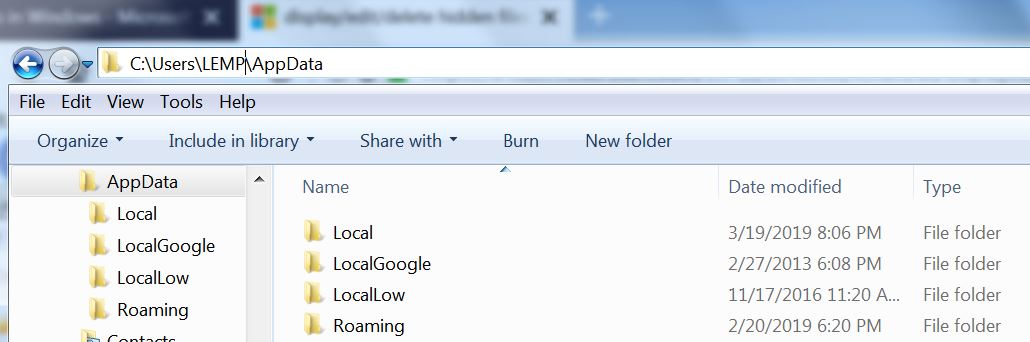
    I suggest that you do the following.

    Download, install, and run TreeSize Free:  https://www.jam-software.com/treesize_free/

    This will show you the files that are taking up room on your hard drive (iPhone backups -- assuming that you chose to save them on your computer rather than iCloud), are generally located in

        C:\Users\AppData\Roaming\Apple Computer\MobileSync*Backup*\

    When you run TreeSize Free, make sure to run it "as Administrator"
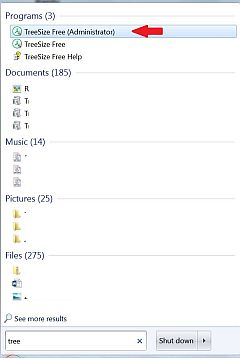
    As you can see below, at least on this system, iPhone backups are far from taking up most of the space of AppData:
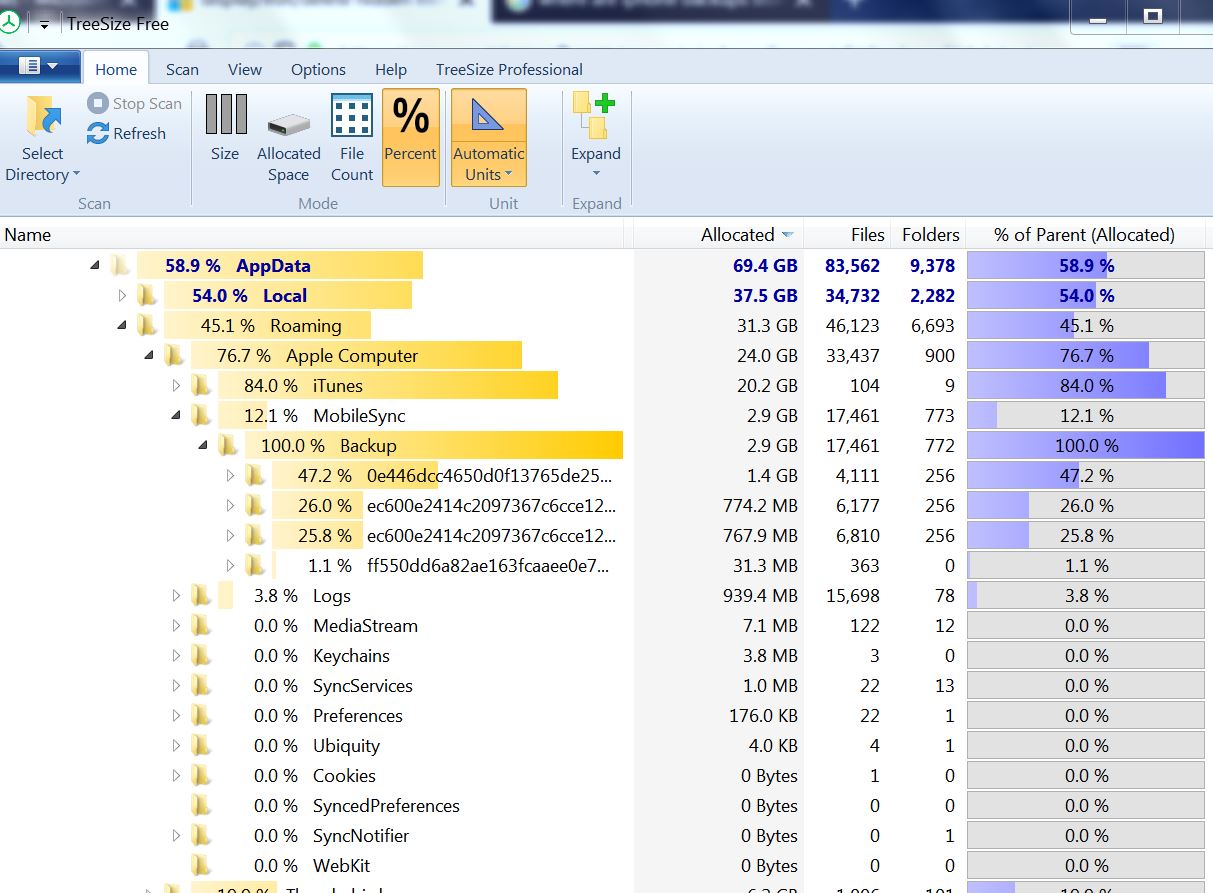
    IF you find that on your computer, iPhone backups are taking up a lot of space, AND you are sure that you don't want or need to keep them, delete them as follows:

    1. Open iTunes
    2. Click Edit > Preferences
    3. Select "Devices"
    4. Select the backup(s) you want to delete and press the "Delete" button

    If it turns out that something other than your iPhone backups is taking up the space, post back giving the name(s) of the folder(s) and file(s) that you feel are "too big" and we'll suggest what you might do about that.

    1 person found this answer helpful.
    0 comments No comments
  3. Anonymous
    2019-03-20T19:05:55+00:00

    Hidden files are hidden for good reason:  you should not delete them unless you know what the files are.

    There actually are 3 (or more) sub-folders in your AppData folder:

    I suggest that you do the following.

    Download, install, and run TreeSize Free:  https://www.jam-software.com/treesize_free/

    This will show you the files that are taking up room on your hard drive (iPhone backups -- assuming that you chose to save them on your computer rather than iCloud), are generally located in

        C:\Users\AppData\Roaming\Apple Computer\MobileSync*Backup*\

    When you run TreeSize Free, make sure to run it "as Administrator"

    As you can see below, at least on this system, iPhone backups are far from taking up most of the space of AppData:

    IF you find that on your computer, iPhone backups are taking up a lot of space, AND you are sure that you don't want or need to keep them, delete them as follows:

    1. Open iTunes
    2. Click Edit > Preferences
    3. Select "Devices"
    4. Select the backup(s) you want to delete and press the "Delete" button

    If it turns out that something other than your iPhone backups is taking up the space, post back giving the name(s) of the folder(s) and file(s) that you feel are "too big" and we'll suggest what you might do about that.

    Ive deleted my itunes backups for equip i no longer use.

    next ill be trying to use the software you mentioned.

    i had been looking at the folders using DOS (shows how old i am, amazed i still remember any commands)

    this will hopefully be easier.

    There seems to a lot of crash files.

    ill get back to you ...

    ...jim

    0 comments No comments
  4. Anonymous
    2019-03-20T19:26:21+00:00

    FYI:

    If you'd rather use something more user-friendly than the Command Prompt (it isn't really DOS anymore, although the commands look the same):

    Right-click on items in TreeSize Free to delete them (or open, etc.).

    In Windows Explorer (the file manager), you can click Tools > Folder Options > View tab and then scroll down to "Hidden files and folders."  Select either radio button there ("Don't show hidden files, folders, or drives" or "Show hidden files, folders, and drives") and click OK.

    0 comments No comments
