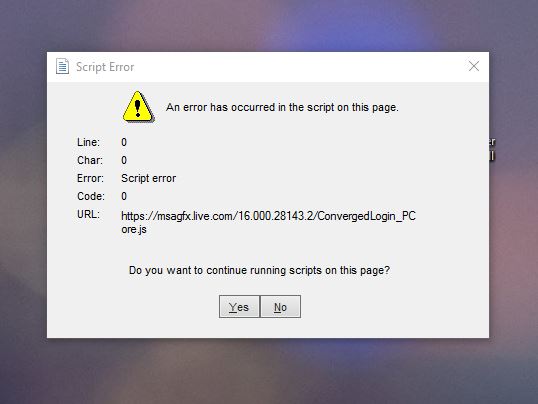
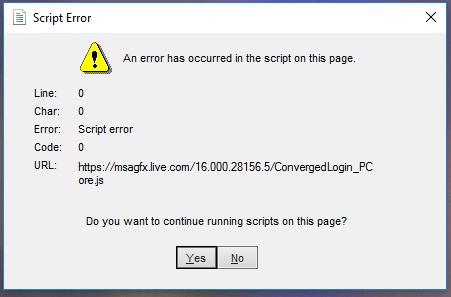
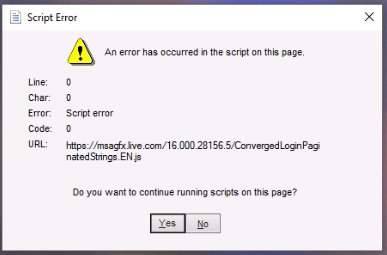
We have multiple employees (100+) receiving these Script errors.
Clicking 'Yes' or 'No' makes no difference.
Script error: https://msagfx.live.com/16.000.28143.2/ConvergedLogin\_PCore.js
Script error: https://msagfx.live.com/16.000.28156.5/ConvergedLogin\_PCore.js
Script error: https://msagfx.live.com/16.000.28156.5/ConvergedLoginPaginatedStrings.EN.js
I have not been able to find out any details as the error is producing code 0 and doesn't show in logs or reliability history.
This is definitely Microsoft related due to the live.com url and is either related to Outlook or Onedrive.
I have gone through the windows logs but was unable to find any reference to the certificate or any issues highlighted with either outlook or onedive.
Google shows that others have experienced this error however the only solutions online relate to a slightly different error created by onedrive which requires the clearing of internet explorer cache as the
fix. Clearing the browser cache does not fix this issue.
The dll for jscript seems to be registered correctly:
- C:\Users%UserID%\Documents> New-PSDrive -Name HKCR -PSProvider Registry -Root HKEY_CLASSES_ROOT | Out-Null
- C:\Users%UserID%\Documents> Get-Item "HKCR:\CLSID{f414c260-6ac0-11cf-b6d1-00aa00bbbb58}\InprocServer32"
Hive: HKEY_CLASSES_ROOT\CLSID{f414c260-6ac0-11cf-b6d1-00aa00bbbb58}
Name Property
InprocServer32 (default) : C:\Windows\system32\JScript.dll
ThreadingModel : Both
Have tried the below fix but this did not resolve the script errors.
_______________________________________________________________________________
1- Open Internet Explorer.
2- On the Tools menu, click Internet Options. If you are not seeing the Tools menu, press the Alt key on your keyboard to display the menus.
3- On the Advanced tab, click to clear the Display a notification about every script error box, and then click OK.
remove all temporary Internet files in Internet Explorer. These files are stored in a local copy of that web page. If the size of these files becomes too large, some display problems may occur. Periodically
clearing the folder might help resolve the problem. Here's how:
1- In Internet Explorer, select the Tools menu, then click Internet Options.
2- Under the General tab, under Browsing History, select Delete.
3- In the Delete Browsing History dialog box, click to select the following check boxes, and then click Delete:
>Temporary Internet Files
>Cookies
>History
4- Click Close, and then click OK to close the Internet Options dialog box.
5- Then, restart Internet Explorer and attempt to access Outlook.com.
_______________________________________________________________________________
Can someone please investigate and advise how to fix this?
' cx='32' cy='32' r='32' /%3E%3Ctext x='50%25' y='55%25' dominant-baseline='middle' text-anchor='middle' fill='%23FFF' %3EA%3C/text%3E%3C/svg%3E)
