Adding a user in Windows 10 Home

Anonymous
2019-02-11T03:35:29+00:00

I've been using Windows 10 for a while now. Recently, I've done fresh updates, which eventually created windows.old folder.

The problem started when I logged in as Administrator, and removed existing user account. I can't create back another user account.

From Control Panel -> User Accounts -> Manage another account -> Manage Accounts -> Add a new user in PC settings, opens up Settings screen.

From there, I click "Add someone else to this PC" and it results in following screen:
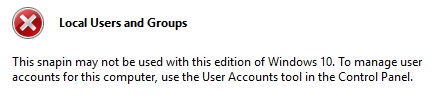
True that I have Windows 10 Home edition, but this was never problem.

Does any one have any clue?

Windows for home | Windows 10 | Settings

Locked Question. This question was migrated from the Microsoft Support Community. You can vote on whether it's helpful, but you can't add comments or replies or follow the question.

0 comments No comments
{count} votes
Answer accepted by question author
  1. Anonymous
    2019-02-11T03:51:03+00:00

    Hello jay9,

    I'm Independent Advisor and Microsoft MVP, here to help you with your question.

    Run netplwiz command.

    Click Add and then fill out the details for new user account and finish the wizard.

    See if you can add new user this way.

    Let us know if this helps!

    8 people found this answer helpful.
    0 comments No comments

3 additional answers

Sort by: Most helpful
  1. Anonymous
    2019-02-11T03:38:38+00:00

    Hi Jay, I'm Graeme, an independent adviser here to help.

    See if you can add a user in the Settings app. Here are the steps to follow:

    • Click Start and search for "users".
    • Select the option "Add, edit or remove other people".
    • In the Settings app that appears, click on Add someone else to this PC.

    See if you can add the new user there, and if it still doesn't work, let me know what happens! Thanks!

    0 comments No comments
  2. Anonymous
    2019-02-11T03:41:42+00:00

    Hi #jay9

    Please follow these steps below to create a new account in Windows 10:

    0 comments No comments
  3. Anonymous
    2019-02-11T04:01:55+00:00

    Hi Jay. I'm Greg, an installation specialist, 9 year Windows MVP and Independent Advisor, here to help you.

    Follow this guide to create a new Local or Microsoft Admin Account:

    http://www.howtogeek.com/226540/how-to-create-a...

    I hope this helps. Feel free to ask back any questions and let us know how it goes. I will keep working with you until it's resolved.

    ______________________________________________

    Standard Disclaimer: There are links to non-Microsoft websites. The pages appear to be providing accurate, safe information. Watch out for ads on the sites that may advertise products frequently classified as a PUP (Potentially Unwanted Products). Thoroughly research any product advertised on the sites before you decide to download and install it.

    0 comments No comments
