Share via

Unable to Complete Windows 10 Installation

Anonymous
2019-02-06T21:45:59+00:00

Hi Everyone, 

I kindly need your advice as I am having issue with installing Windows 10 on my new MSI laptop. I bought it free-dos and I prepared an installation USB from Microsoft's page.

This is a screenshot from my second try. I already had 3-4 drives appearing in my first try as well. The highlighted SSD disk was my choice to do the installation at first try. I did not want to delete any other appearing disks because I was not sure what to do. Installation files are completed successfully (%100) but instead of starting/continuing the installation it restarted the computer and it showed me the first screen where you click INSTALL and start Windows 10 installation from beginning. 
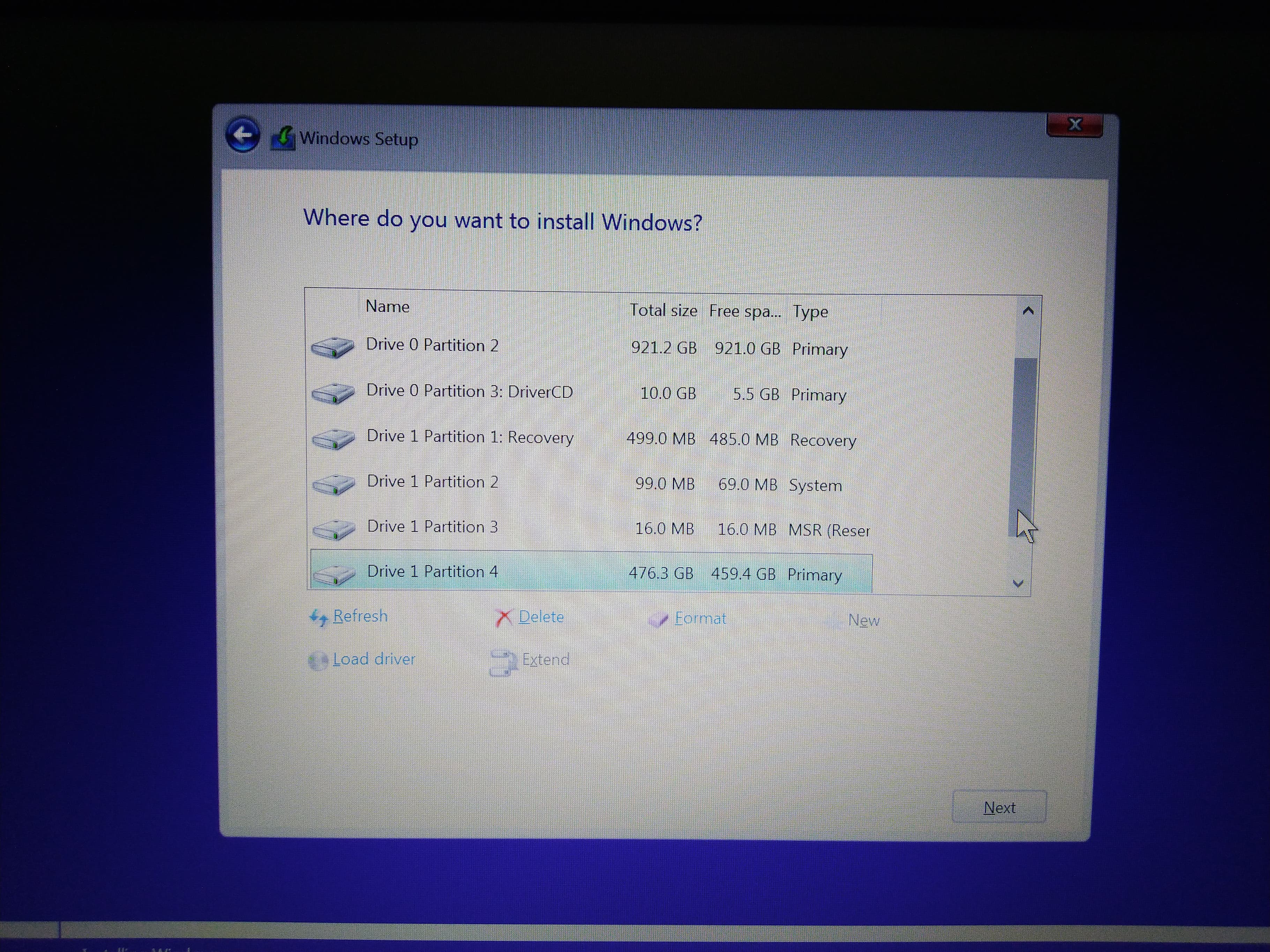
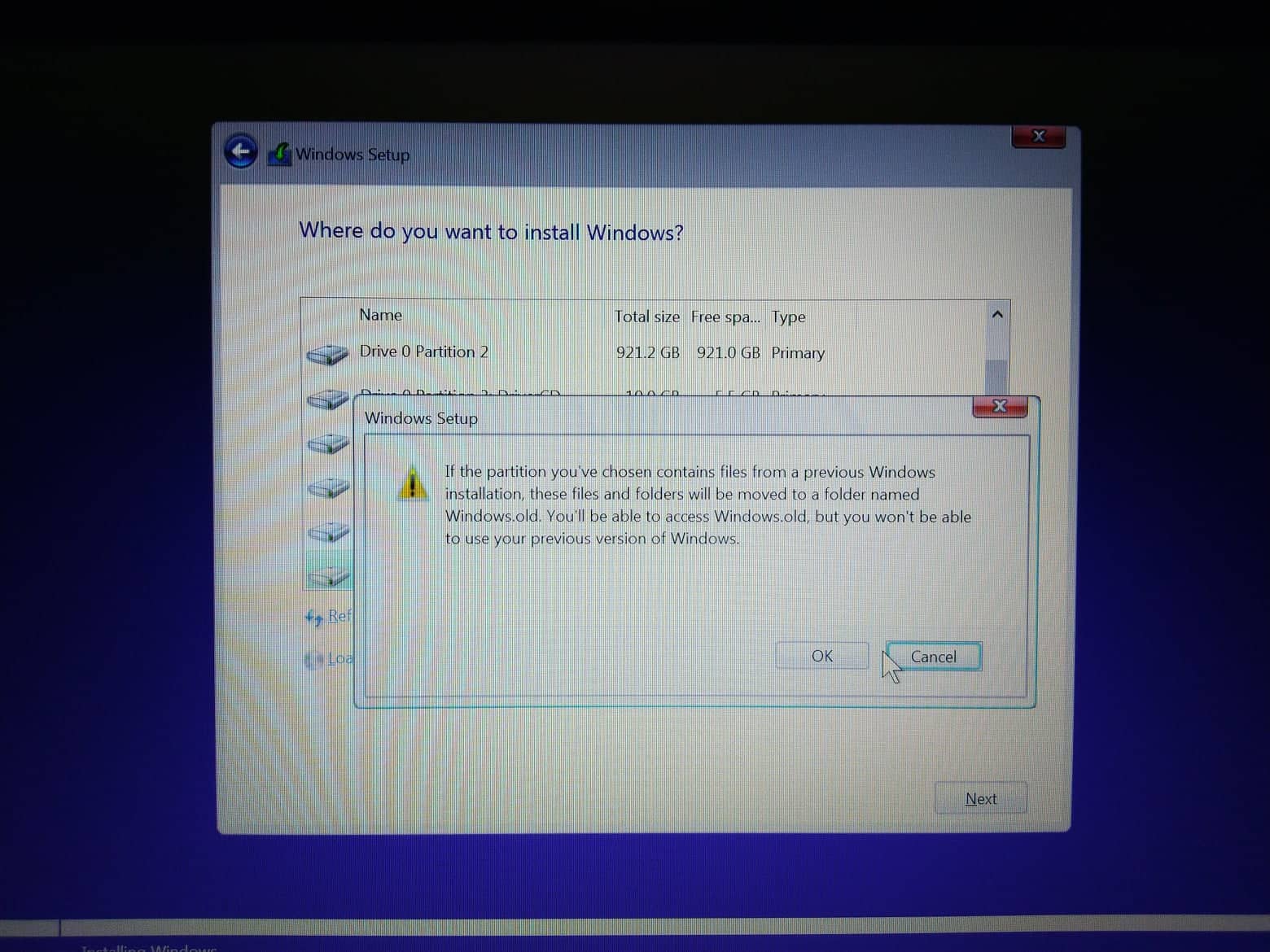
As you can see below, when I try to install Windows 10 from beginning again, I receive the warning message below. I clicked OK and restarted the installation. It again completed installation files %100 but then it just restarted the computer again. May I kindly ask your help to be able to install Windows 10, please? Thank you in advance.
Windows for home | Windows 10 | Install and upgrade

Locked Question. This question was migrated from the Microsoft Support Community. You can vote on whether it's helpful, but you can't add comments or replies or follow the question.

0 comments No comments

8 answers

Sort by: Most helpful
  1. Anonymous
    2019-02-06T21:59:26+00:00

    Hi Dave,

    I appreciate your super quick assistance. I did not touch anything of Drive 0 as you said. I already managed to delete 2 of the Drive 0 partitions. However, when I try to delete Drive Partition 1 as shown in the screenshot, I am receiving the warning message below. Do you still suggest me to delete it as well? 

    Was this answer helpful?

    1 person found this answer helpful.
    0 comments No comments
  2. Anonymous
    2019-02-06T22:06:02+00:00

    Done, that is how it looks now. I continue with the installation.

    Was this answer helpful?

    0 comments No comments
  3. Anonymous
    2019-02-06T22:03:15+00:00

    I already managed to delete 2 of Drive 1 Partitions* Sorry for typo.

    Was this answer helpful?

    0 comments No comments
  4. DaveM121 891.1K Reputation points Independent Advisor
    2019-02-06T22:02:57+00:00

    Hi Ugur, that was expected, click OK to delete that partition, then you can continue deleting all those partitions on Drive 1

    Was this answer helpful?

    0 comments No comments
  5. DaveM121 891.1K Reputation points Independent Advisor
    2019-02-06T21:51:39+00:00

    Hi UgurFiliz

    Go back to that window that shows all those partitions

    Important - do not touch anything marked Drive 0

    Select each partition on Drive 1 and click Delete, until all that remains on Drive 1 is one unallocated space

    Then select that unallocated space and click 'Next' to install Windows onto that SSD

    Was this answer helpful?

    0 comments No comments
