Share via

A multi-threaded software(PFC3D-to do simulation) not using all the available cores

Anonymous
2020-06-24T09:03:59+00:00

Hi all,

I'm using a multi-threaded software(PFC3D developped by Itasca consulting) to do some simulations.After moving to a powerful computer Intel Xeon Gold 5120T CPU 2.2GHZ 2.19 GHZ  (2 Processors)(28 physical cores, 56 logical cores)(Windows10) to have rapid calculations, the software seems to only use a limited number of cores.Normally the number of cores detected in the software is 56 and it takes automaticly the maximum number of cores.

I'm pretty sure that the problem is in the system not in my software because I'm running the same code in a intel core i9-9880H Processor (16 logical cores) and it'is using all the cores with even more efficiency than the xeon gold.

I appreciate very much your precious help.

Thank you

Youssef

Windows for home | Windows 10 | Performance and system failures

Locked Question. This question was migrated from the Microsoft Support Community. You can vote on whether it's helpful, but you can't add comments or replies or follow the question.

0 comments No comments

6 answers

Sort by: Most helpful
  1. Anonymous
    2020-06-24T10:28:19+00:00

    Hello Youssef

    All the checks I can advise you to carry out to show the CPUs are working in Windows 10 you have done. Yes I am comfortable that Windows is working fine with your processors.

    This does indicate an application related issue where it will not utilize the cores correctly.

    Was this answer helpful?

    0 comments No comments
  2. Anonymous
    2020-06-24T10:02:39+00:00

    Hello Nigel,

    I did the test, and all is passed.

    So now I dont know what to do.

    You think that the problem is in the 3rd party software?(my software PFC3D that i'm using?)

    I'm touched with your tries to help me.

    Thank you very much Nigel!

    Youssef

    Was this answer helpful?

    0 comments No comments
  3. Anonymous
    2020-06-24T09:35:18+00:00

    Hello

    So we can confirm that the CPU cores are working correctly in Windows 10, can you download the Intel Processor Diagnostic Tool

    https://downloadcenter.intel.com/download/19792

    Make sure to download and install the x64 version

    IPDT_Installer_4.1.4.36_64bit.exe

    If you can run that and it is coming back without error and detecting all the cores, the problem does look to be with the 3rd party software not recognising the cores correctly on that model of CPU.

    If the CPU tester comes back with a problem we can help diagnosing that for you.

    Hope this helps!

    Feel free to ask back any questions and let me know how it goes.

    If you don't have any more questions, feel free to choose a rating and let us know whether this information was helpful to you!"

    Was this answer helpful?

    0 comments No comments
  4. Anonymous
    2020-06-24T09:29:57+00:00

    Hi Nigel,

    Thank you for your reply.

    yes, this is the right processor that you have mentionned above (https://ark.intel.com/content/www/us/en/ark/pro...)

    I'm using 64bit version.

    I confirm all the cores are displaying correctly in Task Manager and the device manager.

    I have already done what you have suggested to me(misconfig, boot Advanced option, puting 56 cores), but still not using all the cores.

    Thank you

    Youssef

    Was this answer helpful?

    0 comments No comments
  5. Anonymous
    2020-06-24T09:17:20+00:00

    Hi, my name is Nigel and I am an Independent Advisor here to try and work with you on this issue you are having.

    From what you are describing I believe your CPU is as follows, which is Products formerly Skylake which I believe are 5th Generation Xeon processors

    https://ark.intel.com/content/www/us/en/ark/pro...

    Windows 10 supports a maximum of two physical CPUs, but the number of logical processors or cores varies based on the processor architecture.

    A maximum of 32 cores is supported in 32-bit versions of Windows 10, whereas up to 256 cores are supported in the 64-bit versions.

    So based on that please ensure you are using 64 bit version of Windows 10.

    Core Settings In Windows 10

    If you’re using Windows 10, all of your processor cores will be fully utilized by default if your BIOS/UEFI is set correctly. The only time you would use this technique is to limit cores, whether for software compatibility reasons or otherwise.

    Type ‘msconfig’ into the Windows Search Box and hit Enter.

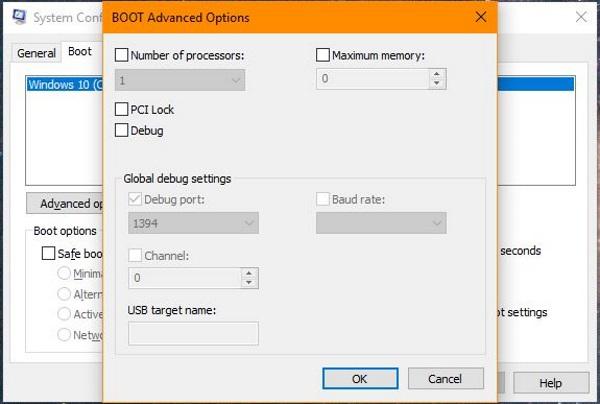
    Select the Boot tab and then Advanced options.

    Check the box next to Number of processors and select the number of cores you want to use (probably 1, if you are having compatibility issues) from the menu.

    Select OK and then Apply.

    If you are using Windows 10, the box next to “Number of processors” will normally be unchecked. This is because Windows is configured to utilize all cores whenever a program has the ability to use them.

    Can you confirm all the cores are displaying correctly in Task Manager > Performance.

    Hope this helps!

    Feel free to ask back any questions and let me know how it goes.

    If you don't have any more questions, feel free to choose a rating and let us know whether this information was helpful to you!"

    Standard Disclaimer: There are links to non-Microsoft websites. The pages appear to be providing accurate, safe information. Watch out for ads on the sites that may advertise products frequently classified as a PUP (Potentially Unwanted Products). Thoroughly research any product advertised on the sites before you decide to download and install it.
    Was this answer helpful?

    0 comments No comments
