App or Feature with No Name at Bottom of Program List - Windows 10

Anonymous
2021-09-02T05:51:45+00:00

Hello,

I saw that someone posted a similar concern/question on an unnamed (no information) app showing up at the bottom of the Apps & Features list in Windows 10 ...
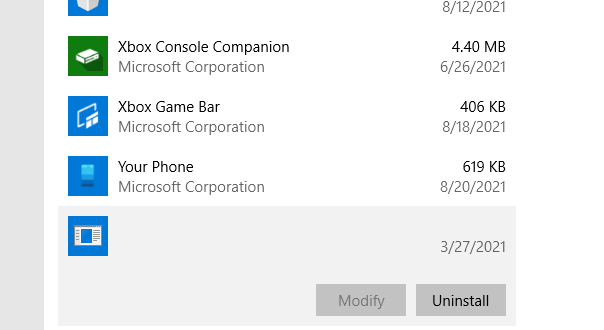
It shows an install date (which is the same install/update date for a lot of other apps. I tried finding this "blank" app in the control panel but could not find it.

I found the following answer ... To go ahead and uninstall (on this forum): https://answers.microsoft.com/en-us/windows/forum/all/having-trouble-in-apps-and-features-with-app/f048de57-47a2-46a9-9562-f91a267d13a5

However, when I click "Allow" and try to proceed with the uninstall I get: "There was a problem starting C:\Program The specified module could not be found."

Yes, I already searched that error message on Google and tried the different fixes ... They don't work.

I am still unable to uninstall the program ... I really don't get how a program can get installed/updated with no name on it (how does the registry know which files to update?).

Windows for home | Windows 10 | Install and upgrade

Locked Question. This question was migrated from the Microsoft Support Community. You can vote on whether it's helpful, but you can't add comments or replies or follow the question.

0 comments No comments
{count} votes

3 answers

Sort by: Most helpful
  1. Anonymous
    2021-09-02T07:05:32+00:00

    Hi Rolando6768,

    I'm Paul and I'm here to help you with your concern.

    I will first recommend that you download and run Program Install and Uninstall troubleshooter.

    Refer to the link below.

    https://support.microsoft.com/en-us/topic/fix-p...

    I also suggest that your run the Disk Cleanup tool.

    Refer to the link below.

    https://support.microsoft.com/en-us/windows/dis...

    I hope this helps. Feel free to ask back any questions and keep me posted.

    1 person found this answer helpful.
    0 comments No comments
  2. Anonymous
    2021-09-03T20:11:18+00:00

    Hello Paul,

    Thank you for your reply. I tried both solutions you suggested. I actually did get "Name not available" apps using the uninstall troubleshooter (please see below), however, I tried to uninstall each with zero luck.

    I still have that one program at the bottom of the list ... But now, I'm worried there's five not showing up! LOL! But seriously, what are these six "no name" apps showing up on this troubleshooter? Any help is greatly appreciated ... Do you know of a way to trace these apps in the registry? Something has to be in the registry for these "No Name" apps to be recognized by the troubleshooter. There's not much going on in my life right now; so I don't mind getting into the registry and getting dirty. Thanks!

    0 comments No comments
  3. Anonymous
    2021-09-05T05:23:06+00:00

    Sorry if it didn't help.

    The last option I suggest is that you perform a repair/in-place upgrade to fix the system.

    Follow the instructions below.

    A. Downloading the Windows 10 ISO file.

    1. Download the tool (https://go.microsoft.com/fwlink/?LinkId=691209), and select Run. You need to be an administrator to run this tool.
    2. If you agree to the license terms, select Accept.
    3. On the What do you want to do? page, select Create installation media for another PC and then select Next.
    4. Select the language, edition, and architecture (64-bit or 32-bit) for Windows 10. (Select the same as the currently installed system on your PC)
    5. In "Select which media you want to use", Select ISO file then click Next.
    6. Select the download location then click Save.
    7. Windows 10 ISO file will be downloaded,

    B. Repair Upgrade installation.

    1. Right-click Windows 10 ISO file and click Mount.
    2. Open/run the Setup.exe.
    3. The preparation starts
    4. To get important updates, select Download and install updates. (Wait while checking for updates).
    5. Accept the terms of the license agreement
    6. The installation is ready to be applied, verify the information and ensure that "Keep personal files and applications is checked".
    7. Click on Install to start the upgrade.

    I hope this helps. Feel free to ask back any questions and keep me posted.

    1 person found this answer helpful.
    0 comments No comments
