Hi NO111ONE,
Welcome to Microsoft Community.
Thank you for posting your inquiry regarding device stability issues and app usage issues.
I understand how frustrating it can be when updates introduce unexpected quirks that interrupt your workflow and alter the experience you’ve come to rely on. It’s especially challenging when the side effects—like the abrupt blackout during full-screen screenshots, the unsolicited refresh of Microsoft Photos, or the onset of a new, uninvited version of Outlook interfering with your Gmail client—seem to emerge without any clear explanation. These issues aren’t simply isolated bugs but rather the visible tip of a much more intricate interplay among system components, drivers, app integrations, and the subtle modifications that accumulate over time.
The blacked-out wallpaper issue in full-screen Start could be tied to graphical rendering changes within the Windows shell. If the update modified how transparency effects or background layers are handled, it might be causing inconsistencies in how the wallpaper is displayed. This could be influenced by GPU driver compatibility, especially if Microsoft adjusted rendering priorities in the latest update.
An added layer of complexity comes from how these updates interact with specific drivers, firmware revisions, and even manufacturer-tailored software. In some cases, components like graphic drivers or specialized utility software can be inadvertently affected by feature-side updates, leading to behavior that might be interpreted as system component “damage” or misconfiguration.
The power state policy may unexpectedly cause incomplete driver initialization, resulting in strange problems.
In the system, fast startup is an option that may be related to the power state.
If you want to disable the S4 state(fast startup) in Windows, follow these steps.
- In search box, type powercfg.cpl and press Enter.
- Select the Choose what the power buttons do link.
- (Optionally) Click Change settings that are currently unavailable.
- Clear the Turn on fast startup (recommended) check box.
- Select Save Settings.
Clean Boot starts Windows with a minimal set of drivers and startup programs. It can be used to determine whether a background service or program is interfering or causing a problem.
- These steps of "clean boot" might look complicated at first glance. However, to avoid any trouble for you, please follow them in order and step-by-step.
- Please be careful not to disable any services that may be related to security credentials or security authentication, such as TPM, Security, Credential.
- Disabling services incorrectly will result in inaccessibility to the Windows desktop environment, for example, PIN cannot be verified.
Many devices may have product similar to Armoury Crate, Lenovo Vantage, MSI Center, Dragon Center enabled and installed by default, they are dedicated hardware management tools provided by device manufacturers.
- We can't say arbitrarily that they are the direct cause of the problem, but according to some similar posts, such dedicated hardware management/optimization tools provided by device manufacturers may conflict with the system and cause strange problems.
- If you wish, you can try to check and temporarily disable the options inside these applications before performing further system-level actions or perform a clean uninstall process for similar components.
The Microsoft Basic Display Adapter is a built-in driver that ensures basic display functionality when the standard GPU driver is unavailable, outdated, or causing issues. It is often used as a temporary measure for troubleshooting display problems or installing the correct graphics driver. To check the generic graphics driver that comes with Windows:
- Press Win + X and select Device Manager.
- In the search box on the taskbar, type device manager, then select it from the results.
- Select the arrow next to Display Adaptersto expand it.
- Select and hold (or right-click) the listing for your graphics device, then select Update driver> Browse my computer for drivers> Let me pick from a list of device drivers on my computer.
- Check the Microsoft Basic Display Adapter, select Next, and then follow the instructions to install it.
Testing an earlier version of a driver is a common choice for comparative observation.
If you wish, you can try to perform a "clean uninstall process" of the driver and test an earlier version of the driver to check if the problem persists with an "older version" or "older combination". After the driver "package" is removed from the device, the driver cannot be installed by scanning for hardware changes. Please be careful to back up the driver installation files in advance.
| Disclaimer: Please back up all your important data before performing it. |
To perform a clean uninstall of a driver using Device Manager:
- Open Device Manager: Press the Windows key, type "Device Manager," and press Enter.
- Locate the Device: In Device Manager, find the device whose driver you want to uninstall. Expand the category if needed.
- Uninstall the Device: Right-click on the device and select "Uninstall device".
- Delete the Driver Software: In the uninstallation window, check the box that says "Delete the driver software for this device" (if available).
- Confirm and Restart: Click "Uninstall" and then restart your computer.
- This process ensures that the driver is completely removed from your system.
- For older versions of the driver, you can visit the device manufacturer's product support site.
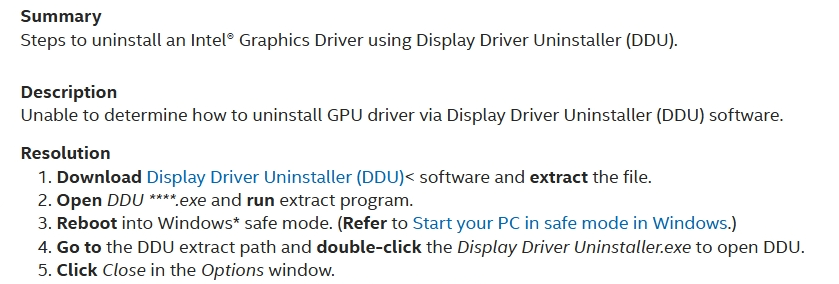
- For graphics components, this Intel site mentioned a tool that may be relevant. If you search on a search engine or the NVIDIA forums using similar keywords, you should be able to find similar descriptions of this tool. How to Use the Display Driver Uninstaller (DDU) to Uninstall an...
| Disclaimer ***:***Microsoft provides no assurances and/or warranties, implied or otherwise, and is not responsible for the information you receive from the third-party linked sites or any support related to technology. |
| --- |
In some special environments, the "Overlay' based functions may cause strange system problems.
The following information is summarized from other community members related to Overlay in Windows.
Modifying the registry to disable the Multiplane Overlay (MPO) feature is a common practice when dealing with graphics display issues in Windows. Below is a detailed description.
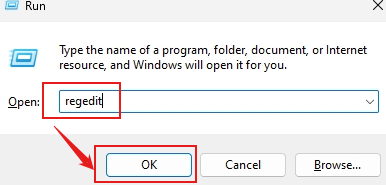
- Press Win + R and type regedit. Press "OK", then you will be able to launch Registry Editor.
- Navigate to the following path:
|
HKEY_LOCAL_MACHINE\SOFTWARE\Microsoft\Windows\Dwm |
- Create a new DWORD (32-bit) value named with the following keyword .
- Set the value of OverlayTestMode to 5.
- When finished, close the Registry Editor and restart the computer for the changes to take effect.
- Setting the value of OverlayTestMode to 5 is a specific action that typically indicates turning on a test mode, disabling or adjusting the use of multiplanar overlays. Specifically, this value may determine how the system handles the display of composite layers.
| Disclaimer*: Generally, modifying registry subkeys or work group is intended for advanced users, administrators, and IT Professionals. It can help fix some problems, however, serious problems might occur if you modify the registry incorrectly. Therefore, make sure that you follow these steps carefully. For further protection, back up the registry before you modify it. Then, you can restore the registry if a problem occurs. For more information about how to back up and restore the registry, click*How to back up and restore the registry in Windows - Microsoft Supportto view the article. |
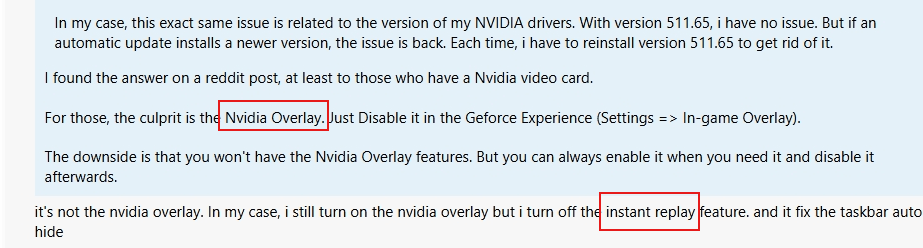
In some threads, NVIDIA software or AMD software may have additional Overlay, HUD-related options internally.
The combination of such options may work together to affect the game, resulting in strange mouse focus behavior.
If you wish, you can try to check the options within the graphics driver, graphics component management software, or within any “optimization” or “theme” type of application individually.
Hidden Taskbar not showing when a program is maximized (Windows 11 - Microsoft Community

A local account provides an independent user environment on your device. Observing under a different user profile helps to understand if the problem is specific to a corrupted user profile. Using Command Prompt ensures you can bypass user interface issues. To create a new local account via Command Prompt:
- Press Win or Win + S, type Command Prompt, right-click it, and choose Run as administrator.
- Execute the command to create a new account, replace Username with the desired username, and Password with the desired password.
|
net user "Username" "Password" /add |
- Execute the command to promote the account to admin level, replace Username with the desired username
|
net localgroup Administrators "Username" /add |
- The corruption of user profiles is usually difficult to trace and irreversible. If the problem does not occur under the new user profile, you can try to refer to the last entry in this link to transfer important data. Troubleshoot Problems Signing In to Windows - Microsoft Support
Regarding your search from the Update CDN for a comprehensive list of updates that allow you to install only security fixes,
Unfortunately, there is not a detailed public list available to members of the Answers community as general support.
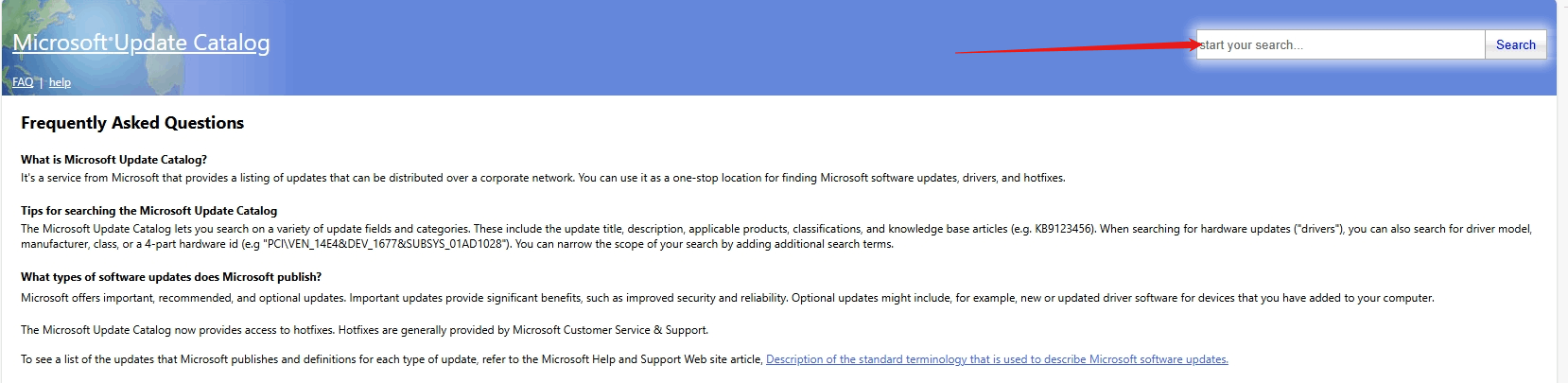
The Microsoft Update Catalog does offer the ability to retrieve some of the updates, but these are not designed primarily for selective installation. They are intended for system administrators to test and validate packages in a controlled environment prior to wider deployment.
Microsoft Update Catalog
Regarding Windows Update behavior itself, in some cases, you can try using specific options or tools to try to pause or hide some updates.
Pause updates in Windows - Microsoft Support
In some cases, the tool hosted at this link can be used to hide some updates.
https://download.microsoft.com/download/f/2/2/f22d5fdb-59cd-4275-8c95-1be17bf70b21/wushowhide.diagcab
The following information is a summary based on information in other threads and is also related to Windows Update behavior.
- Press Win or Win + S, type Command Prompt, right-click it, and choose Run as administrator.
- The command uses the /f parameter to modify the registry entry without asking for confirmation. If the command prompts you that the specific registry already exists and asks if you want to "Overwrite", you can type Yes to confirm.
|
reg add HKLM\SOFTWARE\Microsoft\WindowsUpdate\UX\Settings /v FlightSettingsMaxPauseDays /t REG_DWORD /d 7000 |
- You can use shortcut keys to copy a single command and right-click in the Command Prompt window to quickly paste the copied command. If a single copy fails, you can repeat the copy operation.
- After this operation, you should be able to select a different pause time in the Windows Update page.
| Standard Disclaimer ***:***Generally, modifying registry subkeys or work group is intended for advanced users, administrators, and IT Professionals. It can help fix some problems, however, serious problems might occur if you modify the registry incorrectly. Therefore, make sure that you follow these steps carefully. For further protection, back up the registry before you modify it. Then, you can restore the registry if a problem occurs. For more information about how to back up and restore the registry, clickHow to back up and restore the registry in Windows - Microsoft Supportto view the article. |
Thanks for your patience and understanding.Best Regards,Kyo.Y - MSFT | Microsoft Community Technical Support
' cx='32' cy='32' r='32' /%3E%3Ctext x='50%25' y='55%25' dominant-baseline='middle' text-anchor='middle' fill='%23FFF' %3EA%3C/text%3E%3C/svg%3E)
