How to fix error that programs cannot write files in my appdata directory

Anonymous
2025-04-04T08:54:06+00:00

Hi,

Since Wednesday evening (2nd April) when I shut down and restarted my laptop, I have been getting error messages from various programs that cannot write files within my appdata folder. For example:
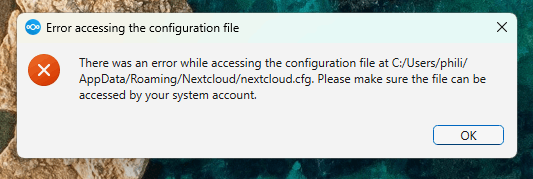
There was an error while accessing the configuration file at c:/users/me/AppData/Roaming/appfolder/appdata.cfg

I am also unable to open some apps from the taskbar or start menu, including Edge and Chrome. Windows is able to start Edge from a search within the start menu but judging from an error message which flashed up after using Edge in this way, I think it was running with elevated permissions.

I have read around the topic and determined that the permissions on my appdata folder are set such that my user cannot write those files.

I am following recommended security practices by giving my user profile only regular user rights, while keeping a local admin user for when elevated priviliges are required. This has worked fine for many months.

I understand how to change the permissions on files and folders (I have been playing with tech since MS-DOS in the 80s) but this feels like treating the symptom not the actual cause of the problem. I can also 'solve' the problem by making my everyday login an admin account, but again this doesn't feel like a smart solution.

I was able to solve the problem temporarily by removing my user profile from the computer, rebooting and adding it back again. However after 48 hours the problem has returned. When I logged in this morning, Windows took me through the welcome/account set-up process, which was unexpected.

I am using Windows 11 Home, 10.0.26100 on a newish Lenovo laptop with AMD chipset. I am running only Microsoft Defender, not any third party malware protection.

Please can you help me understand what is causing this and how I might resolve it? Have there been any Windows updates or security updates recently which might have caused this? I am happy to wipe my laptop and do a clean install of Windows if that will help, but as that takes a fair bit of time I'd want to be fairly sure that the next Windows update won't take me back to exactly the same place.

Thanks in advance for your insights and help!

Windows for home | Windows 11 | Performance and system failures

Locked Question. This question was migrated from the Microsoft Support Community. You can vote on whether it's helpful, but you can't add comments or replies or follow the question.

0 comments No comments
{count} votes

3 answers

Sort by: Most helpful
  1. Francisco Montilla 25,005 Reputation points Independent Advisor
    2025-04-04T09:28:00+00:00

    Hi Philip,

    A likely cause is that your user profile or its permissions have become corrupted, which can happen in certain Insider or preview builds, or through unexpected profile changes.

    The most reliable fix without resorting to a full wipe is to perform an in-place repair of Windows 11 using official Microsoft installation media.

    First, download the latest Windows 11 ISO from Microsoft’s website. Next, open (mount) the ISO, run Setup, and follow the prompts, ensuring you choose to keep personal files and apps. This reinstallation will refresh core system files and re-register user profiles without erasing your data. After this process, confirm that your user account can properly write to AppData.

    If the issue persists, a full clean install may be the only remaining option. There is no widely reported Windows update that universally causes these permission errors, so it is more likely a local profile or OS build glitch.

    0 comments No comments
  2. Anonymous
    2025-04-04T09:44:50+00:00

    Hi Philip,

    A likely cause is that your user profile or its permissions have become corrupted, which can happen in certain Insider or preview builds, or through unexpected profile changes.

    The most reliable fix without resorting to a full wipe is to perform an in-place repair of Windows 11 using official Microsoft installation media.

    First, download the latest Windows 11 ISO from Microsoft’s website. Next, open (mount) the ISO, run Setup, and follow the prompts, ensuring you choose to keep personal files and apps. This reinstallation will refresh core system files and re-register user profiles without erasing your data. After this process, confirm that your user account can properly write to AppData.

    If the issue persists, a full clean install may be the only remaining option. There is no widely reported Windows update that universally causes these permission errors, so it is more likely a local profile or OS build glitch.

    Merhaba benim soruma yanıt vericek misin artık

    0 comments No comments
  3. Anonymous
    2025-04-10T08:26:16+00:00

    Hi,

    Thanks for taking the time to reply. Your instructions were really clear and I was able to repair my installation of Windows as you described. For a couple of days it worked well, but then this morning I logged in and various apps could not write to the appdata folder again. I guess something is changing the write permissions.

    If you think there are other avenues to explore - perhaps working out what is changing these folder permissions - then that would be great, but as there is a workaround, this isn't critical as my PC is useable.

    Thanks again,

    Philip

    0 comments No comments