How can I copy via Send To from the menu using the clipboard path?

Anonymous
2024-05-19T13:45:07+00:00

Hello Everyone

I have a problem with copying files instantly in Windows 10.... in other words, how can I create a shortcut that would enable me to use the SendTo menu (right mouse click option: Send To) and send the file to a previously copied foder location in the clipboard? I.e. I have a folder location where I want to upload files, I copy the access path to memory, then find the file I want to transfer or copy there via File Explorer, right-click on the file, select SendTo and e.g.: click on the option "Move file/folder to clipboard location" or "Copy file/folder to clipboard location". - job done.

I really need this kind of solution :)

Thanks in advance for any suggestions.

Regards

Mark

Windows for home | Windows 10 | Files, folders, and storage

Locked Question. This question was migrated from the Microsoft Support Community. You can vote on whether it's helpful, but you can't add comments or replies or follow the question.

0 comments No comments
{count} votes

7 answers

Sort by: Most helpful
  1. DaveM121 816.5K Reputation points Independent Advisor
    2024-05-19T14:24:51+00:00

    Hi, I am Dave, I will help you with this.

    There is no method, setting or registry hack to add an option to copy/move files to a folder path you have copied or add that to the Send To menu.

    Please explain your work flow, where are you copying that destination folder path from and does that folder path change or will it always be the same location?

    0 comments No comments
  2. Anonymous
    2024-05-19T22:53:56+00:00

    thanks for the information Dave

    Not good news. I was thinking of a shortcut file like *.bat to have a simple program stored in it to perform copy operations, something like cdm / ms-dos commands.

    The path to the directory changes depending on the need, I want it to be the path from the clipboard, the last one I was using.

    I work on projects where I have a lot of folders, and when saving files in a program such as: pdf file (print to file) I often copy the access path to the folder where I last saved the pdf via the program. I can then access this file and File Explorer without having to click again from the main directory to the subdirectories.

    Simply paste in the path, enter, and there you are.

    As I continue working in other folders, I often find files which I want to move to the path I copied earlier, because, for example, these files relate to the project I am working on at the moment or to a topic, and I would like to do this without unnecessarily opening a new File Explorer window and moving the files manually - this is a lot of clicking. If you're only looking at it once, it's not a problem, but if you're working continuously for days and months, it becomes inefficient.

    Many times I find that if I had the Send To option to the last saved location, I would just send it there, without having to open the application and set up and shift windows in Windows to prepare the transfer - not to mention that sometimes copy/paste operations don't catch, and I have to click copy/paste or Ctrl+C/V again which definitely slows me down.

    Perhaps it would be sufficient to create a macro in a programme capable of performing such an operation? I am working on a system managed by the administrator, so I do not have access to the file registry, so the solution must be simple in its essence and easy to apply :)

    PS.

    In the SendTo directory on C drive itself (accessed via RUN/shell:sendto) or via C:\Users\user_name\AppData\Roaming\Microsoft\Windows\SendTo

    I can paste any folder shortcut into the folder and it works. A SendTo menu appears with the shurtcut links where I can send the files, but I don't know how to make a shortcut to get the location from the clipboard location.
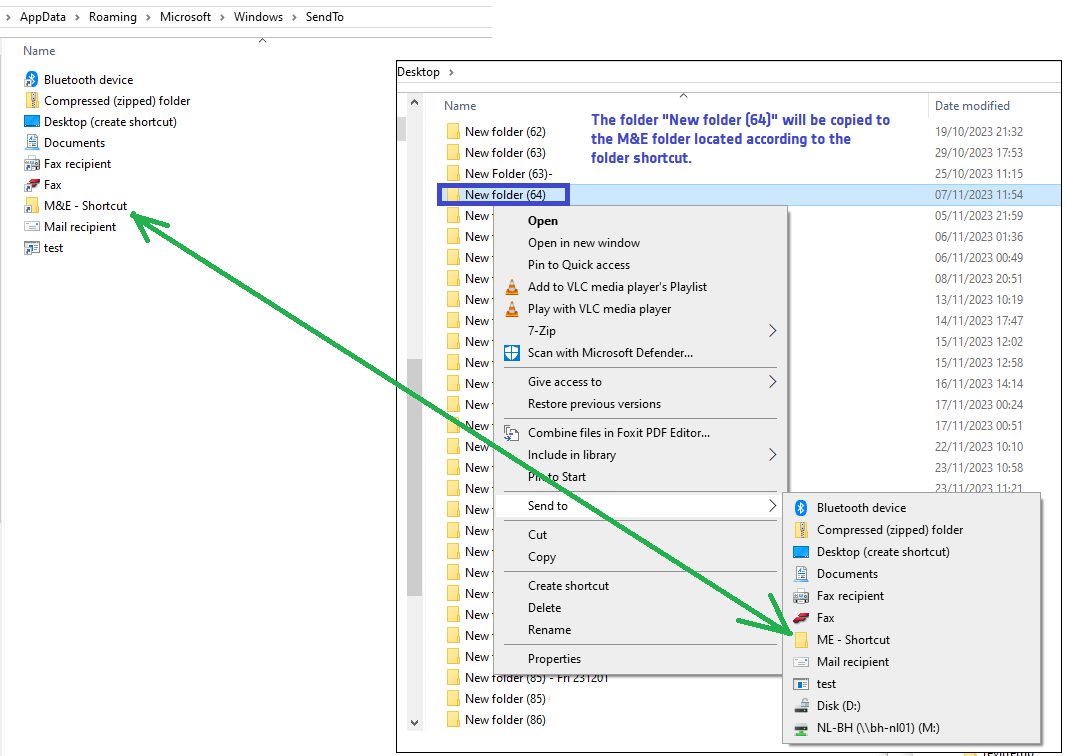
    Image

    It seems to me that there must be some command to enter in the "shortcut link Properties" itself to make it read the access path from the clipboard?

    0 comments No comments
  3. Ramesh Srinivasan 173.9K Reputation points Volunteer Moderator
    2024-05-20T03:42:26+00:00

    Hi Mark,

    This can be done using a PowerShell script. PowerShell has a very useful get-clipboard function, which reads the clipboard data. The data can be passed to a variable, and the file(s) can be copied to that destination. The PowerShell script (.ps1) can be invoked using a shortcut in the Send To menu.

    If you don't get a solution here, you may post this in a PowerShell forum.

    (or)

    AddCopy To and Move To options to the context menu using a registry edit. In the Copy To/Move To dialogs, you can pastse the destination folder path manually and copy/move the files to the destination.

    0 comments No comments
  4. Anonymous
    2024-05-22T17:09:54+00:00

    Thanks Ramesh, the first one with PowerShell sounds promising, I think that's the solution I'm looking for. Thanks again for the hint.

    The second one also sounds interesting, however I don't have access to the registry file as it's a company laptop, but it could be useful on a private one.

    0 comments No comments
  5. Les Ferch 10,121 Reputation points Volunteer Moderator
    2024-05-23T14:48:00+00:00

    The Copy To and Move To context menu items can be added to your user profile without the need for Administrator access. That is, add the keys to HKCU instead of HKCR or HKLM. Here are the registry entries that you can add as a Standard user:

    Windows Registry Editor Version 5.00 
    
    ; Copy To folder 
    
    [HKEY_CURRENT_USER\SOFTWARE\Classes\AllFileSystemObjects\shellex\ContextMenuHandlers\{C2FBB630-2971-11D1-A18C-00C04FD75D13}] 
    
    ; Move To folder 
    
    [HKEY_CURRENT_USER\SOFTWARE\Classes\AllFileSystemObjects\shellex\ContextMenuHandlers\{C2FBB631-2971-11D1-A18C-00C04FD75D13}]
    

    The resulting Copy To and Move To context menu items remember your last selection, so it's a good substitute for your clipboard method.

    Save the above code as something like CopyMove.reg and then just double-click the file to apply it to the registry.

    P.S. It's possible there are policies in place on your work computer that prevent you from double-clicking a reg file. If so, let me know and I'll provide another method.

    0 comments No comments


