Hello zain khan juglani
Welcome to the Microsoft Community.
It sounds like your computer developed a copper problem after a series of disk-related operations, and you've been using the boot disk to fix it.
Here are some steps to follow after boot disk repair and repair.
Step-by-step steps to make a boot disk in MCT
- Prepare a flash driver with at least 8GB (Pay attention to backup data, because creating a boot disk will erase all data of the flash driver). Then operate it on another Windows computer.
- Visit Download Windows 10 (microsoft.com) and click "Download Now" to download MCT (Media Creation Tool).
- Run the MCT, select "Create installation media (USB flash drive, DVD or ISO file) for another PC”, and then choose Language, Version, Architecture (if you are not sure about these, choose "Use the recommended options for this PC"), then select "USB flash drive" in the "Select Media to Use" interface, then make a boot disk.
- Boot from the USB flash drive after completion, and execute the installation program.
Boot from the device (USB boot), then you need to select "Repair your computer" in the installation interface, then "Troubleshoot" > "Advanced Options", shown as below.
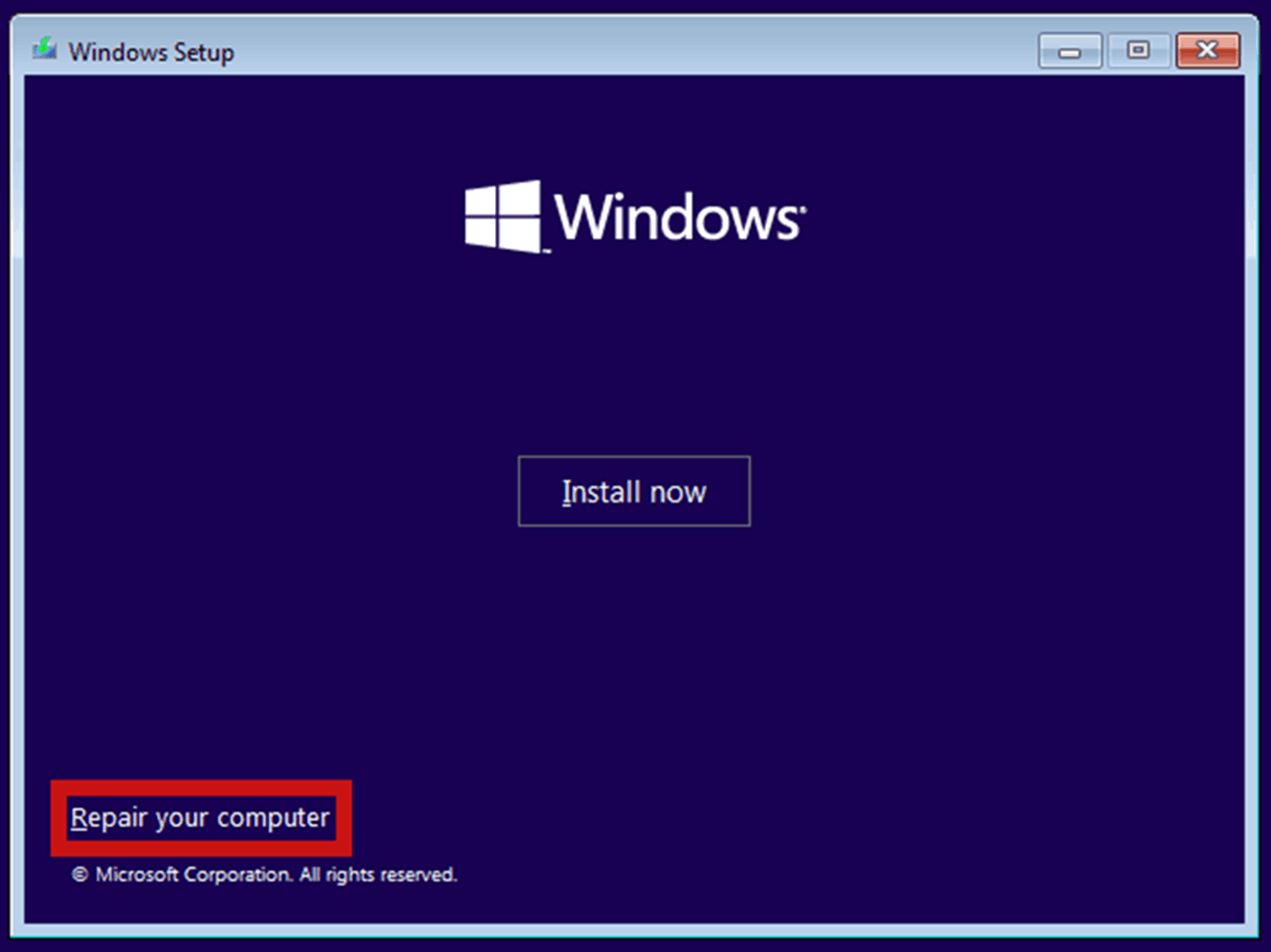
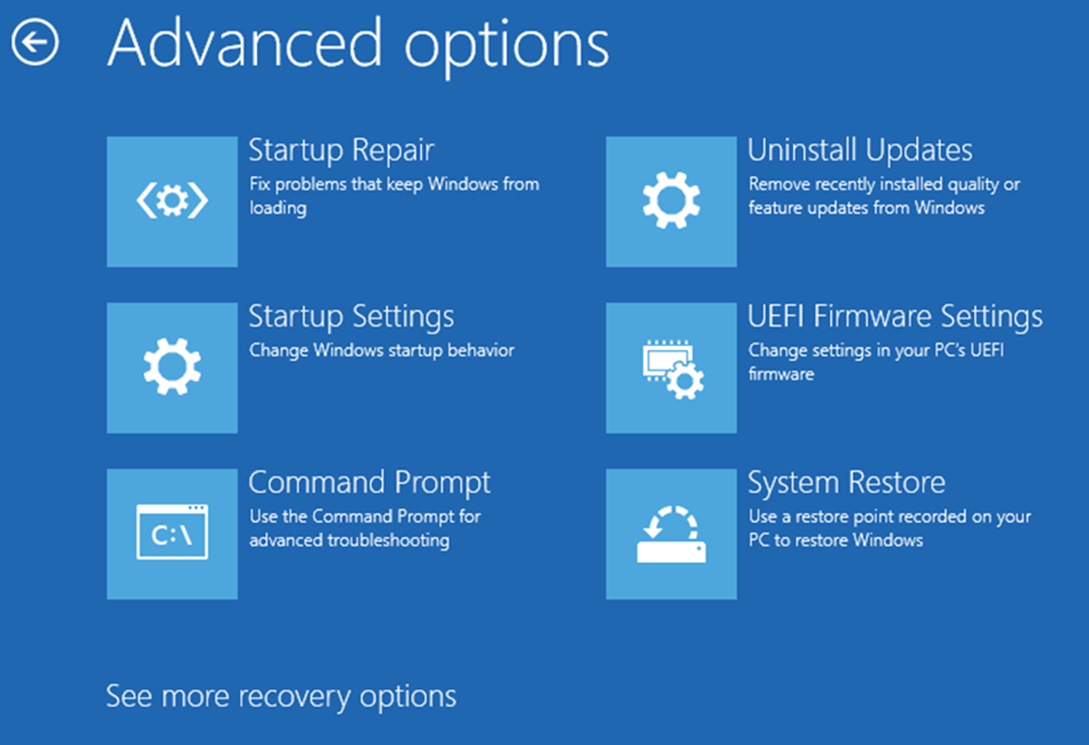
- You could choose "Startup Repair" to try the system automatic repair;
- Select "Command Prompt", then log in with your account, and run the commands below. sfc /scannow bootrec /fixmbr bootrec /fixboot bootrec /scanos bootrec /rebuildbcd
- If you installed the system update before the system is abnormal, you can use "Uninstall Updates" to uninstall recent updates (which include Quality updates and Feature updates, try both).
- "Startup Settings" > "Restart", after the restart, you'll see a list of options. Select 4 or press F4 to start your PC in Safe Mode. Or if you'll need to use the internet, select 5 or press F5 for Safe Mode with Networking. Then try to log in normally.
If you can successfully enter safe mode, run the commands in step 2 to repair possibly corrupted system files.
- If you have created a system restore point before, you can restore it to that state using the "System Restore", but the data since the establishment of the restore point will be lost, please operate with caution.
If there is anything not clear or I can't understand your problem, please do not hesitate to let me know.
Best Regards
Patch - MSFT | Microsoft Community Support Specialist
' cx='32' cy='32' r='32' /%3E%3Ctext x='50%25' y='55%25' dominant-baseline='middle' text-anchor='middle' fill='%23FFF' %3EA%3C/text%3E%3C/svg%3E)
