Share via

windows error

Anonymous
2024-02-01T10:52:42+00:00

Hi,

i tried to reset the lenovo laptop, but after reset as something happening device turn black screen and trying to repair and do the process. After few minutes the it gave me blue screen "Automatic repair, automatic repair couldn't repair your PC"

i tried to search something with this log file, but text may different or same as other code, but anyway i tried everything, still no work. Did I do something wrong or what?!?
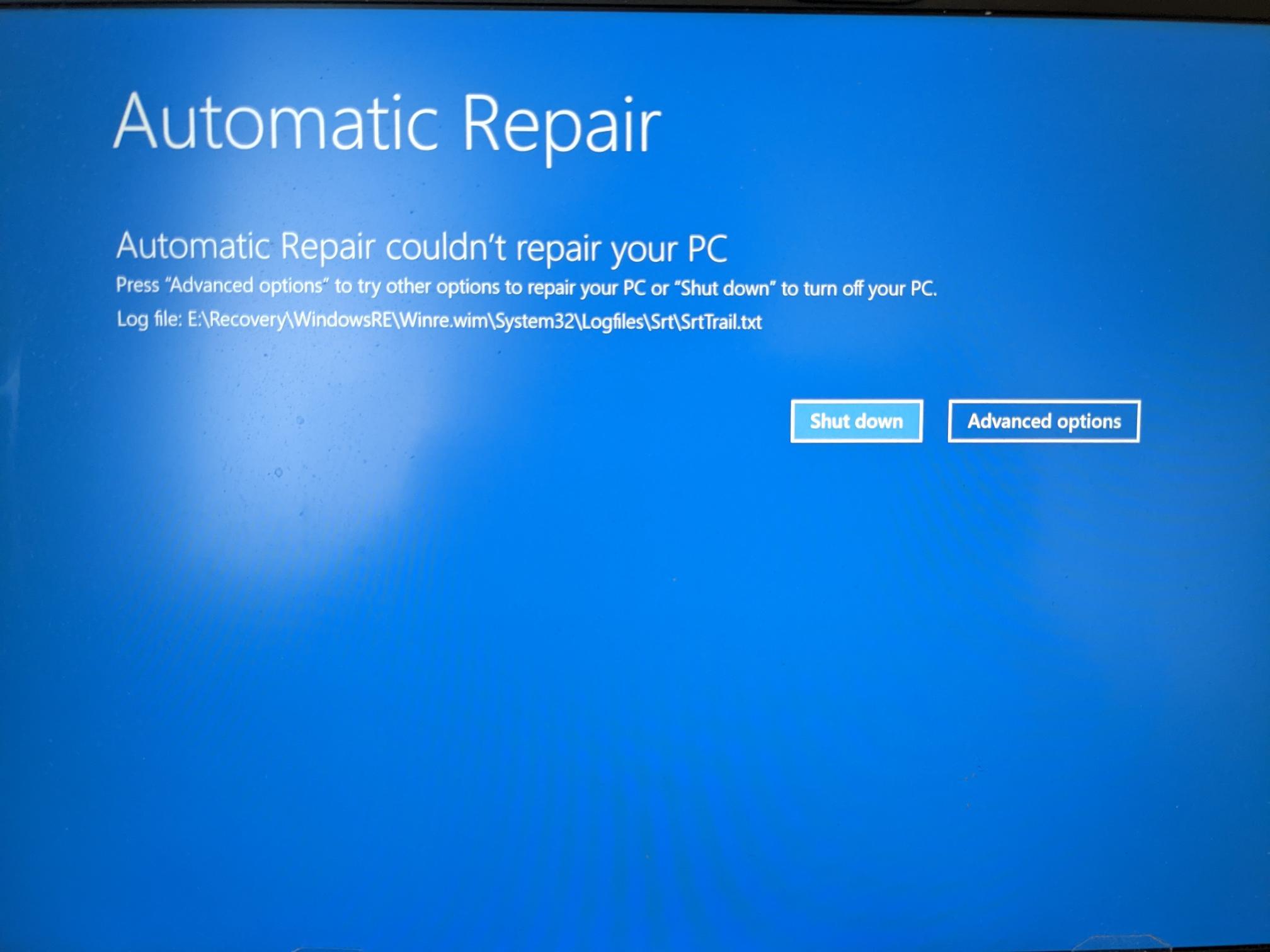
I already did --> Advanced options and selected command prompt and gave these commands,

bootrec.exe /rebuildbcd

bootrec.exe /fixmbr

bootrec.exe /fixboot

I already opened F12 trying install new Windows 10 or 11 ISO file, but the it did not like it..

also i already tried these options and steps;

Troubleshoot > reset this pc > remove everything > local reinstall > "There was a problem resetting your pc"

troubleshoot > advanced options > uninstall updates > startup repairs > "Automatic repair, automatic repair couldn't repair your PC"

preparing automatic repair - no result

Still no results, is there another way options or method how to reset it? Thank you!

Windows for home | Windows 10 | Performance and system failures

Locked Question. This question was migrated from the Microsoft Support Community. You can vote on whether it's helpful, but you can't add comments or replies or follow the question.

0 comments No comments

17 answers

Sort by: Most helpful
  1. DaveM121 891.1K Reputation points Independent Advisor
    2024-02-01T12:14:35+00:00

    Okay, if you created an ISO with the Media Creation Tool then put that on the USB, that is not a bootable USB, if you selected the option on that tool to automatically create the USB, then that is the correct procedure, if these are the files that are now on the USB.

    .

    Was this answer helpful?

    1 person found this answer helpful.
    0 comments No comments
  2. Anonymous
    2024-02-01T12:06:00+00:00

    I am trying to check your USB, is it just the ISO file on the UBS, did you drag an ISO onto the USB,

    i said, I downloaded the mediacreationtool from the Microsoft websites on this page; https://www.microsoft.com/fi-fi/software-download/windows10

    After download i exported it to Windows ISO file, and transfer it to USB stick inside.

    Was this answer helpful?

    1 person found this answer helpful.
    0 comments No comments
  3. DaveM121 891.1K Reputation points Independent Advisor
    2024-02-01T11:41:26+00:00

    Did you temporarily disable Secure Boot in your BIOS and set the USB as the primary boot device?

    What method did you use to create that USB?

    Was this answer helpful?

    0 comments No comments
  4. Anonymous
    2024-02-01T11:35:40+00:00

    HI, I am Dave, I will help you with this.

    1
    Try starting a new Windows reset using this method.

    Start your PC, just as Windows attempts to load (spinning dots), press and hold Power Button for 5 - 10 seconds to perform a Hard Shut Down

    Do this twice

    On the third start Windows will boot into the Recovery Environment and from there you can access System Repair, Safe Mode, Command Prompt... etc.

    Go to Troubleshoot - Advanced Options - Reset this PC
    Choose to keep your files and apps, just your files or to keep nothing
    Then start the Reset

    2
    If that method also fails, you will need to re-install Windows from a bootable USB.

    What method did you use to create the bootable USB you are trying to use, was that created with the official Media Creation Tool?

    What problem do you experience when you try to boot from the USB and hoe far into the installation routine does it get??

    already did all those methods, still no help.

    even if method 2, re-install windows from a bootable usb.

    at boot menu, usb hdd when click "Enter" still no help at all.. just replay flash and back to boot menu

    Was this answer helpful?

    0 comments No comments
  5. DaveM121 891.1K Reputation points Independent Advisor
    2024-02-01T11:28:42+00:00

    HI, I am Dave, I will help you with this.

    1

    Try starting a new Windows reset using this method.

    Start your PC, just as Windows attempts to load (spinning dots), press and hold Power Button for 5 - 10 seconds to perform a Hard Shut Down

    Do this twice

    On the third start Windows will boot into the Recovery Environment and from there you can access System Repair, Safe Mode, Command Prompt... etc.

    Go to Troubleshoot - Advanced Options - Reset this PC

    Choose to keep your files and apps, just your files or to keep nothing

    Then start the Reset

    2

    If that method also fails, you will need to re-install Windows from a bootable USB.

    What method did you use to create the bootable USB you are trying to use, was that created with the official Media Creation Tool?

    What problem do you experience when you try to boot from the USB and hoe far into the installation routine does it get??

    Was this answer helpful?

    0 comments No comments
