Share via

Stop Getting Preview Builds

Anonymous
2023-03-20T22:04:20+00:00

I have HP Envy x360p with virtually two drives. Drive C and E. Drive C is SSD and houses the windows installation and E is just extra flavor I added myself because its detachable. I want to exit the windows insider program but I get this warning. I just want to be sure the fresh installation will only wipe my data on C and not E.

Windows for home | Windows 11 | Install and upgrade

Locked Question. This question was migrated from the Microsoft Support Community. You can vote on whether it's helpful, but you can't add comments or replies or follow the question.

0 comments No comments

8 answers

Sort by: Most helpful
  1. Pauli O 15,465 Reputation points Volunteer Moderator
    2023-03-22T21:20:43+00:00

    If you go to Insider web site and select 'Leave program' it won't change installed Windwos to stable version.

    Your screenshot show that you are runningn Dev channel preview. If this is your first preview build which is installed over stable version and it's installed less than 10 days ago you should be able to roll back to old stable version. See Settings / System / Recovery: Is there Go back option available?

    Image

    If it's not available then only option to go back to stable Windows 11 is to do clean install.

    Clean install shouldn't wipe E-drive, but anythng can happen. It's alwasy good to have up to date backup from files you want to keep. You can also disconnet that E-drive and reconnect it back when clean install is completed.

    Was this answer helpful?

    0 comments No comments
  2. Anonymous
    2023-03-22T21:06:24+00:00

    Hi Pauli,

    Thanks for your reply. This is hard for me to swallow as I am on build 22H2. Are you confirming even if I leave the insider program I won't get a stable build?

    Thank you.

    Was this answer helpful?

    0 comments No comments
  3. Anonymous
    2023-03-22T21:03:25+00:00

    Hi Mosken,

    Thanks for your reply. This part "but you need to judge your system partition according to the size of the disk during the installation stage, so please be cautious. " is not clear to me. Also, can you comment on the reply from Pauli?
    According to his comments I won't get a stable version. I currently have an issue with the latest build because I can't reduce my screen brightness which is why I want to exit the Insider program.
    https://learn-attachment.microsoft.com/api/attachments/d462b155-20a1-4a39-90cc-391d80a8d8de?platform=QnA"https://learn-attachment.microsoft.com/api/attachments/d462b155-20a1-4a39-90cc-391d80a8d8de?platform=QnA" rel="ugc nofollow">

    Was this answer helpful?

    0 comments No comments
  4. Pauli O 15,465 Reputation points Volunteer Moderator
    2023-03-21T06:17:55+00:00

    Going to Insider program web site by select "Leaving the Insider Program" let you sing out of program, but it doesn't help you get back to stable Windows 11 22H2.

    Going back to stable Windows version depend on which build you have installed. If build is 24xxx or 25xxx then only option is todo clean install. Whit 226xx builds there is few option.

    1. Select Unenroll and wait until next feature update is released.
    2. Turn 226xx build immediately back to released version without losing any data.

    This should work for builds 22621, 22623 and 22624

    On Beta channel you may have one, two or three installed Enablement packages KB5018863, KB5015669 and KB5023595. Uninstall those and then delete WindowsSelfHost key from registry

    1. Open Windows Update / Update history / Uninstall updates:
    2. Locate installed enablement packages and uninstall those beginning newest one until build is 22621
    3. Open open regedit (push Win key and type regedit).
    4. Navigate to HKEY_LOCAL_MACHINE\SOFTWARE\Microsoft\WindowsSelfHost
    5. On left panel right click that key and delete it.
    6. Close regedit and restart (may require two restart)

    Image

    Was this answer helpful?

    0 comments No comments
  5. Anonymous
    2023-03-21T03:12:33+00:00

    Hello DevCisse,

    Good to see you in Microsoft Community.

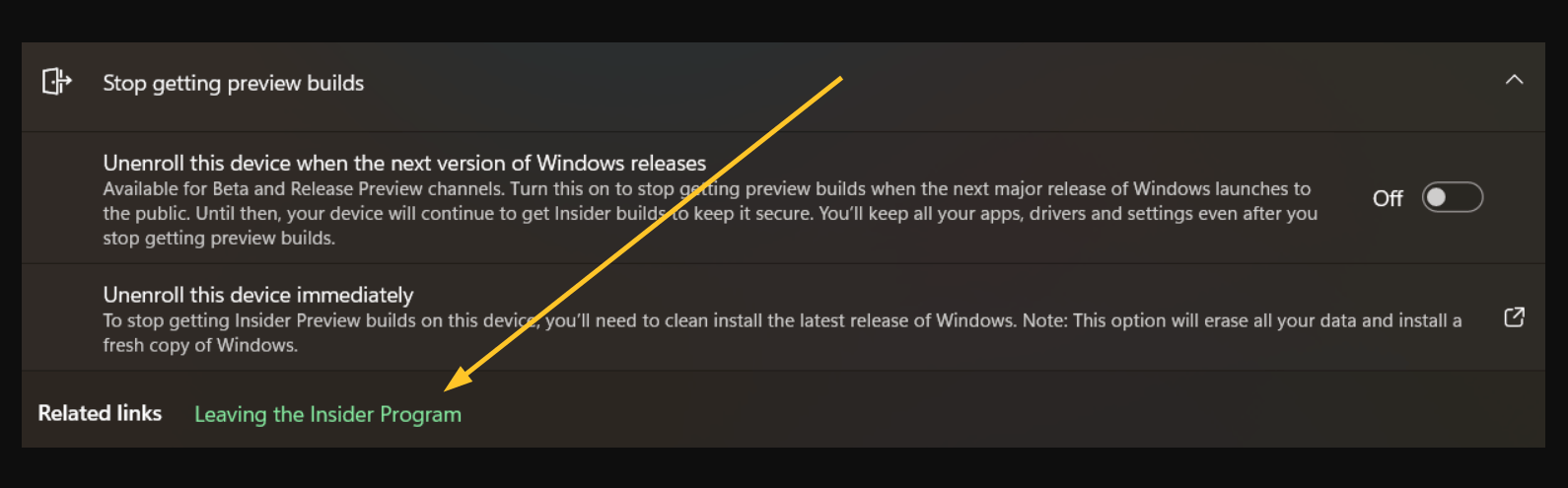
    If you want to exit the Windows Insider Program, you can click "Leave the Insider Program" below the image and follow the prompts.
    Image

    Regarding the fresh installation, in theory this will not affect the data of your non-system disk (E drive), but you need to judge your system partition according to the size of the disk during the installation stage, so please be cautious. If you have very important data, you may make additional backups to prevent accidental loss of your data*.*

    Step-by-step to make a boot disk in MCT

    1. Prepare a flash driver with at least 8GB (Pay attention to backup data, because creating a boot disk will erase all data of the flash driver).
    2. Visit Download Windows 11 (microsoft.com) and click "Download Now" to download MCT (Media Creation Tool).
    3. Run the MCT, select "Create installation media (USB flash drive, DVD or ISO file) for another PC”, and then choose Language, Version, Architecture (if you are not sure about these, choose "Use the recommended options for this PC"), then select "USB flash drive" in the "Select Media to Use" interface, then make a boot disk.
    4. Then boot from the USB flash drive and execute the installation program.

    And you can visit How to clean install Windows 11 - Microsoft Community & How to perform a clean installation or reinstall of Windows 11 - Microsoft Community****for specific installation steps.

    If anything is unclear, please do not hesitate to let me know.

    Best Regards,

    Mosken_L - MSFT | Microsoft Community Support Specialist

    Was this answer helpful?

    0 comments No comments
