Aloha, came upon the thread titled above which was closed so I decided to leave the info on what worked for my laptop here. I am on a Dell XPS laptop with Windows 10 Pro. I think for me the problem was I installed Malwarebytes trial on my laptop. I had used
it before and thought I would try it out again. Well apparently it is a lot more aggressive as after I decided I rather get an antivirus suite and uninstalled it I got the blank security window screen. I don't know if changing some of the settings in Windows
or Malwarebytes to essentially keep it out of the Windows Security Center oe turning it off before uninstalling would have helped but too late to test that theory now. I tried scanning a file with Windows Defender and got this screen:
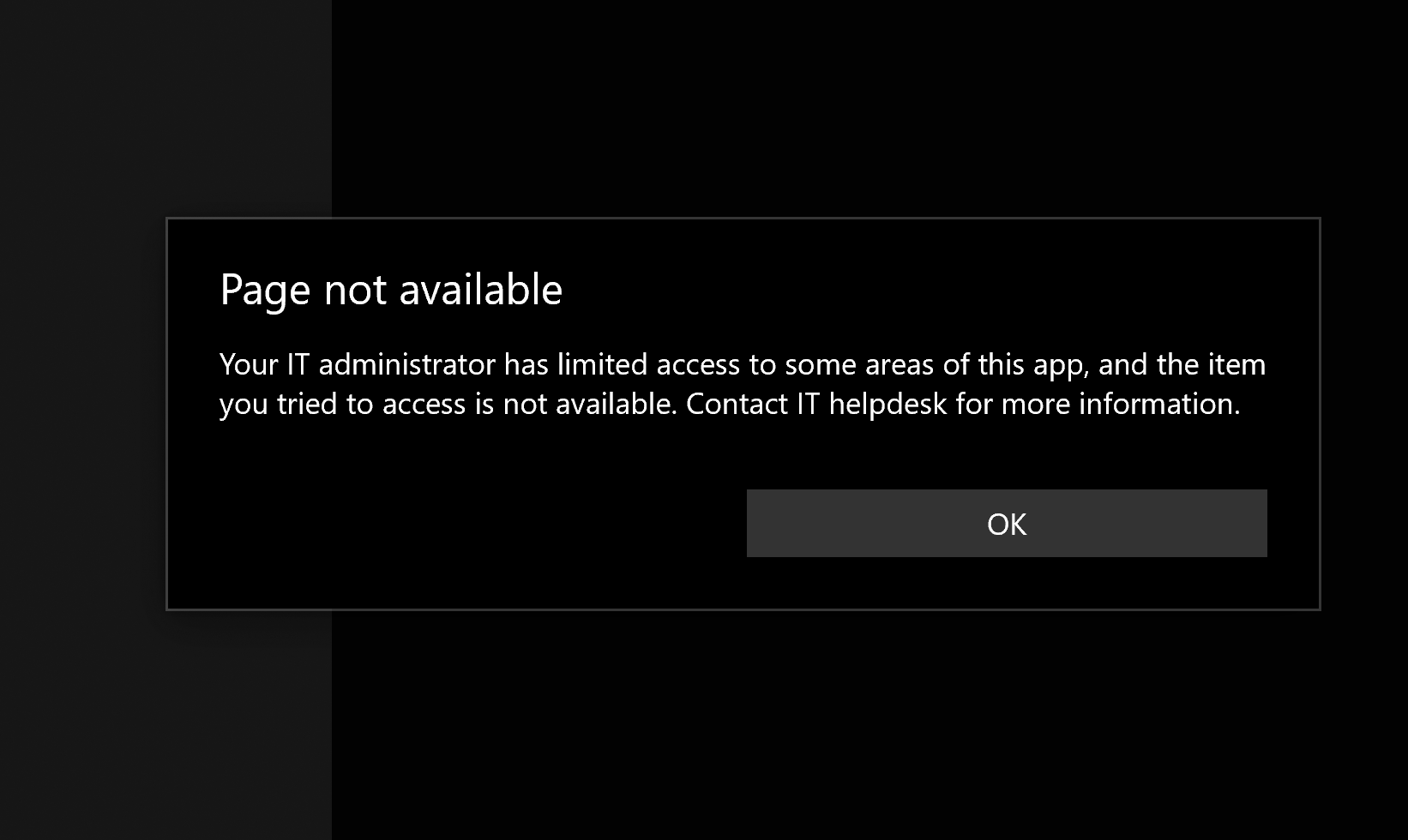
When I went to the Windows Security and tried to open I got the blank screen as shown in the referred to thread.
I opened Services as the Admin and could not get Windows Defender to start. I tried various fixes and using software to try to clean out any remainder of Malwarebytes didn't show any files. I had used Revo Uninstaller so my system was clean. After trying
various fixes I finally I came another page and here is the URL:
https://answers.microsoft.com/en-us/protect/forum/all/windows-defender-deacticated-and-cant-activate/c64676e9-8982-4405-bc47-13ed4799a353
Thank you to GlenProuty who posted the fix!
The part from this page that worked for my laptop was a Registry Edit as Admin. I followed the provided path to:
Hkey_Local_Machine\System\CurrentControlSet\Services.
Expand Services, scroll down and select SecurityHealthService.
In its right pane, find the "Start" sub key. IF its Dword is not 3, modify it to
3 by right
clicking "Start" and choose "Modify". Type 3 then click OK. Exit the Registry and Restart
your PC. Windows Security Service should now be running.
End Edit:
Malwarebytes must have affected the registry as everything was working. I believe my Dword was set to 4 so I changed it to 3, closed down the menus and went to FILE, EXIT, Restarted my laptop and no more blank screen!
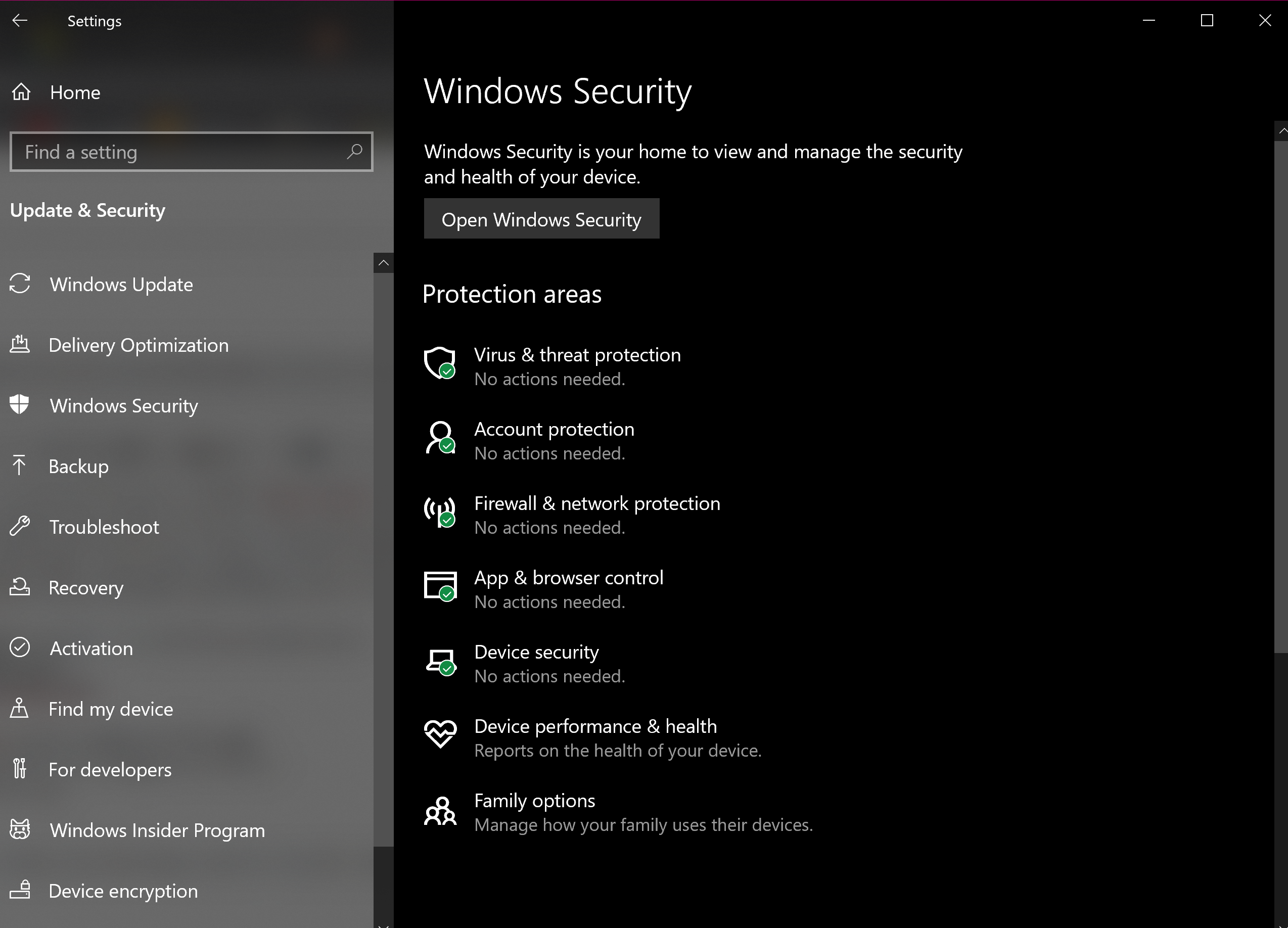
Just for everyone's info, part of what was confusing is I had the impression from a thread I read (sorry can't remember which one) that when I opened Services Windows Defender should be running and set to Automatic. In fact now that it appears to be fixed
it's on Manual and I can't change it to Automatic. I wasted so much time trying to figure out how to change it to Automatic. Not that I'm any expert, but I think this is because first it is tied to the Windows Security Center. It is set to Manual and if you
open it the options will be grayed out.
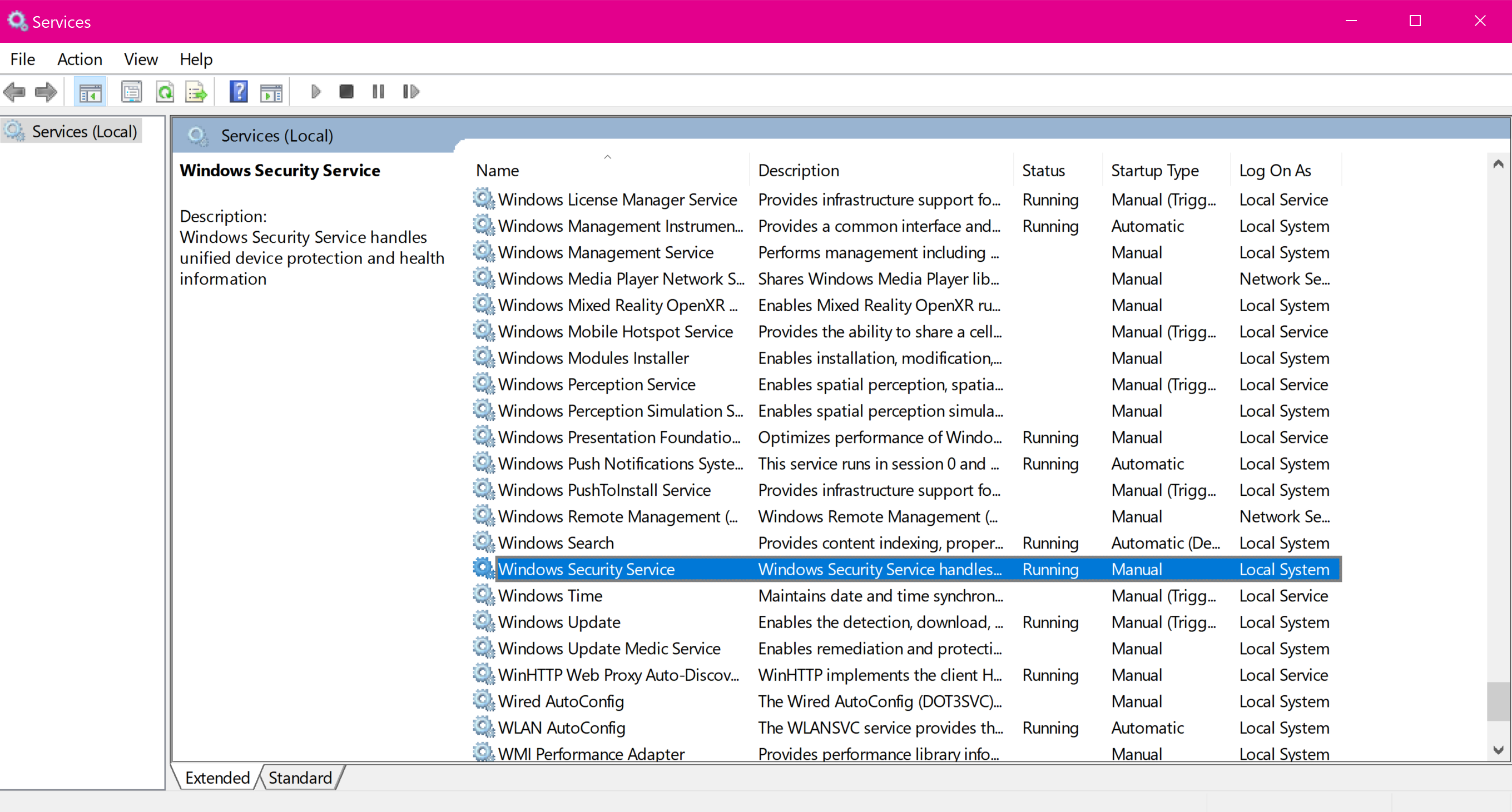
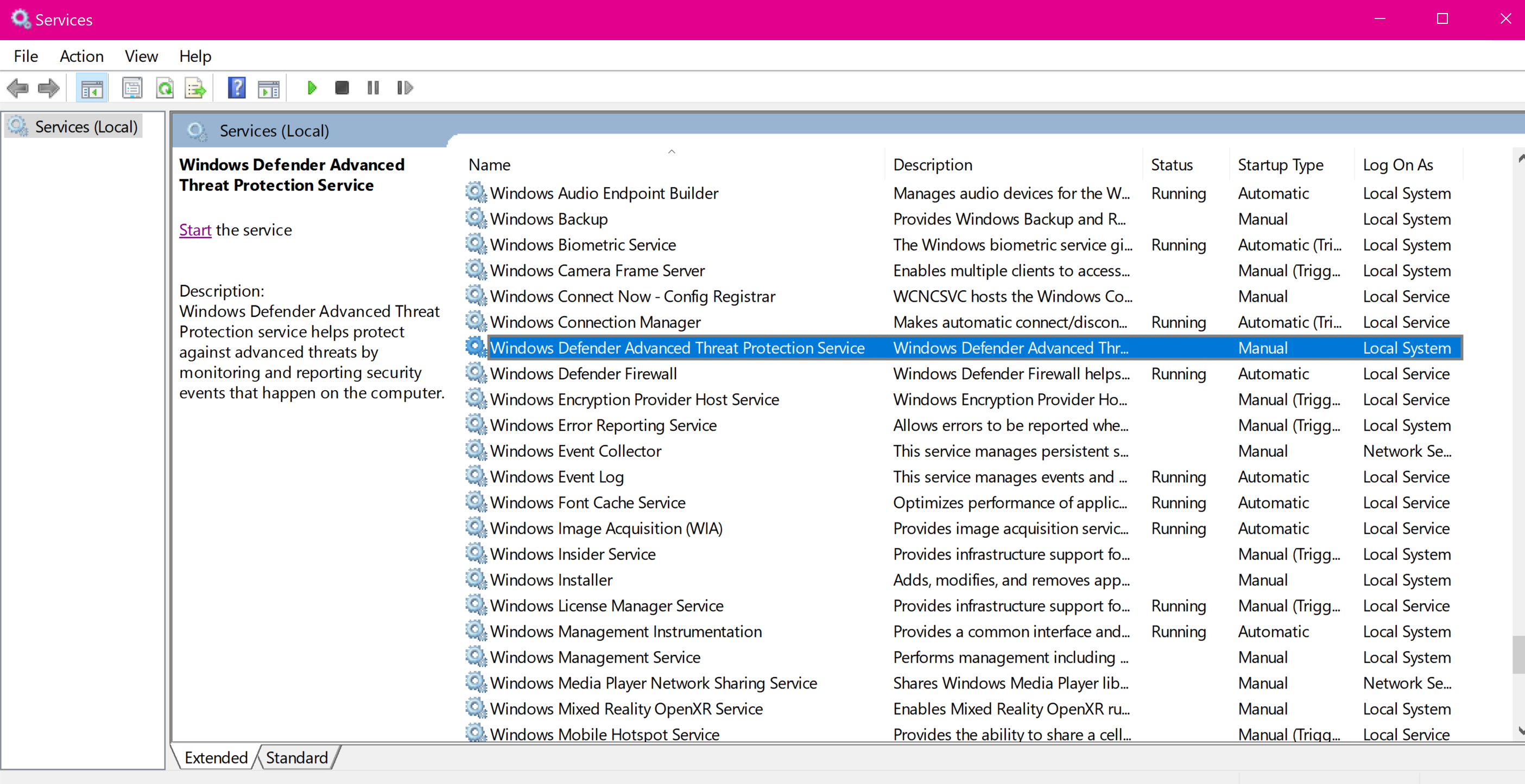
I am not sure if this is to prevent us from fiddling with it. I have not tried to change any of the security settings now that things appear to be fixed so not sure how or if it would affect the grayed out menu. I test scanned a document and now it works
fine, no more weird error messages about unavailable pages so I'm crossing my fingers and leaving well enough alone. I'm also not installing any antivirus or malware software on Windows after this little adventure. I just don't think the so called extra protection
is worth the hassle. I never had problems like this before so it just seems the software has gotten a lot more aggressive in the way it integrates with Windows and associated apps. Hope this helps others out there with the Security Blank window problem. If
not maybe some of the other fixes mentioned on the thread where I found the fix will be helpful. Thank you to the Microsoft community here at places like YouTube for helping all of us lost confused Windows users. You all have helped me out so many times over
the years and I so grateful for the assistance.
' cx='32' cy='32' r='32' /%3E%3Ctext x='50%25' y='55%25' dominant-baseline='middle' text-anchor='middle' fill='%23FFF' %3EA%3C/text%3E%3C/svg%3E)
