Microsoft Edge | Microsoft Edge development
Developing and testing features or extensions for Microsoft Edge

This browser is no longer supported.
Upgrade to Microsoft Edge to take advantage of the latest features, security updates, and technical support.
' cx='32' cy='32' r='32' /%3E%3Ctext x='50%25' y='55%25' dominant-baseline='middle' text-anchor='middle' fill='%23FFF' %3ESS%3C/text%3E%3C/svg%3E)
As per below document, Microsoft Edge’s IE Mode will continue to work even when standalone Internet Explorer is disabled:
"We enabled administrators to disable standalone Internet Explorer using a Group Policy while continuing to use Microsoft Edge’s IE Mode."
Does the IE mode setting for Edge mentioned in below document still work if Internet Explorer is uninstalled from user's system or it is not installed at all at the first place?
' cx='32' cy='32' r='32' /%3E%3Ctext x='50%25' y='55%25' dominant-baseline='middle' text-anchor='middle' fill='%23FFF' %3EA%3C/text%3E%3C/svg%3E)
Hi @Sekh, Sahammad ,
First, for the current Microsoft Edge, it uses the integrated Chromium engine for modern sites, and uses the Trident MSHTML engine from Internet Explorer 11 for legacy sites. So IE mode will always work if you install the Windows and Microsoft Edge browser correctly. You could refer to this document for more details.
Second, about the IE mode setting you mentioned. As described in the last paragraph of the document you provide, it depends on this InternetExplorerIntegrationTestingAllowed Edge group policy setting. Therefore, it has nothing to do with whether to install IE browser or not.
If the response is helpful, please click "Accept Answer" and upvote it.
Note: Please follow the steps in our documentation to enable e-mail notifications if you want to receive the related email notification for this thread.
Regards,
Yu Zhou
May I know if you have got any chance to check my answer? I am glad to help if you have any other questions.
Hi @Anonymous
Thank you for the response!
We are in a process of testing out the setup in a fresh VM. Can I accept the answer once we complete the testing?
Thanks,
Sahammad
Hi @Anonymous
I tried to use Edge Settings->More tools->Open sites in Internet Explorer mode option to open website in IE mode but getting below message related to IE installation:
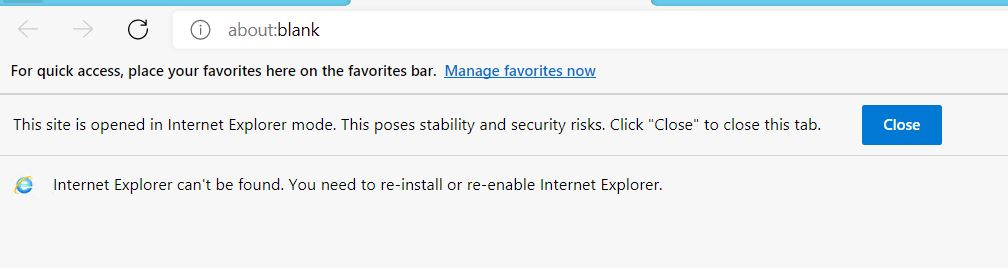
We used this option since we couldn't see "Allow sites to be reloaded in Internet Explorer" option under edge://settings/defaultbrowser even after enabling Internet Explorer mode testing as shown in the image below:
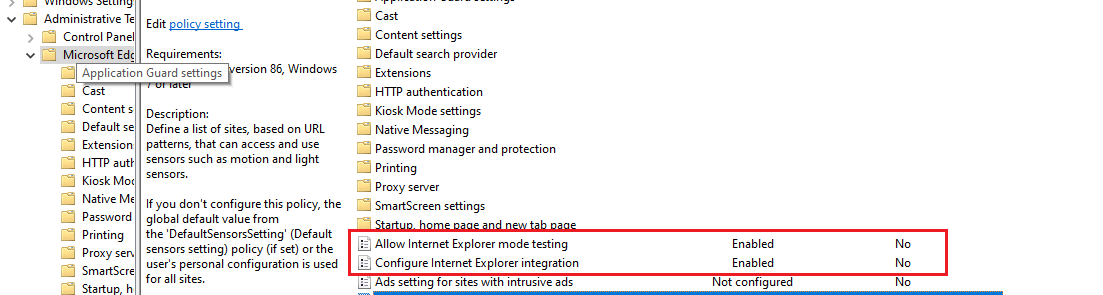
Can you please let me know if I am missing anything here.
Thanks,
Sahammad
For the first issue, have you disabled IE 11 in Windows Features? Please check the Prerequisites in the document detailly, the third point is:
Internet Explorer 11 enabled in Windows Features.
You need to meet all the prerequisites so that IE mode can work correctly.
For the second issue, it has been mentioned in the document you provide, and the content is as follows:
NOTE: If you are on a device managed by your organization you will NOT see the option to Allow sites to be reloaded in Internet Explorer under edge://settings/defaultbrowser to allow Internet Explorer mode through the More tools menu. On a managed device, will see the option Open sites in Internet Explorer mode under More tools ONLY if your organization has configured the policy to "Allow Internet Explorer mode testing".
If the response is helpful, please click "Accept Answer" and upvote it.
Note: Please follow the steps in our documentation to enable e-mail notifications if you want to receive the related email notification for this thread.
Regards,
Yu Zhou
Hi @Anonymous
I did my testing in a fresh VM having only Edge installed and disabled IE. I found that the IE needs to enabled to continue using IE mode in Edge(as mentioned in Prerequisites section of the IE Mode document)
However, while reviewing Internet Explorer 11 desktop app retirement FAQ document, I found below two points:
Questions:
Hi @Anonymous
Thank you for your responses so far. I have one more question regarding .NET WebBrowser control. Will it continue to work after IE is disabled?
Will the Windows Forms application using .NET WebBrowser control detect IE mode in Edge and continue to work or does it require any additional setup changes?
Thanks,
Sahammad
"IE is disabled", if you mean the IE desktop application retirement, yes, WebBrowser control and applications using it will continue to work.
' cx='32' cy='32' r='32' /%3E%3Ctext x='50%25' y='55%25' dominant-baseline='middle' text-anchor='middle' fill='%23FFF' %3EOM%3C/text%3E%3C/svg%3E)
Hi
I have the same problem
With IE11 enable the sites open fine in Mode IE Edge but if i unistall IE11 (with dism /online /Remove-Capability /CapabilityName:Browser.InternetExplorer~~~~0.0.11.0) the mode IE11 doesn't works...
I configure:
<site-list version="205">
<site url="https:MYSITE">
<compat-mode>IE11</compat-mode>
<open-in>IE11</open-in>
</site>
</site-list>
And I obtain:

So....it's possible to use mode IE in Edge if IE11 is disabled??

It doesn't work; if you still require the traditional URLs, keep IE 11 and Edge installed side by side.