How To Automatically Turn On Computer and/or Wake Computer Up

Drew Magee 6 Reputation points
2021-06-04T18:24:52.93+00:00

Software is Windows 10

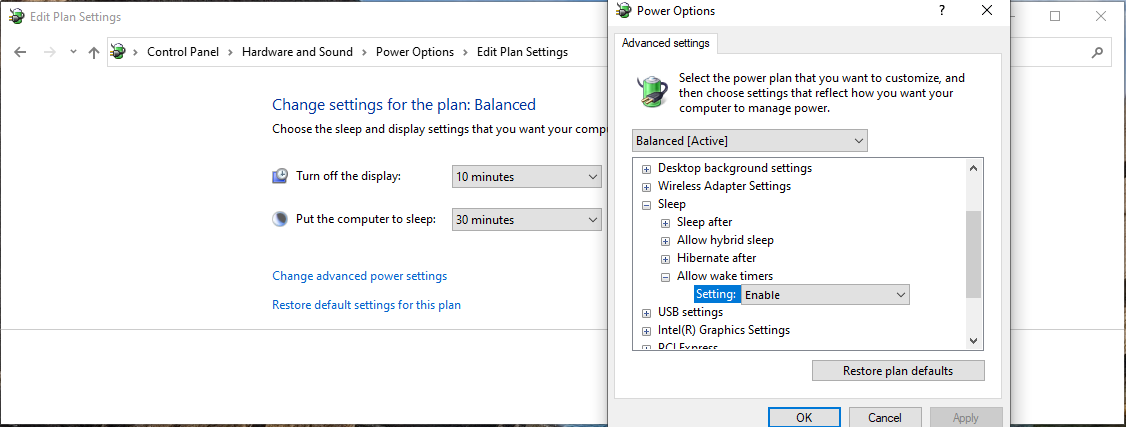
I am trying to determine how to automatically set the computer to either (1) Turn on Automatically at a specific time, or (2) Wake up from sleep automatically at a specific time, so that certain tasks in the Windows Task Scheduler will run. Currently I am not able to find anything relating to RTC Timer in the BIOS for turning it on automatically. I am also not able to find the "allow wake timers" setting in the Control Panel Power Options.

In the windows tasks, I have the box checked that says "wake to run this task", but the computer does not wake and run the task.

Any suggestions on how to overcome this issue?

I was sent here from this thread, which wasn't able to solve the issue:
https://answers.microsoft.com/en-us/windows/forum/windows_10-power/no-allow-wake-timers-option-in-advanced-power/74c647a4-34bc-4b71-9362-d6cefd95c799

Windows for home | Windows 11 | Sleep and Power on, off
{count} vote

3 answers

Sort by: Most helpful
  1. Miles 1,286 Reputation points
    2021-06-07T02:38:03.94+00:00

    Hi

    To make your PC from sleep automatically , we should create a scheduled task using task scheduler and please don't forget to ensure wake timers are enabled.
    Here is the process about automatically waking your PC which we could refer to.

    https://www.howtogeek.com/119028/how-to-make-your-pc-wake-from-sleep-automatically/

    Please note: Information posted in the given link is hosted by a third party. Microsoft does not guarantee the accuracy and effectiveness of information.

    The "allow wake timers" setting is in this place.

    --please don't forget to Accept as answer if the reply is helpful--
    102807-capture.png

    Best Regards

    1 person found this answer helpful.

  2. L J 20 Reputation points
    2023-05-28T14:09:54.3766667+00:00

    Followed link and the instructions - all good. Hope my office computer will be awake when I try to connect remotely in the morning.

    Thank you

    0 comments No comments

  3. Deleted

    This answer has been deleted due to a violation of our Code of Conduct. The answer was manually reported or identified through automated detection before action was taken. Please refer to our Code of Conduct for more information.


    Comments have been turned off. Learn more

Your answer

Answers can be marked as 'Accepted' by the question author and 'Recommended' by moderators, which helps users know the answer solved the author's problem.