I didn't see the comment on the regedit changes requiring a reboot, and none of it worked, obviously. What did (without a reboot) was changing the ImagePath in Computer\HKEY_LOCAL_MACHINE\SYSTEM\CurrentControlSet\Services\GamingServices. I changed the "exe" to "old".
How to remove Microsoft.Gaming Services
I have gone to a couple posts that explain how to remove Microsoft.Gaming Services. But they don't seem to have worked.
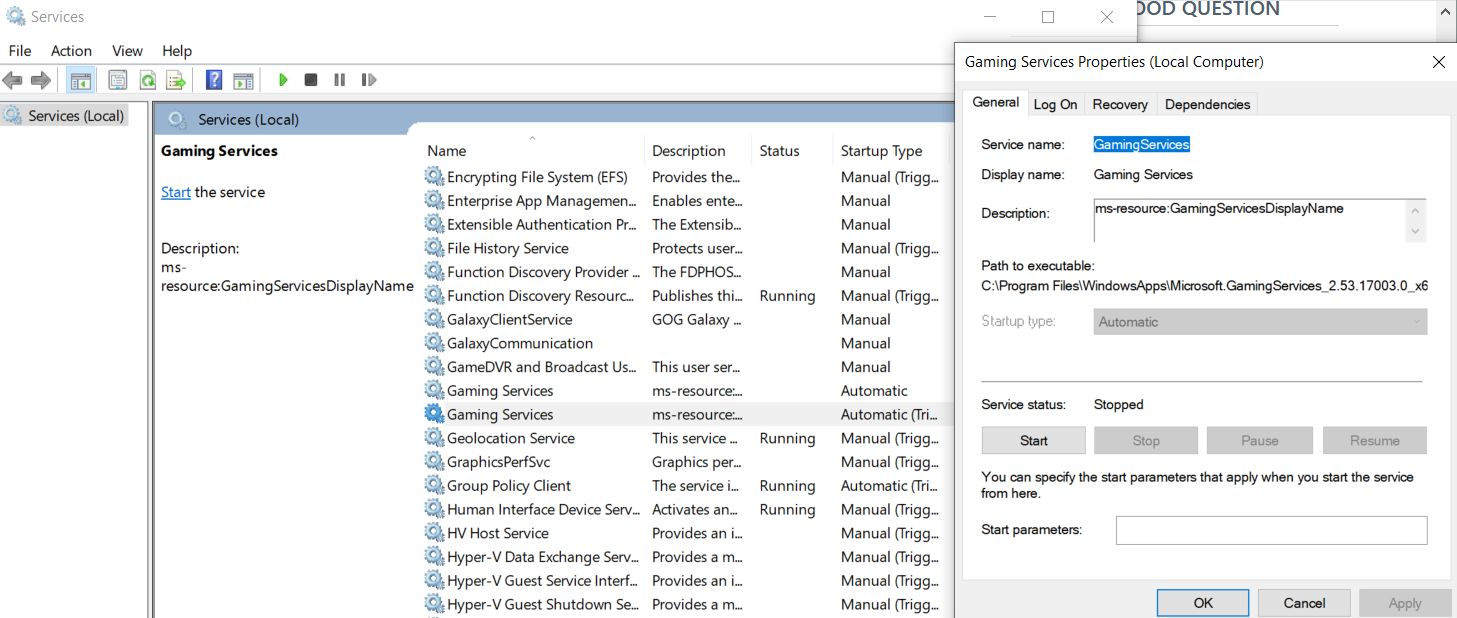
So I went into services itsself and tried to disable GamingServices, but it seems the box is grayed out:
And then I tried the remove appxpackage and that did not work either:
So I am curious as to how this should be resolved? I am using an offline account and I don't need this service. It is using resources in the background and I'd rather save the resources and my power used on my device.
A response would be appreciated.
-A.
Windows for business | Windows Server | User experience | PowerShell
5 answers
Sort by: Most helpful
-
Anonymous
2021-06-05T20:42:06.403+00:00 This looks like something that got installed from the microsoft store. Maybe something XBox related got installed. Might want to ask here about this.
https://answers.microsoft.com/en-us/windows/forum/windows_10-windows_store
https://answers.microsoft.com/en-us/xbox/forumAnother option is to set the DWord Start in registry to 4 (Disabled)
HKEY_LOCAL_MACHINE\SYSTEM\CurrentControlSet\Services--please don't forget to
upvoteandAccept as answerif the reply is helpful-- -
Anonymous
2021-06-22T02:10:11.823+00:00 Just checking if there's any progress or updates?
--please don't forget to
upvoteandAccept as answerif the reply is helpful-- -
Anonymous
2021-06-05T22:41:28.5+00:00 Yes, Start = 4 should disable it. (requires a reboot)
--please don't forget to
upvoteandAccept as answerif the reply is helpful-- -
A_Microsoft User 1 Reputation point
2021-06-05T21:51:53.49+00:00 Thank you for the reply DSPatrick. Although initially it did not work with the changes in the registry, I managed to find a combination that seemed to have worked.
Set these Parameters after ending the GamingServices task in task manager:
Computer\HKEY_LOCAL_MACHINE\SYSTEM\CurrentControlSet\Services\GamingServices
TriggerInfo0 and TriggerInfo1
Set value of Action--REG_DWORD to 4
Set value of DataType0--REG_DWORD to 4
Set Default Value to 4
Do for both triggers.GamingServices set Start--REG_DWORD to 4 (It also seemed that this works either way set to nothing or set to 4, but maybe depending on any settings you have preset in the registry, this might make a difference)
-A.