Hello Caeelol.
Welcome to the Microsoft community and I come here to help you.
Before starting the workaround, do you have another account to connect this PC? If so, log in to the second account, back up any important data, and delete the first account. (The reason you need to do this is that the original configuration file for this account has been corrupted) If not, follow these steps:
Here are the steps that can help you bypass the login verification process. Although the steps are long, they are based on my tests and you can do them step by step, but these following steps are not equal to reinstall the system, don't worry :
The following steps to create USB media and enter USB bootable interface
First, prepare a USB flash drive with at least 8GB of storage space. I suggest that this USB flash drive should be at least formatted. Go to the website to Download Windows 10and create USB bootable media<br><br>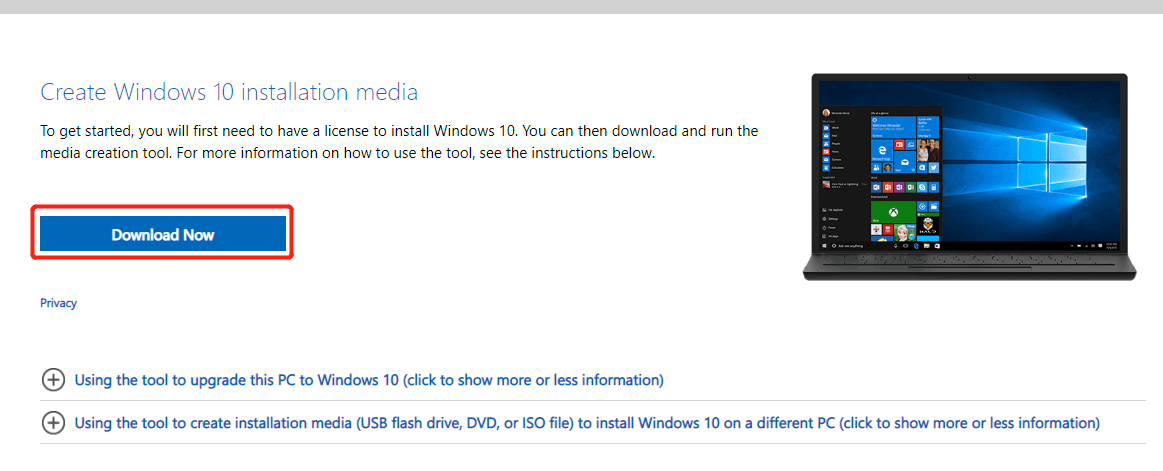 <br><br>Note: The hyperlink contains instructions on how to create USB media. Follow the steps in this article.<br><br>Boot your computer from the Windows 10 installation media (CD or USB). If you have any questions on how to boot your computer from a USB flash drive, check out this article here for reference and click here . As shown in the red box :<br><br> <br><br>Note: The hyperlink contains instructions on how to create USB media. Follow the steps in this article.<br><br>Boot your computer from the Windows 10 installation media (CD or USB). If you have any questions on how to boot your computer from a USB flash drive, check out this article here for reference and click here . As shown in the red box :<br><br>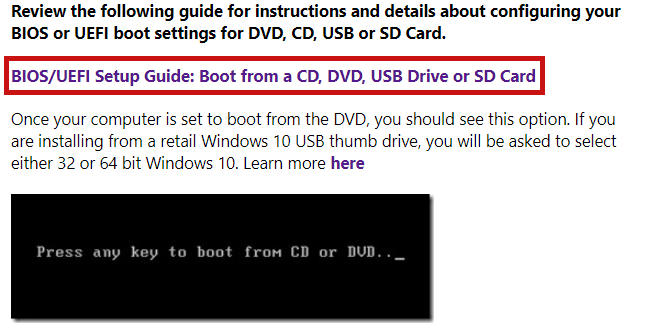 |
The following steps are to bypass login verification
Second, when you get to the initial setup screen (as shown in the following screenshot), press the keyboard shortcuts SHIFT + F10 to open a command prompt.<br><br>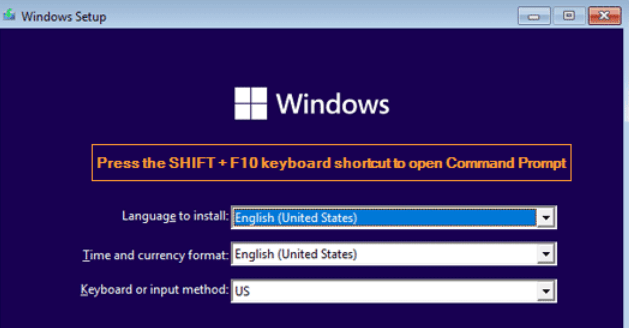 <br><br>Enter the following command to start the Diskpart program and display partitions on all disks. Press Enter after each command. As the screenshot shows:<br><br> diskpart<br><br> list volume<br><br> <br><br>Enter the following command to start the Diskpart program and display partitions on all disks. Press Enter after each command. As the screenshot shows:<br><br> diskpart<br><br> list volume<br><br>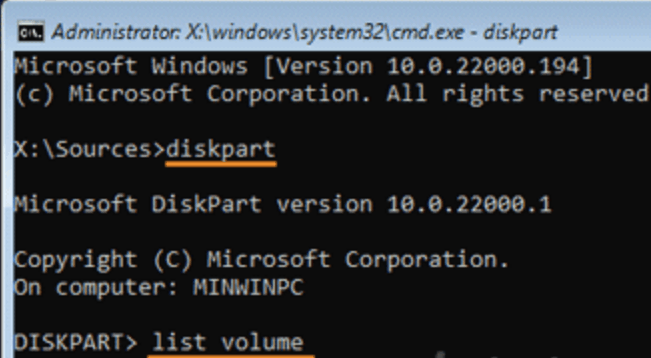 <br><br>You may need to determine the volume for your operating system. System partitions can be identified by their size and letters are not assigned by default<br><br>To make the system partition accessible, we need to run these commands to assign a drive letter. Replace 1 with the volume number of the system partition and C with an unused drive letter. (Be sure to press Enter after typing each command.)<br><br>select volume 1<br><br> assign letter=C<br><br> exit<br><br>At this point, type the following command to backup the existing Utilman tool (.exe Manager) and add Utilman . Replace exe with cmd.exe. (Be sure to press Enter after typing each command.)<br><br>**copy c:\windows\system32\utilman.exe c:**<br><br> copy /y c:\windows\system32\cmd.exe<br><br>c:\windows\system32\utilman.exe<br><br>Close all open windows and restart your computer without Windows 11 installation media.<br><br>When you log in to the Windows login screen, click the accessibility icon in the lower right corner. It will launch the command prompt<br><br>You can now use the command:<br><br>net user Administrator /active:yes<br><br>Restart your computer and log in with the Super Administrator account. now you can just backup all those data from your PC. After the data backup is complete, use the new account on the current PC.<br><br>Note : To restore the original Utilman.exe, restart it using the installation media you used earlier, then run the following command:<br><br>copy c:\utilman.exe c:\windows\system32 <br><br>You may need to determine the volume for your operating system. System partitions can be identified by their size and letters are not assigned by default<br><br>To make the system partition accessible, we need to run these commands to assign a drive letter. Replace 1 with the volume number of the system partition and C with an unused drive letter. (Be sure to press Enter after typing each command.)<br><br>select volume 1<br><br> assign letter=C<br><br> exit<br><br>At this point, type the following command to backup the existing Utilman tool (.exe Manager) and add Utilman . Replace exe with cmd.exe. (Be sure to press Enter after typing each command.)<br><br>**copy c:\windows\system32\utilman.exe c:**<br><br> copy /y c:\windows\system32\cmd.exe<br><br>c:\windows\system32\utilman.exe<br><br>Close all open windows and restart your computer without Windows 11 installation media.<br><br>When you log in to the Windows login screen, click the accessibility icon in the lower right corner. It will launch the command prompt<br><br>You can now use the command:<br><br>net user Administrator /active:yes<br><br>Restart your computer and log in with the Super Administrator account. now you can just backup all those data from your PC. After the data backup is complete, use the new account on the current PC.<br><br>Note : To restore the original Utilman.exe, restart it using the installation media you used earlier, then run the following command:<br><br>copy c:\utilman.exe c:\windows\system32 |
Feel free to post here if you need additional help.
If anything is unclear, please do not hesitate to let me know.
Best Regards,
Edward - MSFT | Microsoft Community Support Specialist
' cx='32' cy='32' r='32' /%3E%3Ctext x='50%25' y='55%25' dominant-baseline='middle' text-anchor='middle' fill='%23FFF' %3EA%3C/text%3E%3C/svg%3E)
