Azure Automation
An Azure service that is used to automate, configure, and install updates across hybrid environments.
This browser is no longer supported.
Upgrade to Microsoft Edge to take advantage of the latest features, security updates, and technical support.
' cx='32' cy='32' r='32' /%3E%3Ctext x='50%25' y='55%25' dominant-baseline='middle' text-anchor='middle' fill='%23FFF' %3ER%3C/text%3E%3C/svg%3E)
Hello everyone
I created a powershell runbook below. can someone tell me how to transfer the powershell runbook to powershell workflow runbook.
The error was happened when I copied the code to powershell workflow runbook and run it.
error: Runbook definition is invalid,Could not find type Microsoft.Azure.Commands.ResourceManager.Common.RMProfileClient
Could tell me why it cannot run in powershell workflow runbook
(it is can run in powershell runbook)
param(
[ Parameter (Mandatory= $true)]
[string] $ResourceGroupName,
[ Parameter (Mandatory= $true)]
[string] $VmName)
$ConnectionName = "AzureRunAsConnection"
$Conn = Get-AutomationConnection -Name $ConnectionName
Connect-AzureRmAccount -ServicePrincipal -Tenant $Conn.TenantID -ApplicationId $Conn.ApplicationID -CertificateThumbprint $Conn.CertificateThumbprint
$azProfile = [Microsoft.Azure.Commands.Common.Authentication.Abstractions.AzureRmProfileProvider]::Instance.Profile
$profileClient = New-Object -TypeName Microsoft.Azure.Commands.ResourceManager.Common.RMProfileClient -ArgumentList ($azProfile)
$token = $profileClient.AcquireAccessToken($azContext.Subscription.TenantId)
$authHeader = @{
'Content-Type'='application/json'
'Authorization'='Bearer ' + $token.AccessToken
}
$body = @{
xxxxxxxxxxx
}
$restUri = 'https://management.azure.com/subscriptions/{subscriptionId}?api-version=2020-01-01'
$response = Invoke-webrequest -Uri $restUri -Methodpost -Headers $authHeader -Body $($body | convertto-Json) -UseBasicParsing
Best wishes!

Hi @Rory_Feng ,
I was also able to reproduce the issue and I have reached out to our internal product team to confirm the same, resolve the issue as appropriate and/or see if we have any quick workaround for this. Will keep you updated as I hear more information.
If you already have a support plan and if you already have not raise a support ticket then you may raise a support ticket with Azure technical support to directly work with support SME. Just FYI, I already see a support ticket with case ID 2107020060001008. So for the benefit of broader audience, I will also update this thread once the support case is resolved.
Hi tbgangav-MSFT
Thank you for your message.
The case ID 2107020060001008 is my support ticket.I am waiting for the anwser.Haha!
Best wishes!
Hi @Rory_Feng ,
I guessed so! :) Anyway, I have provided my response in the answer section. Please check and let me know if you have any queries w.r.t it.

Hi,
There is no automatic conversation tool that moves PS runbook to PS Workflow runbook. Overall my suggestion is to use PowerShell runbooks rather Workflows as workflow is old concept that has a lot of limitations and issues in order to use it.
Please "Accept the answer" if the information helped you. This will help us and others in the community as well.
Hi stan
Thank you for your message.
I found the output of $azProfile is different even use the same source code.
Donot know why. Maybe cannot work in PS Workflow runbook.
Thank you
Best wishes!
i
Hi @Rory_Feng ,
Update:
In this scenario or use case, if you want a token to use it further with ARM request in Azure sandbox environment then the recommended way is to go with Get-AzAccessToken cmdlet.
For illustration, please find below screenshots.

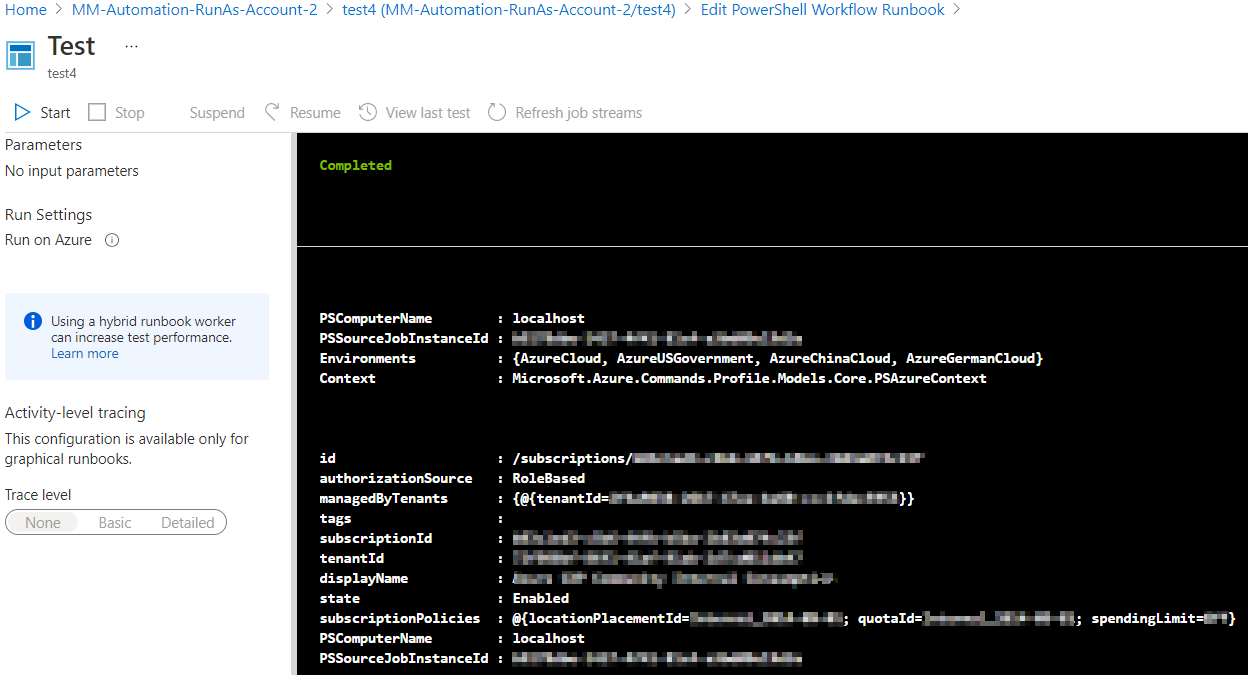
You can find the runbook content below. Note that you may have to slightly tweak the runbook to work in your environment i.e., updating subscription id in request URI, body, etc.
workflow test4
{
    $ConnectionName = "AzureRunAsConnection"
    $Conn = Get-AutomationConnection -Name $ConnectionName
    Connect-AzAccount -ServicePrincipal -Tenant $Conn.TenantID -ApplicationId $Conn.ApplicationID -CertificateThumbprint $Conn.CertificateThumbprint

    $GetAccessToken = Get-AzAccessToken
    $auth = $GetAccessToken.token

    $authHeader = @{
    'Content-Type'='application/json'
    'Accept'='application/json'
    'Authorization'= "Bearer $auth"
    }

    $request = 'https://management.azure.com/subscriptions/xxxxxxxxxxxxxxxxxxxxxxx?api-version=2020-01-01'
    $Body = @{
        'testkey' = 'testkeyvalue'
    }
    Invoke-RestMethod -Uri $request -Headers $authHeader -Method Get -Body $Body
}
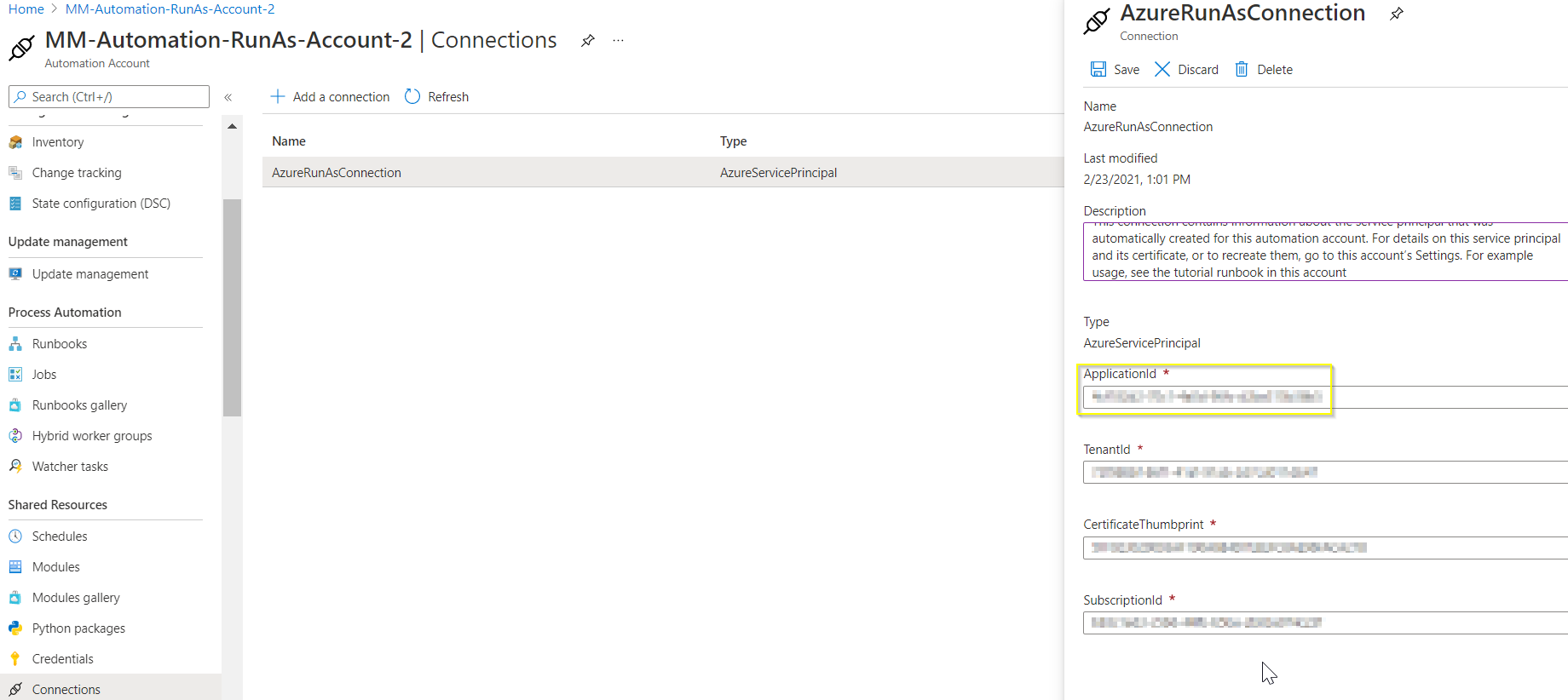
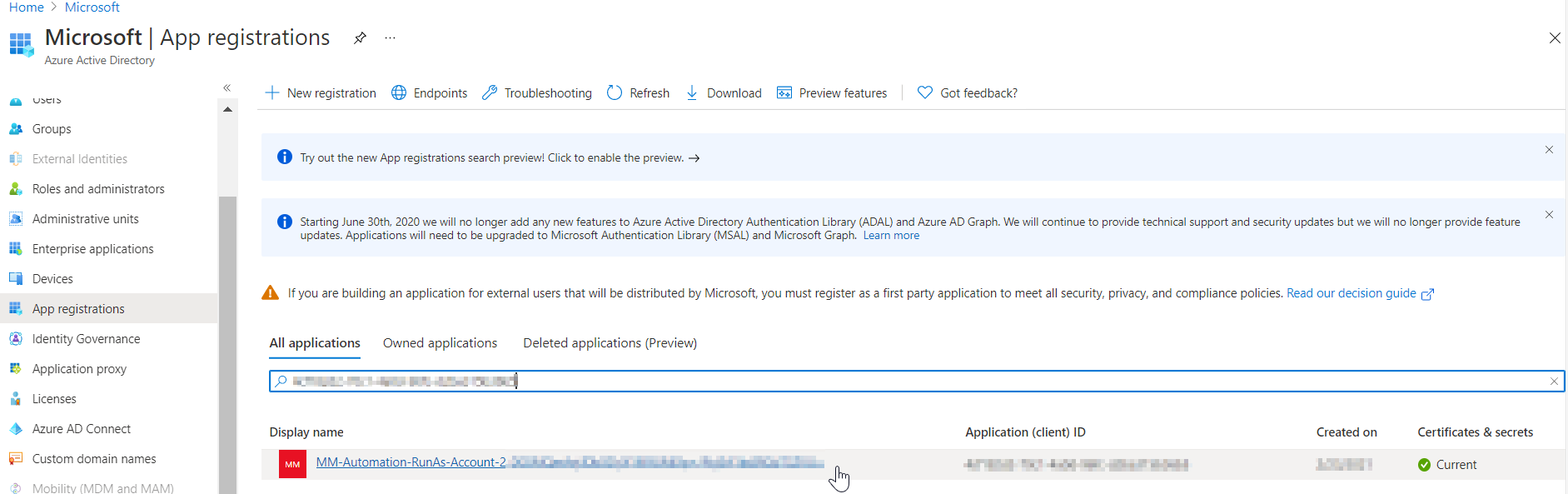
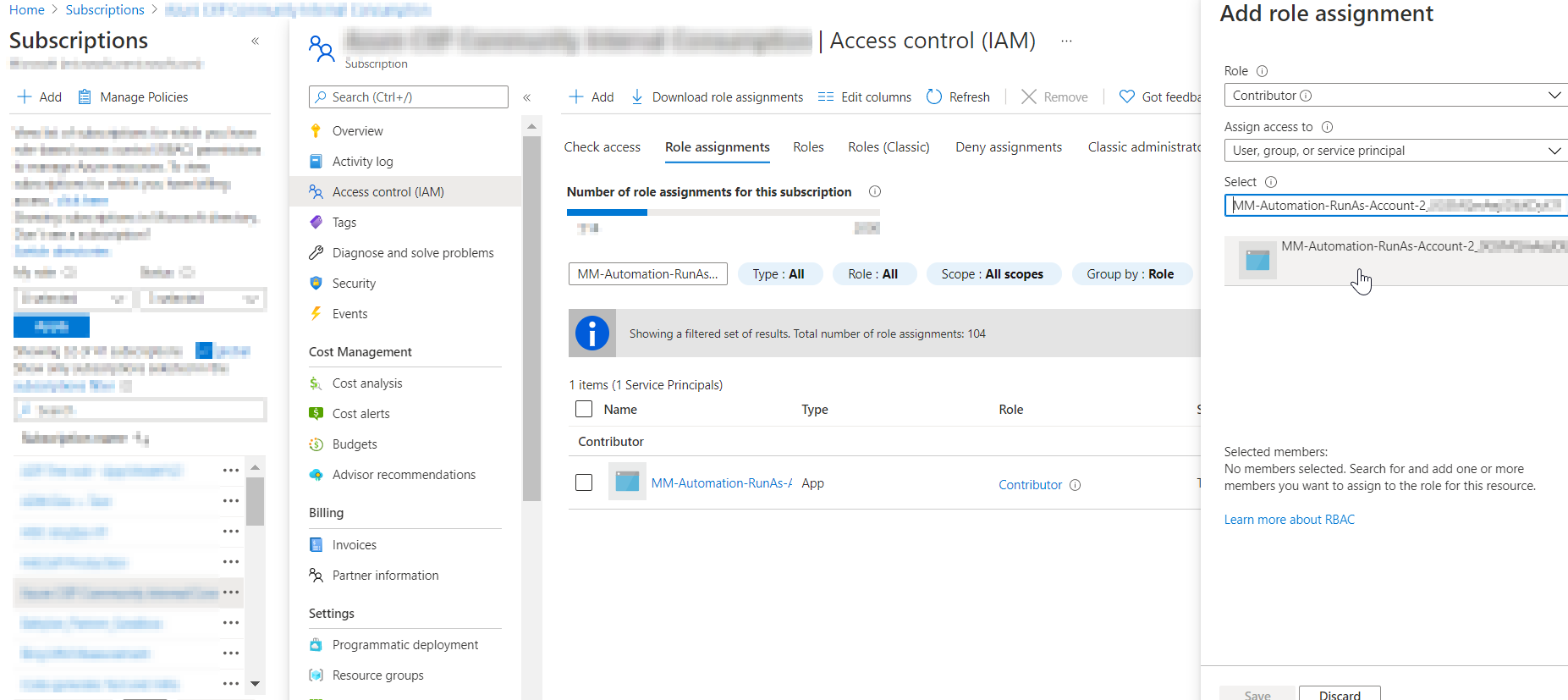
Also note that before executing the above runbook you would have to give Contributor role access to your RunAsAccount as prerequisite to avoid authorization error i.e.,
For illustration, please find below screenshots.
He is using AzureRM. AzureRM and Az have some issues co-existing. The simple way is to just use plain PowerShell as Workflow has a lot of limits :)
Hi tbgangav-MSFT
Thank you so much.
There is an error when run [nvoke-RestMethod -Uri $request -Headers $authHeader -Method Get -Body $Body]
"Message": "The requested resource does not support http method 'GET'."
} (The remote server returned an error: (405) Method Not Allowed.)
So I changed it for [$response = Invoke-webrequest -Uri $request -Method post -Headers $authHeader -Body $($Body | ConvertTo-Json) -UseBasicParsing]
I try to print the status. cannnot get information from response.headers.It seems the information is in response..RawContent.
I will be very appreciated if you could tell me the answer.
[$response = Invoke-webrequest -Uri $request -Method post -Headers $authHeader -Body $($Body | ConvertTo-Json) -UseBasicParsing]
$asyncstatus = $($response.headers.'Azure-AsyncOperation')
$status = 'InProgress'
While($status -eq 'InProgress')
{
sleep 5
$response = invoke-webrequest -uri $asyncstatus -Headers $authHeader -UseBasicParsing
$status = $($response.Content | ConvertFrom-Json).status
Write-Output "Status : $status"
}
Write-Output $($response.Content | ConvertFrom-Json).properties.output.value[0].message
Best wishes!
Hi @Rory_Feng ,
Can you call the same REST API [$request = 'https://management.azure.com/subscriptions/xxxxxxxxxxxxxxxxxxxxxxx?api-version=2020-01-01'] with postman or curl or PowerShell (Invoke-RestMethod) from your local setup and see if you get the same error ("The requested resource does not support http method 'GET' (The remote server returned an error: (405) Method Not Allowed)")? The ask is because as it worked for me in Azure environment so I couldn't reproduce the error "The requested resource does not support http method 'GET' (The remote server returned an error: (405) Method Not Allowed)".
On the other hand, if I try [$response = Invoke-webrequest -Uri $request -Method post -Headers $authHeader -Body $($Body | ConvertTo-Json) -UseBasicParsing] then I am getting the error "No HTTP resource was found that matches the request URI 'https://management.azure.com/subscriptions/xxxxxxxxxxxxxxxxx?api-version=2020-01-01' (The remote server returned an error: 404 Not Found)".
So, if you are interested to dig deep in this direction then I would recommend to reach Azure technical support for deeper investigation so that support team would be able to help by accessing your environment. If not, (as @Stanislav Zhelyazkov suggested) you may use powershell runbook rather than powershell workflow runbook.
As mentioned here, the Az PowerShell module is the replacement of AzureRM and is the recommended version to use for interacting with Azure. I am sure you are aware of this update. :) To give little more context, starting in December 2018, the Azure PowerShell Az module is in general release and is now the intended PowerShell module for interacting with Azure. So Az modules are latest recommended ones to use and AzureRM modules are the older ones. Hence I have provided runbook with Az ratherthan with AzureRM (if possible or not).
Yes, I agree with you that we can use powershell runbook rather than powershell workflow runbook in this case as we see errors (that might be part of limitation). But as currently powershell workflow runbook is supported in Azure Automation so I was not earlier mentioning about prioritizing powershell runbook in comparison to powershell workflow runbook and hence I have provided powershell workflow runbook that resolves the error or avoids dependency on RMProfileClient object.
I will share this scenario with Azure Automation product team and will explain the importance of prioritizing future of error-free support of powershell workflow runbook in Azure Automation or else to plan on completely not supporting powershell workflow runbook to avoid such issues.
Thank your message!
We already decide to use the powershell runbook.
Thank you so much you are so kind.
Could I ask you a question about funtion in runbook.
The code below if run in powershell ISE the value of x is 10.
But run in runbook I cannot get the value outside of funtion.So how to get the value of variable from the function to outside.
Is it possible in runbook?
function test {
$script:x = 10
}
test
write-output $x #10
Hi @Rory_Feng ,
Use return keyword at the end of your function. For illustration and examples, refer this document.
Let me know if that does help. Thanks.
sorry I mean
function test {
$x = 10
return $x

}

test

write-output $x  # I got 10

$x  = $x + 1

write-output $x   # I canot get 11 . the result still is 10. [return] just print the value in the output stream.
I mean how to use x as the same variable between funtion and main process
I want the result 11 .Is it possible in runbook?
thanks
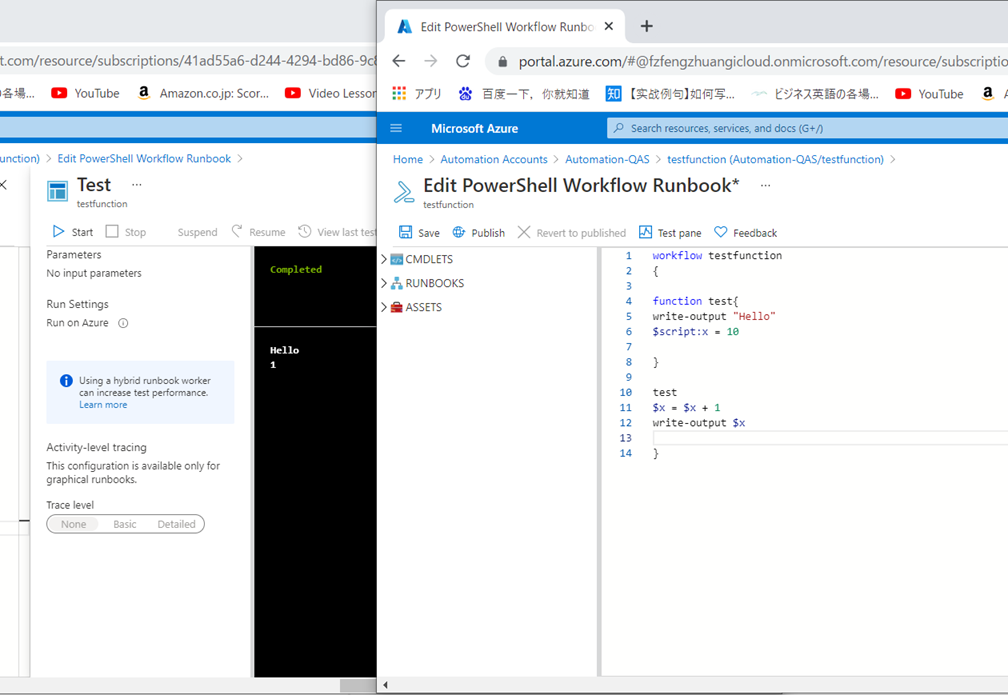
function test {
Write-Output "Hello"
$script:x = 10


}

test
$x = $x + 1
Write-Output $x # I can got 11 in powershell ISE but cannot in runbook.
rresult in powershell ISE: Hello
11
rresult in runbook: Hello
1
how to get the value 11 in runbook
thanks
Hi @Rory_Feng ,
I am getting 11 in runbook as well. Please check below screenshots for reference.
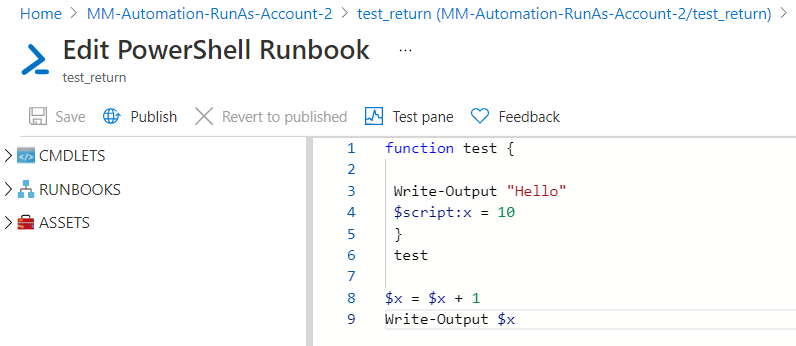
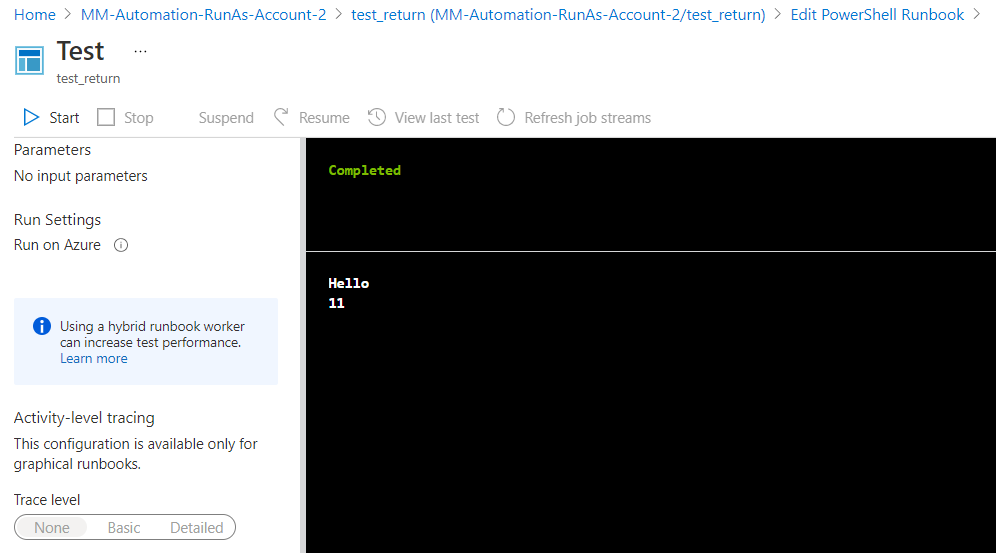
If its still an issue and if possible, can you provide few screenshots to understand the issue here?
thanks for your message.
I run the command in powershell workflow runbook
the result is 1 . I already solve the problem in my powershell workflow runbook by the other way.
Iit is ok now.
Thank you so much.
Hope you everything goes well.
Best wishes.