LOGIN ERROR : TOO MANY REQUESTS

Reported
Anonymous
2024-08-03T09:56:29+00:00

Query Title: "Login Error: Too Many Requests - Need Assistance"

Query Body: "Hello Microsoft Community,

I am logging in personal account and I'm encountering an issue when trying to log in, and I receive the error message: 'Too Many Requests.' This has been happening consistently, and I'm unsure how to resolve it. I've tried waiting for a while before attempting to log in again, but the problem persists.

Could anyone provide guidance on why this might be happening and how I can fix it? Any help would be greatly appreciated.

Thank you!"

Outlook | Web | Outlook.com | Email

Locked Question. This question was migrated from the Microsoft Support Community. You can vote on whether it's helpful, but you can't add comments or replies or follow the question.

0 comments No comments
Answer accepted by question author
  1. Reported
    Anonymous
    2024-08-03T13:23:31+00:00

    Dear Harshal Parikh

    Thank you for posting to Microsoft Community

    Based on your description, I understand that you seem to be being blocked from your account by too frequent login requests, please point out if I am misunderstanding.

    This may be due to a network issue at the time the login request is sent, I suggest you try to try logging into your Microsoft account again by switching to a different device and network environment first.

    You can try to change the login device (PC/Mobile/Tablet), sometimes some software in the device may be incorrectly identified as a threatening item. After eliminating the problem of the device, you can try to switch the network environment, try to switch the mobile phone hotspot/home WIFI network environment

    You can also try switching on or off three-way proxy software (VPN) or switching nodes to force you to use a server in another region to log into your account.

    If you are still stuck at the screen with too many login requests, you can also try changing your account password and logging in with the new one. When resetting your password, please make sure that the email address you send it to is a known email address that you have access to, as in your case, it is not impossible to rule out the possibility of a hacker script trying your account password over and over again.

    This reply may not directly address your issue, so feel free to let me know how it goes any time by repling below.

    I look forward to hearing from you!

    Carmid.L-MSFT | Microsoft Community Support Specialist

    0 comments No comments

44 additional answers

Sort by: Most helpful
  1. Anonymous
    2024-08-03T15:33:28+00:00

    Dear Carmid.L-MSFT,

    Thank you for your prompt response and the troubleshooting steps provided. I have attempted to log in using a different device and network, as suggested, but unfortunately, the issue persists. I have also tried changing the password, yet the problem of frequent login requests continues. I suspect there might be a security issue at play here. Could you please advise on the next steps to secure my account and restore access? Your assistance in this matter is greatly appreciated.

    Best regards,

    Harshal Parikh

    0 comments No comments
  2. Anonymous
    2024-08-05T06:40:33+00:00

    Dear Harshal Parikh

    Thank you for your reply.

    I understand there are concerns about the security of your account. There are settings that can increase the security of your account, but first you will need to log in to your Microsoft account before you can take the next step.

    If you have access to your account

    As the intruder already knows the full name of your account, I would recommend that you disable access to your current account name to stop the intruder from logging in repeatedly.

    You need to click on this link first( https://account.microsoft.com/

    Log in to your Microsoft account and click [Your Information] on the left, then [Edit Account Information] on the right side of the screen that opens. From this screen, you can add an alias as a new login name for your account. Due to the current security risks associated with your account, I recommend that you create an alias with the outlook.com extension that does not require authentication. (If you are using the custom alias below, you will be prompted to verify that this alias exists. Only actual mailboxes can be added as aliases.

    Then, you need to click [Set as primary alias] to the right of the new alias to make it the primary alias. After that, click [Change Login Privileges] at the bottom and remove the tick mark in front of the current account name. You have successfully removed the login privileges of the account name. You can test this by typing your account name into the login screen and Microsoft will prevent you from logging in by prompting you with the message "This username is closed and cannot be used to log in". Intruders will receive the same message when trying to log in using this name.. Please note that in this case you will not be able to log in using this account name. Please remember the account name you changed. Additionally, we have tested that you can still send and receive emails using this account name and that the sender can use your account name as the recipient of the email and that email functionality is not affected.

    After modifying the login privileges of your account name, I suggest you also use the [Logout from all locations] feature, which will log out your account's login status in all locations, and the intruder will not be able to try to access your account without knowing the current name of your account.

    If you are currently unable to access your account

    You may not be able to protect your account using the methods described above. As you can change your account password, your account does not need to be recovered in a similar way to resetting your password, most account recovery methods will not work in your current situation, I can only recommend that you seek further advice from Microsoft online support to recover your access to your account.

    You will need to click on this link and follow the instructions below to find them.

    1.First enter your question into the search(input“MSA”), then click "Sign in to contact support" at the bottom of the page.
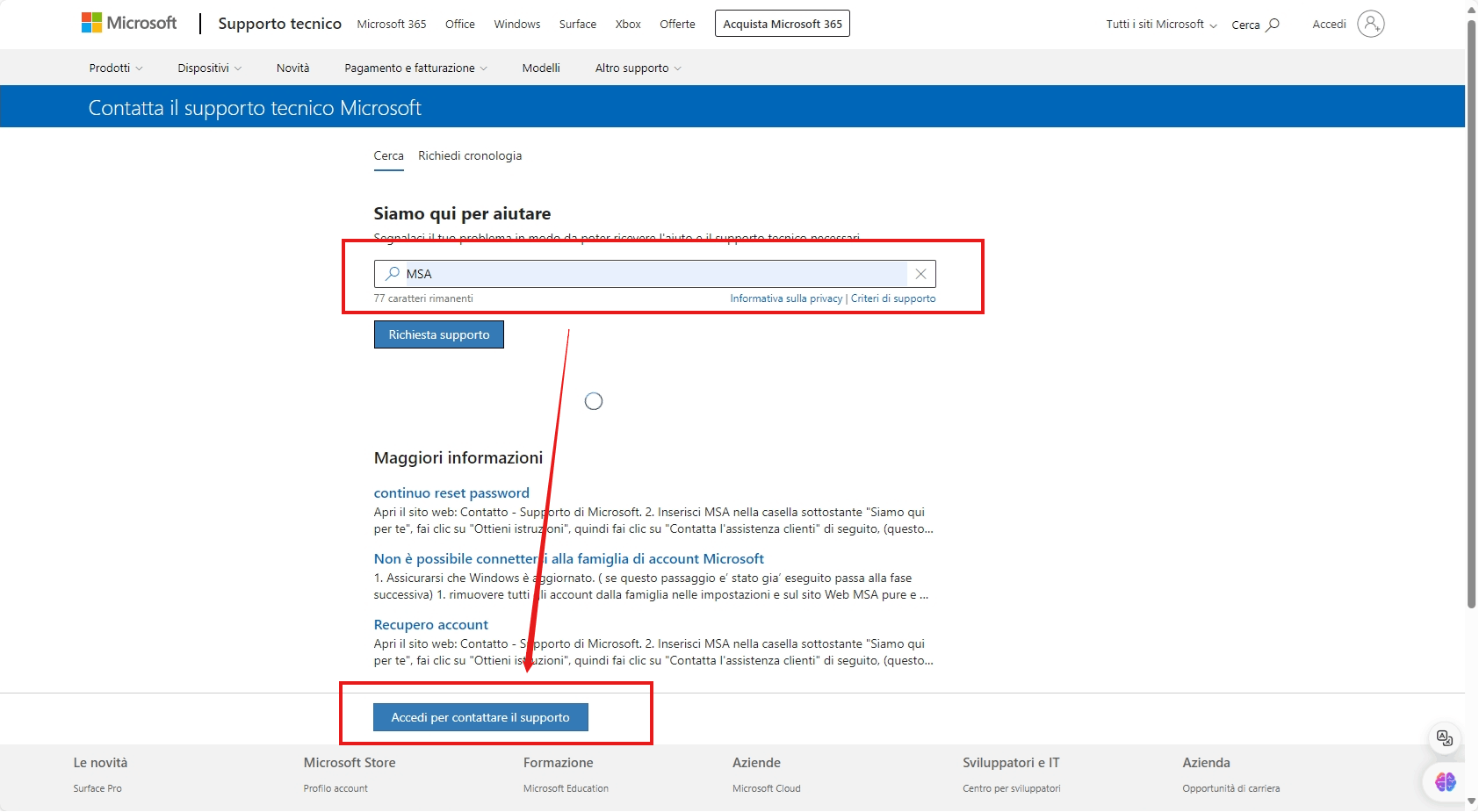
    Image2. Currently logged in to another valid Micorsoft account.

    1. Under "Microsoft 365 and Office", select "manage account security".
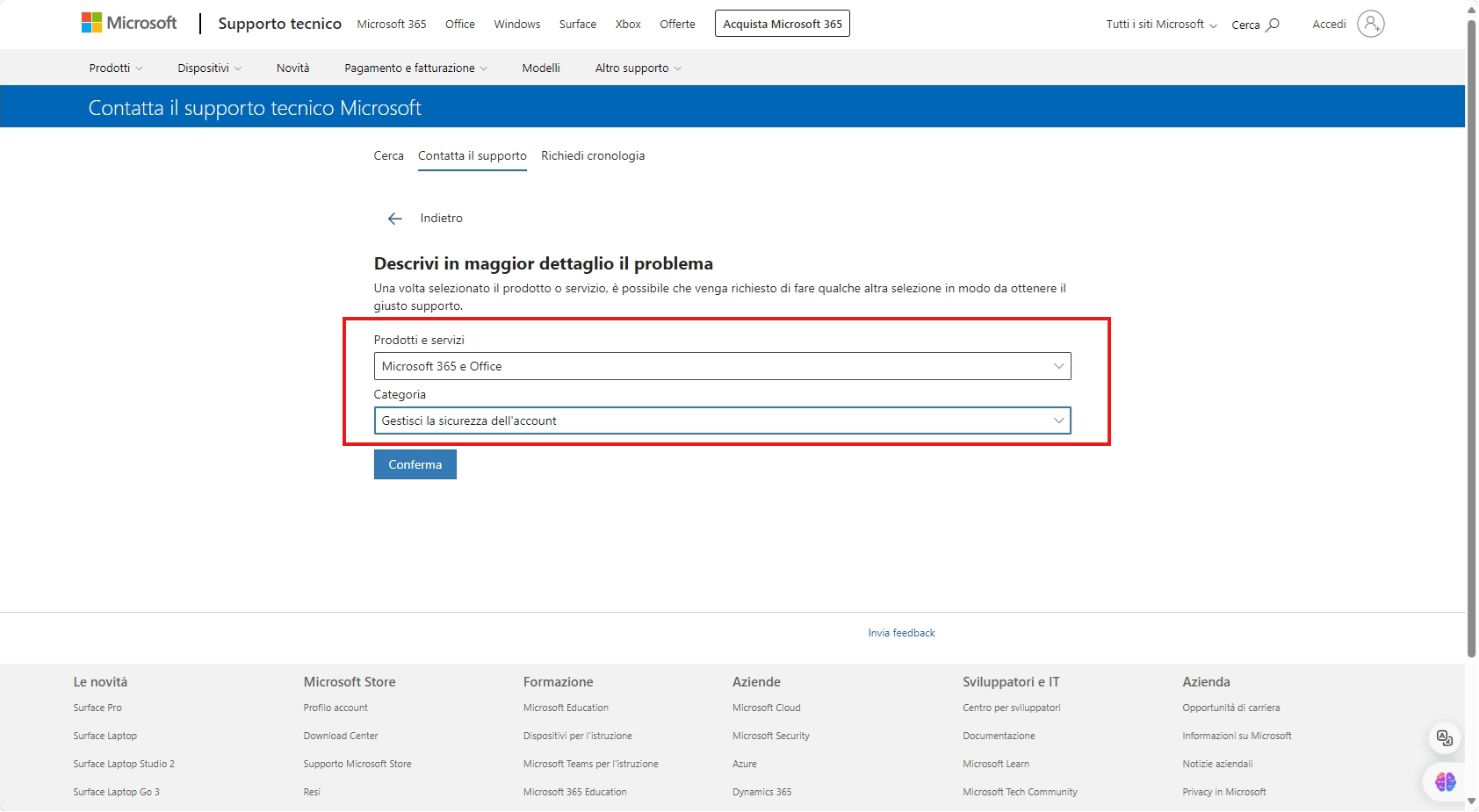
    Image

    1. Under Categories, select Manage Account Security, and then click Confirm.
    2. Click Chat with Support Agent in Web Browser.

    I wish you all the best

    Carmid.L-MSFT | Microsoft Community Support Specialist

    0 comments No comments
  3. Anonymous
    2024-08-25T07:02:25+00:00

    Hi Microsoft Community Support Specialist,

    I faced the same problem and try to resetting the password 4 times, use others devices and clear all the browser data still show too many request on the page, finally as your advices I try to use others network to login then I only able to login.

    For this case, what can I do only enable use back the home wifi network let me enable to login?

    Thank you.

    0 comments No comments
  4. Anonymous
    2024-08-31T21:34:11+00:00

    If you're using a VPN then disconnect it and try again. It worked for me. Microsoft doesn't seem to like not knowing exactly what your IP address is.

    0 comments No comments