Hello Sammy Tang1,
Thank for your reply and sharing more information!
For my suggestion, you may try following workaround to narrow down this case step by step:
- Firstly, you may try to check this article as reference Turn formatting marks on or off - Microsoft Support and perform the steps as below.
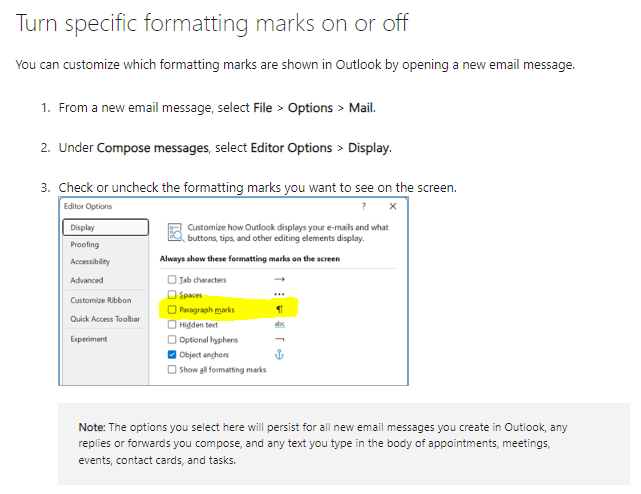
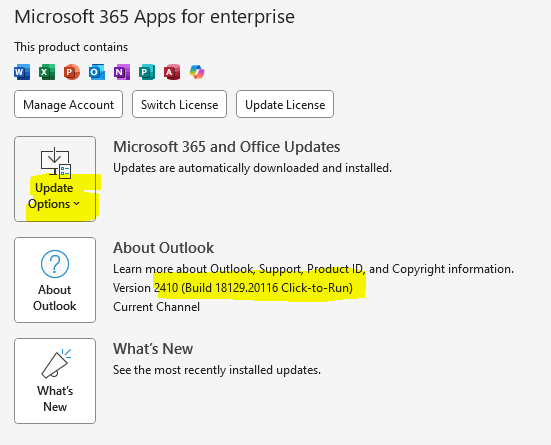
Please check if Paragraph marksoptions is showing under Display of Editor Options. If not showing there, you may check your Outlook version if updated to the latest version. Please kindly provide us your Outlook version with product details by going to Outlook > File > Office Account and share that entire page screenshot with hide personal information. What version of Outlook do I have?
- Another reason why the paragraph marks may automatically turn on in your Outlook emails is that you have pressed a keyboard shortcut that toggles them on and off. The keyboard shortcut is Ctrl + Shift + 8 (or Ctrl + Shift + * on some keyboards). To turn off the paragraph marks, you can simply press this keyboard shortcut again. Alternatively, you can click on the paragraph symbol (¶) in the Format Text tab of the ribbon.
- A third reasonwhy the paragraph marks may automatically turn on in your Outlook emails is that you have a corrupted or conflicting rule or macro that triggers them. To troubleshoot this issue, you can try the following steps:
(1). Go to File > Manage Rules & Alertsand check if you have any rules that may affect the formatting of your emails. If you do, try disabling or deleting them and see if the problem persists.
(2). Go to File > Options > Trust Center > Trust Center Settings > Macro Settings and check if you have any macros that may affect the formatting of your emails. If you do, try disabling or deleting them and see if the problem persists.
(3). Go to File > Options > Add-Ins and check if you have any add-ins that may affect the formatting of your emails. If you do, try disabling or deleting them and see if the problem persists.
2. Outlook works best when it's up to date. We recommend setting Windows Update to automatically download and install recommended updates. Bug fixes, new features, and performance enhancements are released regularly. To install the latest Windows and Office updates, see Install Office updates.
3. Then you may try to re-create another Outlook profile and check again. Create an Outlook profile - Microsoft Support
- Finally, you may also try to Repair an Office application - Microsoft Support via Control Paneland check again.
Again, your understanding and patience will be appreciated.
Thank you!
' cx='32' cy='32' r='32' /%3E%3Ctext x='50%25' y='55%25' dominant-baseline='middle' text-anchor='middle' fill='%23FFF' %3EA%3C/text%3E%3C/svg%3E)
