How to change by default folder view?

Anonymous
2024-08-14T05:59:23+00:00

Hi There,

I've created a new folder view which is more suitable to my need.

However as I'm creating a new folder, it is under "compact view".

How can I change the "by default folder view" inside Outlook 365?

Thanks :)

Nicolas

Outlook | Windows | New Outlook for Windows | For home

Locked Question. This question was migrated from the Microsoft Support Community. You can vote on whether it's helpful, but you can't add comments or replies or follow the question.

0 comments No comments
{count} votes

5 answers

Sort by: Most helpful
  1. Anonymous
    2024-08-14T07:38:51+00:00

    Hello ah_nico,

    Thank you for posting this case in Microsoft Community!

    Based on your description: How to change by default folder view? I would like to cooperate with you working on this case. To clarify this case, are you using New Outlook for Windows orClassic Outlook for Windows? If you are using New Outlook, you may go to View>Densityand set as Roomyoptions as by default folder view. Here is the capture as reference:

    If you are using Classic Outlook for Windows, please check this article as reference Create, change, or customize a view - Microsoft Support which help you to change by default folder view. Here are the steps as reference:

    1. Click View > Current ViewChange View > Manage Views > New.

    **Note:**If you want to start from an existing view, in the Manage All Views dialog box, select <Current view settings> and then select Copy.

    1. Enter a name for your new view, and then choose the type of view. Create a new view.
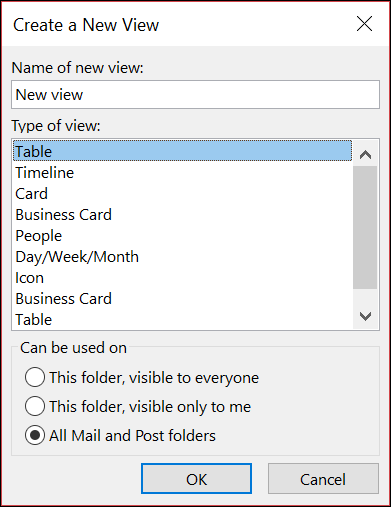
    2. Under Can be used on, accept the default setting of All Mail and Post folders or choose another option, and then choose OK.
    3. In the Advanced View Settings: New View dialog box, choose the options that you want to use, and then choose OK.
    4. To use the view immediately, choose Apply View.

    Hope the above workaround would be helpful. If you need further assistance, please feel free to let me know, I will keep assisting you.

    Your understanding and patience will be appreciated.

    Thank you!

    Microsoft Community Moderator

    1 person found this answer helpful.
    0 comments No comments
  2. Anonymous
    2024-08-14T09:20:06+00:00

    Hey Eleni

    Thanks again for your message & details

    It is exactly how I'm proceeding for existing folders.

    However as soon as I'm creating new folders the view is the "compact" one, and I am looking a way to change that.

    I want that all folders (existing and new) to be with my view.

    Hope it's clear

    Nicolas

    1 person found this answer helpful.
    0 comments No comments
  3. Anonymous
    2024-08-16T03:52:19+00:00

    Hello Nicolas,

    Thank for your reply!

    Are you using Classic Outlook? If Yes, it is suggested that you may go toView>View Settings>Other Settings... and check your Other Options. You can set up Always use single-line layout or Always use compact layoutoptions.

    Again, your understanding and patience will be appreciated.

    Thank you!

    Community Moderator

    1 person found this answer helpful.
    0 comments No comments
  4. Anonymous
    2024-08-16T04:46:23+00:00

    Hello Eleni,

    Thanks for your message.

    Option mentioned already selected, but does not solve the problem.

    As soon as I am creating a new folder, the view is not the one I've selected for all others

    3 people found this answer helpful.
    0 comments No comments
  5. Anonymous
    2024-08-19T03:00:46+00:00

    Hello Nicolas,

    Thank for your reply!

    For my suggestion, you may try to go to View>Reset Viewand check if working fine. If still not working, please perform the following steps for further troubleshooting to narrow down your issue:

    1. Firstly, you may try to re-create another Outlook profile and test again. Create an Outlook profile - Microsoft Support
    2. Outlook works best when it's up to date. We recommend setting Windows Update to automatically download and install recommended updates. Bug fixes, new features, and performance enhancements are released regularly. To install the latest Windows and Office updates, see Install Office updates.
    3. Then you may try to Repair an Office application - Microsoft Support via Control Paneland check again.
    4. If this case still persists, finally you may try to re-install the latest version of Office 365 application and check if working or not.

    Download and install or reinstall Microsoft 365 or Office 2021 on a PC or Mac - Microsoft Support

    Again, your understanding and patience will be appreciated.

    Thank you!

    Microsoft Community Moderator

    0 comments No comments