Microsoft 365 and Office | SharePoint | For business | Windows
A group of Microsoft Products and technologies used for sharing and managing content, knowledge, and applications.

This browser is no longer supported.
Upgrade to Microsoft Edge to take advantage of the latest features, security updates, and technical support.
' cx='32' cy='32' r='32' /%3E%3Ctext x='50%25' y='55%25' dominant-baseline='middle' text-anchor='middle' fill='%23FFF' %3EDC%3C/text%3E%3C/svg%3E)
Dear All,
I am working on a Sharepoint Site structure, which contains of various subsites and document libraries. Hereby permission inheritance is enabled per default. However I am having the use case, that within a document library permission inheritance might need to be disabled for some folders only and be replaced by explicit permissions. So far no problem. But what I would like to achieve is that if for a folder in a doc lib the permission inheritance was disabled and replaced by explicit permissions, I would like to make this visible somehow. What I thought about was that the "title" image automatically changes to a different icon. Or maybe adding another column which automatically shows that permissions are explicit. I am not too familar with JSON, but from what I read so far, only way to achieve this will be to script sth.
Any ideas / recommendations will be much appreciated.
Thanks,
Deniz

Hi @Deniz Capkan ,
We can use powershell to export the permission of the folder to a .csv file:
#Function to Get Permissions Applied on a particular Object such as: Web, List, Library, Folder or List Item
 Function Get-PnPPermissions([Microsoft.SharePoint.Client.SecurableObject]$Object)
 {
     Try {
         #Get permissions assigned to the Folder
         Get-PnPProperty -ClientObject $Object -Property HasUniqueRoleAssignments, RoleAssignments

         #Check if Object has unique permissions
         $HasUniquePermissions = $Object.HasUniqueRoleAssignments

         #Loop through each permission assigned and extract details
         $PermissionCollection = @()
         Foreach($RoleAssignment in $Object.RoleAssignments)
         {
             #Get the Permission Levels assigned and Member
             Get-PnPProperty -ClientObject $RoleAssignment -Property RoleDefinitionBindings, Member

             #Get the Principal Type: User, SP Group, AD Group
             $PermissionType = $RoleAssignment.Member.PrincipalType
             $PermissionLevels = $RoleAssignment.RoleDefinitionBindings | Select -ExpandProperty Name

             #Remove Limited Access
             $PermissionLevels = ($PermissionLevels | Where { $_ –ne "Limited Access"}) -join ","
             If($PermissionLevels.Length -eq 0) {Continue}

             #Get SharePoint group members
             If($PermissionType -eq "SharePointGroup")
             {
                 #Get Group Members
                 $GroupMembers = Get-PnPGroupMembers -Identity $RoleAssignment.Member.LoginName

                 #Leave Empty Groups
                 If($GroupMembers.count -eq 0){Continue}

                 ForEach($User in $GroupMembers)
                 {
                     #Add the Data to Object
                     $Permissions = New-Object PSObject
                     $Permissions | Add-Member NoteProperty User($User.Title)
                     $Permissions | Add-Member NoteProperty Type($PermissionType)
                     $Permissions | Add-Member NoteProperty Permissions($PermissionLevels)
                     $Permissions | Add-Member NoteProperty GrantedThrough("SharePoint Group: $($RoleAssignment.Member.LoginName)")

                     $PermissionCollection += $Permissions
                 }
             }
             Else
             {
                 #Add the Data to Object
                 $Permissions = New-Object PSObject
                 $Permissions | Add-Member NoteProperty User($RoleAssignment.Member.Title)
                 $Permissions | Add-Member NoteProperty Type($PermissionType)
                 $Permissions | Add-Member NoteProperty Permissions($PermissionLevels)
                 $Permissions | Add-Member NoteProperty GrantedThrough("Direct Permissions")
                 $PermissionCollection += $Permissions
             }
         }
         #Export Permissions to CSV File
         $PermissionCollection | Export-CSV $ReportFile -NoTypeInformation
         Write-host -f Green "`n*** Folder Permission Report Generated Successfully!***"
     }
     Catch {
     write-host -f Red "Error Generating Folder Permission Report!" $_.Exception.Message
     }
 }

 #region ***Parameters***
 $SiteURL="https://****.sharepoint.com/sites/TeamMisTest"
 $ReportFile="C:\Temp\FolderPermissionRptaa.csv"
 $FolderRelativeURL = "/sites/TeamMisTest/Shared Documents/General"
 #endregion

 #Connect to the Site collection
 Connect-PnPOnline -URL $SiteURL -UseWebLogin

 #Get the Folder from URL
 $Folder = Get-PnPFolder -Url $FolderRelativeURL

 #Call the function to generate permission report
 Get-PnPPermissions $Folder.ListItemAllFields
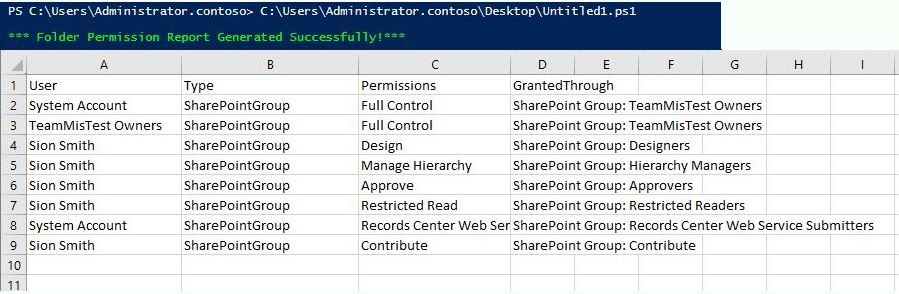
Please remember to specify the URL and folder you want in the code then you can output all users who have permission to this folder to the csv, and you can view the permission level:
 $SiteURL="https://****.sharepoint.com/sites/TeamMisTest"
 $ReportFile="C:\Temp\FolderPermissionRpt.csv"
 $FolderRelativeURL = "/sites/TeamMisTest/Shared Documents/General"
Test Result:
Reference:
SharePoint Online: PowerShell to Get Folder Permissions
Note: Microsoft is providing this information as a convenience to you. The sites are not controlled by Microsoft. Microsoft cannot make any representations regarding the quality, safety, or suitability of any software or information found there. Please make sure that you completely understand the risk before retrieving any suggestions from the above link.
If the answer is helpful, please click "Accept Answer" and upvote it.
Note: Please follow the steps in our documentation to enable e-mail notifications if you want to receive the related email notification for this thread.
Hi @Deniz Capkan , is there any update? Is my suggestion helpful?
Dear ElsieLu,
Thank you for the provided details, this is really helpful. However there is one question left: How can I achieve to get visibility on the SharePoint site itself: any visitor of the site should see that a folder has unique permissions, without the need to check folder permissions? Is it possible to change a folder icon dynamically based on your script?
Best Regards,
Deniz
Hi @Deniz Capkan ,
Thanks for your reply. The way to check folder permissions in SPO is Powershell. I might say that changing the icon or directly returning the result to Modern UI is currently not supported. Or you could try to create a new library to store the exported permission files, and then put the links of these files in the list.
If the answer is helpful, please click "Accept Answer" and upvote it.
Note: Please follow the steps in our documentation to enable e-mail notifications if you want to receive the related email notification for this thread.