SQL Server Integration Services
A Microsoft platform for building enterprise-level data integration and data transformations solutions.
This browser is no longer supported.
Upgrade to Microsoft Edge to take advantage of the latest features, security updates, and technical support.
' cx='32' cy='32' r='32' /%3E%3Ctext x='50%25' y='55%25' dominant-baseline='middle' text-anchor='middle' fill='%23FFF' %3EI%3C/text%3E%3C/svg%3E)
I am working on some packages. I got some error message: the binary code for the script is not found. please open the script in the designer by clicking......
And I searched online, some information says I just need to delete the existing script task and create a new one. And copy the code to the new task, but I did it, still have some errors. (I am using the visual studio 2012). Anyone please help me find something that caused the issue. By the way, this script task worked find before. Don't know when the issue started. Thank you so much!!
Here is the scripts:
/* The Script Task allows you to perform virtually any operation that can be accomplished in
* a .Net application within the context of an Integration Services control flow.
*
* Expand the other regions which have "Help" prefixes for examples of specific ways to use
* Integration Services features within this script task. */
using System;
using System.Data;
//using System.Drawing;
using Microsoft.SqlServer.Dts.Runtime;
using System.Windows.Forms;
using System.IO;
using ST_d1e76887aff94a898f859b7c2677b241.ReportServiceReference;
using ClosedXML.Excel;
namespace ST_d1e76887aff94a898f859b7c2677b241
{
/// <summary>
/// ScriptMain is the entry point class of the script. Do not change the name, attributes,
/// or parent of this class.
/// </summary>
[Microsoft.SqlServer.Dts.Tasks.ScriptTask.SSISScriptTaskEntryPointAttribute]
public partial class ScriptMain : Microsoft.SqlServer.Dts.Tasks.ScriptTask.VSTARTScriptObjectModelBase
{
#region Help: Using Integration Services variables and parameters in a script
/* To use a variable in this script, first ensure that the variable has been added to
* either the list contained in the ReadOnlyVariables property or the list contained in
* the ReadWriteVariables property of this script task, according to whether or not your
* code needs to write to the variable. To add the variable, save this script, close this instance of
* Visual Studio, and update the ReadOnlyVariables and
* ReadWriteVariables properties in the Script Transformation Editor window.
* To use a parameter in this script, follow the same steps. Parameters are always read-only.
*
* Example of reading from a variable:
* DateTime startTime = (DateTime) Dts.Variables["System::StartTime"].Value;
*
* Example of writing to a variable:
* Dts.Variables["User::myStringVariable"].Value = "new value";
*
* Example of reading from a package parameter:
* int batchId = (int) Dts.Variables["$Package::batchId"].Value;
*
* Example of reading from a project parameter:
* int batchId = (int) Dts.Variables["$Project::batchId"].Value;
*
* Example of reading from a sensitive project parameter:
* int batchId = (int) Dts.Variables["$Project::batchId"].GetSensitiveValue();
* */
    #endregion

    #region Help:  Firing Integration Services events from a script
    /* This script task can fire events for logging purposes.
     *
     * Example of firing an error event:
     *  Dts.Events.FireError(18, "Process Values", "Bad value", "", 0);
     *
     * Example of firing an information event:
     *  Dts.Events.FireInformation(3, "Process Values", "Processing has started", "", 0, ref fireAgain)
     *
     * Example of firing a warning event:
     *  Dts.Events.FireWarning(14, "Process Values", "No values received for input", "", 0);
     * */
    #endregion

    #region Help:  Using Integration Services connection managers in a script
    /* Some types of connection managers can be used in this script task.  See the topic
     * "Working with Connection Managers Programatically" for details.
     *
     * Example of using an ADO.Net connection manager:
     *  object rawConnection = Dts.Connections["Sales DB"].AcquireConnection(Dts.Transaction);
     *  SqlConnection myADONETConnection = (SqlConnection)rawConnection;
     *  //Use the connection in some code here, then release the connection
     *  Dts.Connections["Sales DB"].ReleaseConnection(rawConnection);
     *
     * Example of using a File connection manager
     *  object rawConnection = Dts.Connections["Prices.zip"].AcquireConnection(Dts.Transaction);
     *  string filePath = (string)rawConnection;
     *  //Use the connection in some code here, then release the connection
     *  Dts.Connections["Prices.zip"].ReleaseConnection(rawConnection);
     * */
    #endregion

    XLPageOrientation landscape = XLPageOrientation.Landscape;
    XLPageOrientation portrait = XLPageOrientation.Portrait;

    XLWorkbook wbFrom;
    Byte[] results;


    /// <summary>
    /// This method is called when this script task executes in the control flow.
    /// Before returning from this method, set the value of Dts.TaskResult to indicate success or failure.
    /// To open Help, press F1.
    /// </summary>
    public void Main()
    {
        int[] zoom = new int[3];
        XLPageOrientation[] orientation = new XLPageOrientation[3];

        //Create Object of ReportExecutionService class

        //Dts.Events.FireWarning(9999, "GenerateFiles", "Starting Script", "", 1);
        Dts.Variables["User::Progress"].Value = "Starting script";
        ReportExecutionService rs = new ReportExecutionService();

        //Set the export format

        string format = Dts.Variables["$Package::ReportFormat"].Value.ToString();

        //Set empty variables required for Render report method

        string encoding = String.Empty;
        string mimeType = String.Empty;
        string extension = String.Empty;
        Warning[] warnings = null;
        string[] streamIDs = null;
        string deviceInfo = null;

        rs.Credentials = System.Net.CredentialCache.DefaultCredentials;

        //rs.Url = @"http://portal.usmmllc.com/_vti_bin/ReportServer/ReportExecution2005.asmx";
        rs.Url = Dts.Variables["$Project::ReportExecutionServiceUrl"].Value.ToString();

        //Load Weekly Census Report

        //Dts.Events.FireWarning(9999, "GenerateFiles", "Before loading Executive Sum report", "", 1);
        Dts.Variables["User::Progress"].Value = "loading Weekly Census report";
        //rs.LoadReport("http://portal.usmmllc.com/BIReports/BI/RVU/WeeklyCensusReport.rdl", null);
        rs.LoadReport(Dts.Variables["$Package::WeeklyCensusReportUrl"].Value.ToString(), null);
        //Dts.Events.FireWarning(9999, "GenerateFiles", "After loading Executive Sum report", "", 1);

        //Create Parameters and assign their value

        Dts.Variables["User::Progress"].Value = "setting parameters for Weekly Census report";
        ParameterValue[] paramvalSummaryDX = new ParameterValue[4];

        paramvalSummaryDX[0] = new ParameterValue();
        paramvalSummaryDX[0].Name = "Month";
        paramvalSummaryDX[0].Value = Dts.Variables["$Package::ReportMonth"].Value.ToString();

        paramvalSummaryDX[1] = new ParameterValue();
        paramvalSummaryDX[1].Name = "Year";
        paramvalSummaryDX[1].Value = Dts.Variables["$Package::ReportYear"].Value.ToString();

        paramvalSummaryDX[2] = new ParameterValue();
        paramvalSummaryDX[2].Name = "RollingVisit";
        paramvalSummaryDX[2].Value = Dts.Variables["$Package::TrendingWeeksTable"].Value.ToString();

        paramvalSummaryDX[3] = new ParameterValue();
        paramvalSummaryDX[3].Name = "TrendingWeeksGraph";
        paramvalSummaryDX[3].Value = Dts.Variables["$Package::TrendingWeeksGraph"].Value.ToString();

        //Add list of execution parameters

        rs.SetExecutionParameters(paramvalSummaryDX, "en-us");

        //Execute the Weekly Census Report

        //Dts.Events.FireWarning(9999, "GenerateFiles", "Before executing Executive Sum report", "", 1);
        Dts.Variables["User::Progress"].Value = "executing Weekly Census report";
        results = rs.Render(format, deviceInfo, out extension, out encoding, out mimeType, out warnings, out streamIDs);
        //Dts.Events.FireWarning(9999, "GenerateFiles", "After executing report", "", 1);

        ////Save the file
        //Dts.Variables["User::Progress"].Value = "saving unformatted Weekly Census report";
        //using (FileStream stream = File.Open(Dts.Variables["User::ReportFullName"].Value.ToString(), FileMode.Create, FileAccess.Write))
        //{

        //    stream.Write(results, 0, results.Length);
        //    stream.Close();

        //}
        //Dts.Events.FireWarning(9999, "GenerateFiles", "Finished Executive Sum report", "", 1);

        Dts.Variables["User::Progress"].Value = "processing Weekly Census report";
        zoom[0] = 100;
        zoom[1] = 100;
        zoom[2] = 100;
        orientation[0] = portrait;
        orientation[1] = portrait;
        orientation[2] = portrait;
        ProcessExcel("PrintFormat", zoom, orientation);

        Dts.Variables["User::Progress"].Value = "finishing the whole report";
        ProcessExcel("Finish", zoom, orientation);

        Dts.TaskResult = (int)ScriptResults.Success;

    }
    /// <summary>
    ///  perform Excel requests:
    /// "PrintFormat" - set print format for individual tabs
    /// "Finish" - close application and clean-up
    /// </summary>
    private void ProcessExcel(string requestType, int[] wsZoom, XLPageOrientation[] orientation)
    {
        string currentResult = "";
        //Dts.Events.FireWarning(9999, "GenerateFiles", "Before Try", "", 1);
        try
        {
            switch (requestType)
            {

                case "PrintFormat":
                    currentResult = " case \"PrintFormat\": opening wbFrom";
                    wbFrom = new XLWorkbook(new MemoryStream(results));

                    for (int j = 1; j <= wbFrom.Worksheets.Count; j++)
                    {
                        // Dts.Events.FireWarning(9999, "GenerateFiles", "Before ws", "", 1);
                        currentResult = " case \"Add\": opening worksheet number " + j.ToString();
                        using (IXLWorksheet ws = wbFrom.Worksheet(j))
                        {
                            //  Dts.Events.FireWarning(9999, "GenerateFiles", "Before ws.Copy", "", 1);
                            currentResult = " case \"PrintFormat\": copying worksheet number " + j.ToString();
                            currentResult = " case \"PrintFormat\": formatting worksheet number " + j.ToString();
                            FormatWorksheet(wbFrom.Worksheet(j), orientation[j - 1], wsZoom[j - 1]);
                        }
                        //   Dts.Events.FireWarning(9999, "GenerateFiles", "Finished ws.Copy", "", 1);
                    }

                    break;

                case "Finish":
                    currentResult = " case \"Finish\": activatig the first worksheet";
                    wbFrom.Worksheet(1).SetTabActive();
                    currentResult = " case \"Finish\": closing wbFrom";
                    wbFrom.SaveAs(Dts.Variables["User::ReportFullName"].Value.ToString());
                    break;
            }
        }
        catch (Exception ex)
        {
            Dts.Events.FireError(9999, "Error Excel Copy Workseets", ex.Message, "", 1);
            Dts.TaskResult = (int)ScriptResults.Failure;
            Dts.Variables["User::Progress"].Value = Dts.Variables["User::Progress"].Value.ToString() + currentResult;
            throw;
        }
    }

    private void FormatWorksheet(IXLWorksheet ws, XLPageOrientation orient, int zoom)
    {
        ws.SetShowGridLines(false);
        ws.PageSetup.PagesTall = 1;
        ws.PageSetup.PagesWide = 1;
        ws.PageSetup.SetPageOrientation(orient);
        ws.PageSetup.Margins.Bottom = Convert.ToDouble(Dts.Variables["$Package::MarginBottom"].Value.ToString());
        ws.PageSetup.Margins.Top = Convert.ToDouble(Dts.Variables["$Package::MarginTop"].Value.ToString());
        ws.PageSetup.Margins.Left = Convert.ToDouble(Dts.Variables["$Package::MarginLeft"].Value.ToString());
        ws.PageSetup.Margins.Right = Convert.ToDouble(Dts.Variables["$Package::MarginRight"].Value.ToString());
        ws.SheetView.SetView(XLSheetViewOptions.Normal);
        ws.SheetView.SetZoomScale(zoom);
    }

    #region ScriptResults declaration
    /// <summary>
    /// This enum provides a convenient shorthand within the scope of this class for setting the
    /// result of the script.
    ///
    /// This code was generated automatically.
    /// </summary>
    enum ScriptResults
    {
        Success = Microsoft.SqlServer.Dts.Runtime.DTSExecResult.Success,
        Failure = Microsoft.SqlServer.Dts.Runtime.DTSExecResult.Failure
    };
    #endregion

}
}
' cx='32' cy='32' r='32' /%3E%3Ctext x='50%25' y='55%25' dominant-baseline='middle' text-anchor='middle' fill='%23FFF' %3ERA%3C/text%3E%3C/svg%3E)
It does give that error when it can't compile (from what a very bad memory can remember). When you view the code for the script, are there any red squiggles anywhere within the code? You say it worked before but down to whether the libraries you're using are imported/enabled
Didn't see red squiggles. Thank you!

Hi @Ilovemygarden ,
You may try below methods to see if it will be helpful.
1.In the VstaProject Window choose Build -> Build ST_xxx to see if there is any error there.
2.Go to your system temp files directory, and find the location of SSIS temp projects (you can also open the script, right click on C# project, explore in windows explorer). Delete the project. (Make copies before deleting just in case). Start Visual studio, and once again edit script, close, hope it works.
3.Copy the package to other machine which has same environment (SSDT 2012) and check if it works on other computer.
If it works, it means that the issue is related to the tool itself on your machine, you could uninstall the SSDT and reinstall them.
Please also check the Target version of SQL Server and corresponding development environment for SSIS packages:
2016-->>SSDT for VS 2015
2014-->>SSDT for VS 2015 or SSDT for VS 2013
2012-->>SSDT for VS 2015 or SSDT for VS 2012
2008-->>BIDS 2008
Someone mentioned that script task works in VS2015 but have the some issue in VS2012 you may have a try.
Regards,
Zoe
If the answer is helpful, please click "Accept Answer" and upvote it.
Note: Please follow the steps in our documentation to enable e-mail notifications if you want to receive the related email notification for this thread.
Hot issues October
We are using SQL Server 2012 and the SSDT also for 2021 version. I will try the methods you posted here and see if I got luck today. Thank you!!!!
@ZoeHui-MSFT
It seems that I need to update the ClosedXML, but I couldn't update in VS. I searched online, and some information says that I need update Nuget package first. But I couldn't do that either. because download is not allowed before it is approved. But we do have different version of ClosedXML in our shared folder. But don't know how to install it to my VS. Any thoughts about this? Thank you!!
Hi @Ilovemygarden ,
Do you mean that you have the ClosedXML.nupkg in shared folder?
If yes, you may have a try with below steps.
In VS--Tools--Opinions--Package Sources--Add new source with local path or shared path.
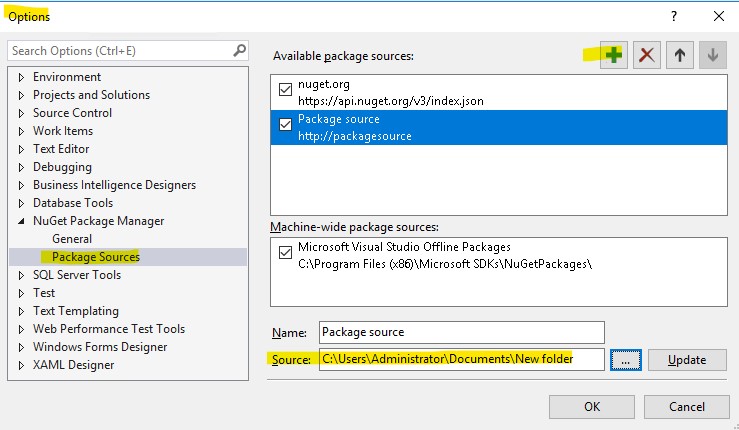
And then use Manage nuget packages to install the new source.
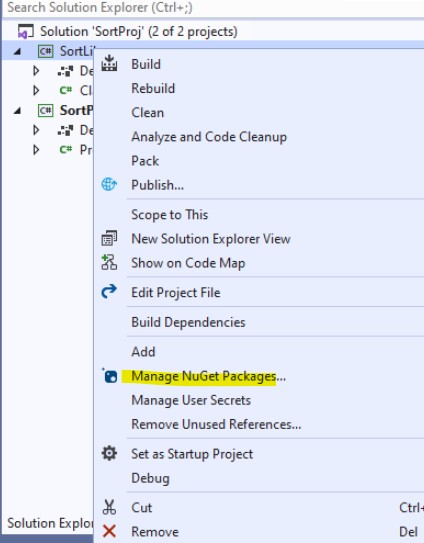
Regards,
Zoe
If the answer is helpful, please click "Accept Answer" and upvote it.
Note: Please follow the steps in our documentation to enable e-mail notifications if you want to receive the related email notification for this thread.
Hot issues October
Thank you Zoe! :) I installed ClosedXML to my VS successfully. But it seems this script task (using the above scripts) still doesn't work. Showing the error message: The binary code for the script is not found.
Thank you again! @ZoeHui-MSFT