Aravinda,
I tried doing a screen shot before and pasting it in, but that didn't work. This time I saved the screen shots as pictures.
This is a screen shot of what the chart looks like in PowerPoint immediately after I copied it in from Excel. I just selected the chart in Excel did a copy, then when into PowerPoint, did a
Paste Special, choose Paste Link, then choose Microsoft Excel Chart Object.
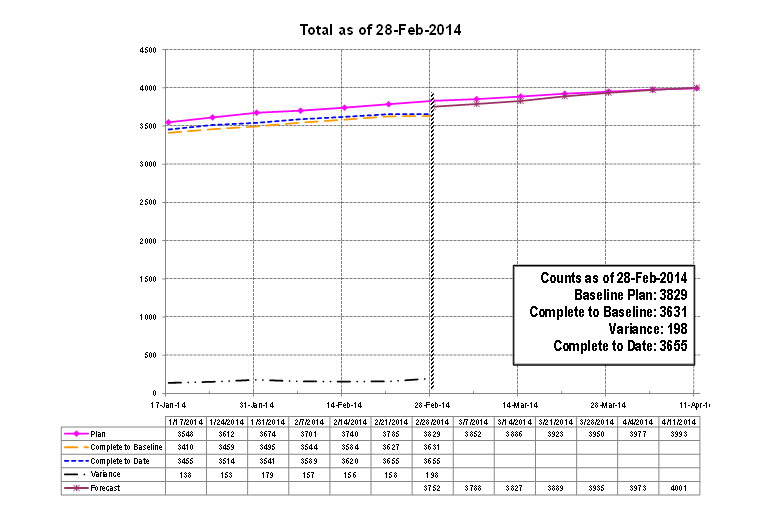
I then saved the PowerPoint presentation and opened it up again. When it asked to update links, I selected Cancel, so it just opened the presentation without updating the links. Again, it
looks fine.
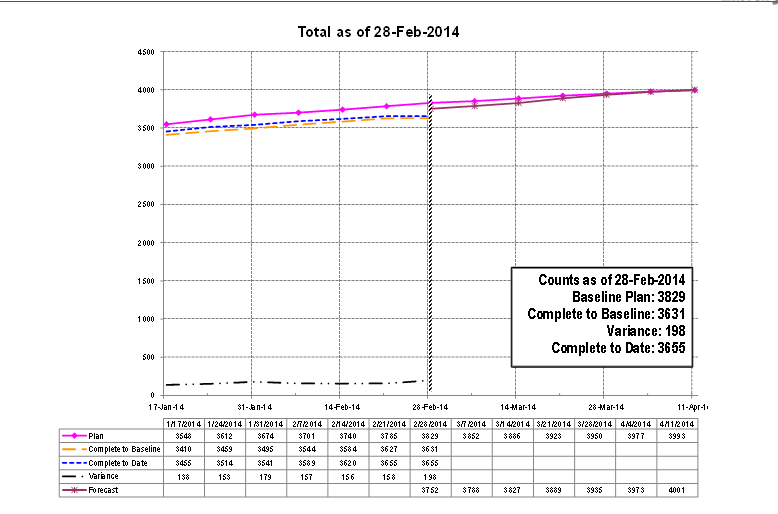
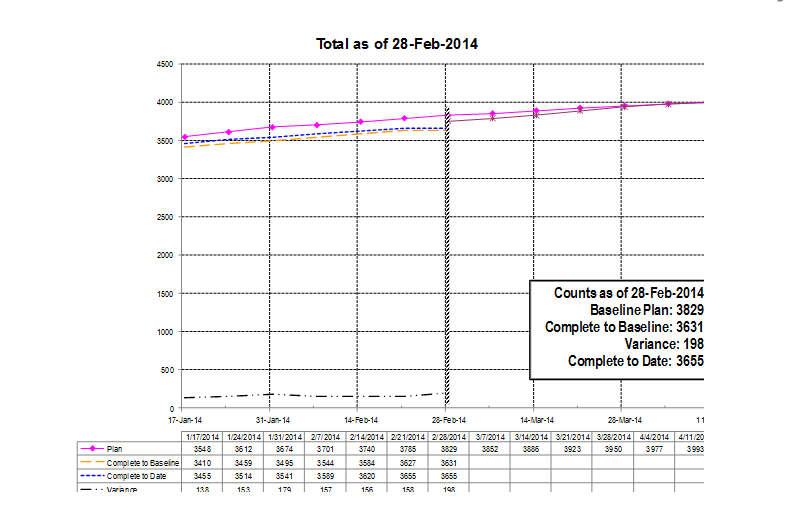
Then I closed the Powerpoint presentation again. Opened the Powerpoint presentation and selected Update Links. Once I do that, it reformats the charts and cuts off the right side and the bottom
of the chart. Like I said, I need the ability to update the links.
There are other options that I can choose, that don't truncate the chart like this, for example, if under the paste options, I paste the chart in as Use Destination Theme and Link Data, then
the chart comes in fine and when the link is updated the format of the chart still looks fine, however, with that option the title and the text box are not updated, so the actually data in the legend is updated, but not the other information on the chart (title
& text box). I can copy those in seperately, but then I am copying and linking three seperate items (chart itself, text box, and title) for each chart in Excel. That seems to be a lot of extra work. It seems like I should just be able to do the paste link,
that I have above without it truncating the chart when the link is updated.
Any help you can provide would be greatly appreciated.
Thanks,
kcsmiles
' cx='32' cy='32' r='32' /%3E%3Ctext x='50%25' y='55%25' dominant-baseline='middle' text-anchor='middle' fill='%23FFF' %3EA%3C/text%3E%3C/svg%3E)
