Cannot resize embedded Excel sheet in PowerPoint or Word when using Windows 10 Display scaling above 100%

Anonymous
2019-03-20T10:28:30+00:00

Hi,

We've come across an isssue were an Excel embedded table in PowerPoint or Word cannot be resized. Double clicking to activate the sizing controls for the embedded sheet instead opens Excel to edit the data with no way of increasing the range area to be displayed. The issue seems to be related to Windows display display scaling if any display scale is set above 100%, eg, laptop display scaled to 125% (Recommended) or higher.

This affects multiple builds of MS Office in our environment, but the one on my system is version: 1902 (Build 11328.20158 Click-to-Run)

Windows 10 version: 1809 (OS Build 17763.348)

I'm using a laptop connected to multiple displays with the laptop display scaling set to 125% (Recommended). I've also tested this on 4k displays where the scaling is set to 200% (Recommended) value and can reproduce the issue.

Steps to reproduce the issue:

In Word/PowerPoint choose Insert > Table > Excel Spreadsheet or

Copy a range from an existing Excel worksheet and Paste Special as Microsoft Excel Worksheet Object

Expected behaviour:
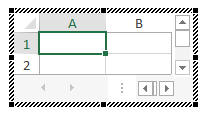
The mini Excel view shows resizing handles allowing resizing to the required number of rows/columns. Deselecting and then double clicking the object shows the same resizing function.

Behaviour if any screen scale is set above 100%, eg, laptop is set to 125% (Recommended)

Inserting an Excel table shows only 4 cells:

The mini Excel view is not displayed. There is no way to resize the range to show more rows/columns. Double clicking the object opens Excel to edit the data. However, there is no apparent way of resizing the range to be displayed.

Is there any way of resizing the range without resorting to adjusting display scaling everytime?

Regards,

Brett

Microsoft 365 and Office | PowerPoint | For home | Windows

Locked Question. This question was migrated from the Microsoft Support Community. You can vote on whether it's helpful, but you can't add comments or replies or follow the question.

0 comments No comments
{count} votes
Answer accepted by question author
  1. John Korchok 224.1K Reputation points Volunteer Moderator
    2019-03-22T21:48:42+00:00

    Editing embedded or linked content relies on OLE. OLE display is resolution-dependent. This is why you'll find a bazillion questions along the lines of "I changed my monitor and now I see a different number of columns in an embedded Excel sheet".

    When you're running a system with multiple resolutions, OLE doesn't know which resolution to use. But it automatically falls back to a workaround: instead of editing the file in place (the normal consequence of double-clicking on an embedded selection), Office opens Excel and allows you to change your selection there so you can repaste it into PowerPoint.

    In PowerPoint, you can click on File>Feedback, click the Send a Frown button. And describe the problem in detail, including all steps to replicate the issue. Submitting will send the report to Microsoft programmers. However, since they've already programmed a workaround, it seems likely they're already aware of this.

    28 people found this answer helpful.
    0 comments No comments

5 additional answers

Sort by: Most helpful
  1. John Korchok 224.1K Reputation points Volunteer Moderator
    2019-03-20T12:19:24+00:00

    I keep my system set to 104%. Using Office 1902 (Build 11328.20146 Click-to-Run), I'm not able to reproduce this problem, it works as expected. I then applied updates to bring it to 11328.20158, same as your version, and it still works as expected. I'm using the retail version, so maybe the issue is specific to Office 365.

    1 person found this answer helpful.
    0 comments No comments
  2. Anonymous
    2019-03-21T09:37:26+00:00

    Hi John,

    Have you tried it at 125%?

    Also to clarify, this is in a multi-display setup where a single display scale, eg, laptop, is set above 100% and the remaining screens are at 100%.

    Brett

    1 person found this answer helpful.
    0 comments No comments
  3. John Korchok 224.1K Reputation points Volunteer Moderator
    2019-03-21T18:17:51+00:00

    No issues at 125% either:

    Have you tried double-clicking on the placed worksheet selection to activate it?

    1 person found this answer helpful.
    0 comments No comments
  4. Anonymous
    2019-03-22T16:59:10+00:00

    Hi John,

    Are you using multiple displays?

    We have found if you are using multiple displays and ONE of them has a different scale this issue occurs.

    eg a 4k laptop connected to multiple HD (1920x1080) external screens the laptop scale has to be set to 200% to be usable and the HD screens remain at 100%

    Yes we have tried double clicking which forces the embeded sheet to open in a seperate instance of Excel with no way of resizing the range.

    Brett

    10 people found this answer helpful.
    0 comments No comments
