Editing Excel object in Powerpoint

Anonymous
2020-06-17T20:24:28+00:00

On a new install of Office 365, when I doubleclick on an embedded Excel object in Powerpoint, the worksheet opens in Excel. Up until this new install, and on an older machine I still have, doubleclicking the embedded Excel lets me edit it in place on the slide. This lets me change the rows and columns being displayed, while the new behavior prevents me from doing that.

I have searched for references to this behavior, but to no avail. Any one have a clue?

Microsoft 365 and Office | PowerPoint | For home | Windows

Locked Question. This question was migrated from the Microsoft Support Community. You can vote on whether it's helpful, but you can't add comments or replies or follow the question.

0 comments No comments
{count} votes
Answer accepted by question author
  1. John Korchok 224.3K Reputation points Volunteer Moderator
    2020-06-18T14:39:18+00:00

    If you have multiple monitors and those monitors are set to different resolutions, that condition will cause the effect you've observed.

    0 comments No comments
Answer accepted by question author
  1. Anonymous
    2020-06-18T00:39:04+00:00

    Hi Houten,

    It is a pleasure to have your participation in the Microsoft Community.

    I have tested at my end, I got the same result that double-clicking the embedded Excel will open a sheet in the slide for editing.

    However, I found that you need to right-click the embedded workbook-> Workbook Object-> Open, the workbook will be opened in Excel instead of PowerPoint. I am sorry for the inconvenience caused by this change. Hope you don’t mind it.
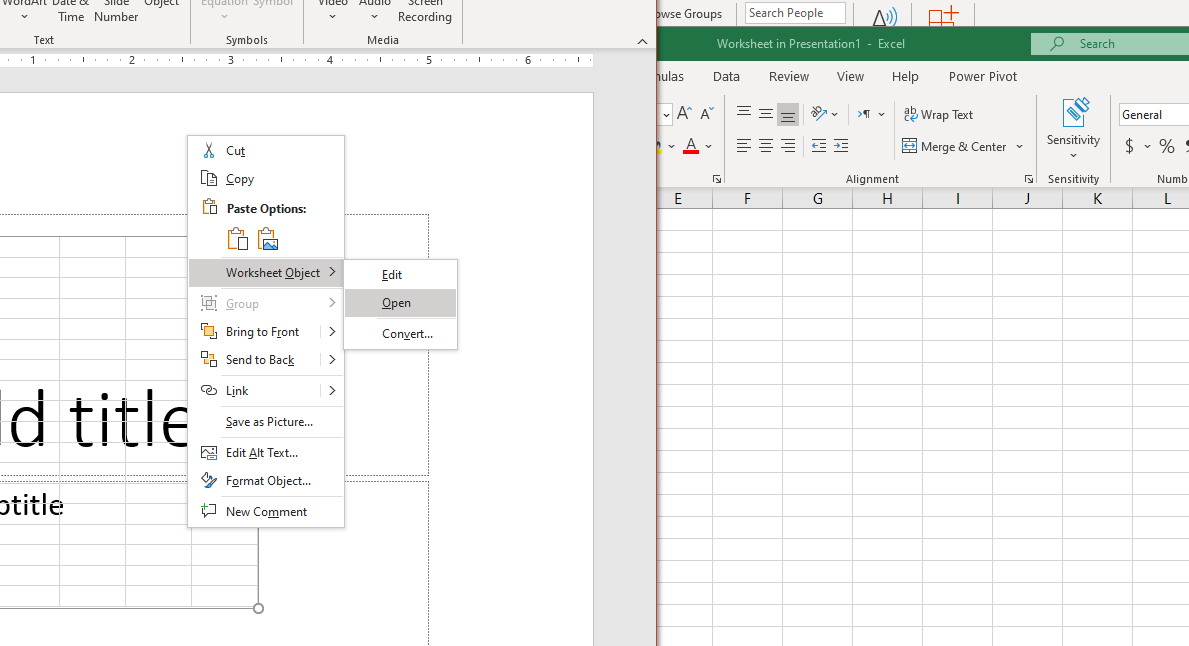
    We sincerely suggest you submit feedback in the Excel application, this is the direct way to let related team aware of suggestion from customers. For your reference: How do I give feedback on Microsoft Office?

    Moreover, you are welcome to contact us anytime if you encounter any question when using Microsoft 365 products. We will try our best to help. Appreciate your understanding and stay safe! 😊

    Best Regards,

    Ivy

    0 comments No comments

0 additional answers

Sort by: Most helpful
