Audio stops intermittently when switching between slides in Powerpoint online

Anonymous
2020-09-28T20:51:33+00:00

I am a student doing online classes, and my professor shared a powerpoint presentation with embedded audio recordings. When in slideshow view, switching between slides manually results in the audio option disappearing, audio no longer playing or able to be accessed, and the presentation's automatic transition halting. Because I am using a powerpoint online app, I cannot access Audio settings to view or edit anything that may be causing the problem. No one using a desktop version of Powerpoint has mentioned this issue. What is causing this, and how can I deal with it?

Microsoft 365 and Office | PowerPoint | For home | Windows

Locked Question. This question was migrated from the Microsoft Support Community. You can vote on whether it's helpful, but you can't add comments or replies or follow the question.

0 comments No comments
{count} votes
Answer accepted by question author
  1. Anonymous
    2020-09-29T09:22:02+00:00

    Hi RBrown222,

    Welcome to the Answers forum.

    There are many differences when editing the PowerPoint slide in browser and desktop application. As you are unable to play audio recording throughout the slide show, there is a setting which can help change how audio is played during the slide show, but this setting is available only in desktop client. There are some features/options which are available in desktop application while they may not appear in PowerPoint for the web, I suppose this is one of the differences in both the versions.

    In PowerPoint for the web, we can’t add audio to a slide, I believe this is the reason, Audio/Playback options are not available in browser.

    As the PPT is shared by your teacher, please check with your teacher if the following options are in place:

    1. Select the audio icon and then select the Playback tab, to choose how the audio plays in your presentation, select an option:

    ·        Play Across Slides: Plays one audio file across all slides.

    ·        Loop until Stopped: Plays an audio file on loop until it’s stopped manually by clicking the Play/Pause button.
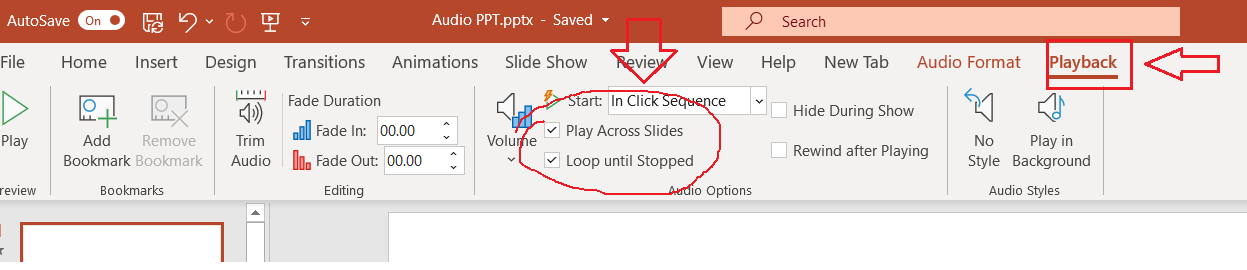
    For detail information, see Add or delete audio in your PowerPoint presentation

    Let me know if you need any help. Have a nice day and stay safe😊

    Regards,

    Neha

    0 comments No comments

2 additional answers

Sort by: Most helpful
  1. Anonymous
    2020-10-01T07:19:31+00:00

    Hi RBrown222,

    Did you check the above reply? If you still need help, please update us.

    Regards,

    Neha

    0 comments No comments
  2. Anonymous
    2020-12-15T20:58:34+00:00

    Dear Neha,

    I have a similar issue as RBrown222. I have tried your solution, however this does work as a viable fix for audio files that are placed on the individual slides since I have to change this setting for all of the slides, in that case (which can be over 50 slides, depending on the presentation). 

    Is there a way for the presentation to play the audio, from slide to slide, without need to 'begin' the presentation. That is, I would like to be able to use my computer to take notes while listening to the audio. However, since I have to start the presentation, and therefore take up my entire screen, I cannot do anything else while trying to listen to the uninterrupted audio. This is quite annoying because I then have to always switch back to start the audio on the power point if I want to hear the audio. 

    Do you have any suggestions to solve this? Or a work around?

    Regards,

    Cameron Hedquist

    1 person found this answer helpful.
    0 comments No comments