Software: MS Project Online Desktop Client MSO 16.0.13127.21210 32-bit use
I am trying to import MS Project start / finish dates from a MS project file that is on SharePoint into an excel file and keep the import linked between excel and MS project such that anytime the date changes in MS Project, my excel file dates update accordingly.
The first method I tried was selected and copying a date in the SharePoint MS Project File and doing a Paste Special - Paste Link - "As" text
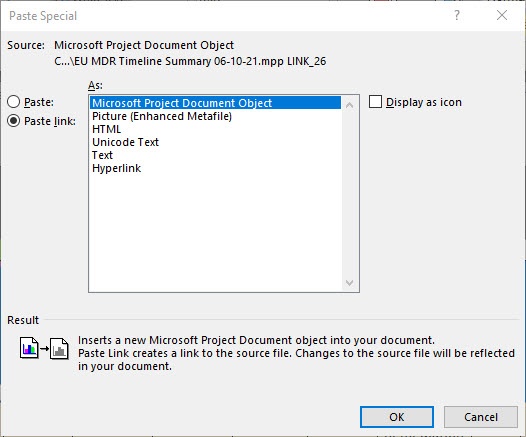
This correctly inserted a date into my excel file using the following syntax:
=MSProject.Project.9|'<>\EUMDR PH-GT Therapy'!'!LINK_26'
The problem is as soon as I close the excel file and try to open it up again, all the dates change to #REF!. It does not seem like excel can keep the connection between the Excel Office 365 file and the SharePoint MS Project file. Is there any recommendations or settings on who to fix this. I completed a test in which I saved the MS Project File to my desktop and made the same Paste line command. This time the syntax looked like the following:
=MSProject.Project.9|'C:\Users\XXXXX\OneDrive - Company Name\Project Name\Product List\Timeline Summary\Archive\Timeline Summary 06-10-21.mpp'!'!LINK_23'
This time when I closed the excel file and re-opened it, it was able to re-establish the dates so it appears the paste link function is having an issue of maintaining a connection between excel and the SharePoint MS project file version. Any suggestions to fix the connection so I would not have to do yet another step to save an off-line version each time I want to insure no dates in my excel file as changed.
Alternatively, I have tried saving the MS Project file as a workbook and using the import wizard and map to export the data to excel. I figured if I could get that to work I could just have my excel file linked to the exported MS project workbook file. The problem with that is the dates are exported as text with a MM/DD/YYYY and TIME and once in excel there is not an easy way I have found to convert that test string into a date that excel recognized correctly.
' cx='32' cy='32' r='32' /%3E%3Ctext x='50%25' y='55%25' dominant-baseline='middle' text-anchor='middle' fill='%23FFF' %3EA%3C/text%3E%3C/svg%3E)

' cx='32' cy='32' r='32' /%3E%3Ctext x='50%25' y='55%25' dominant-baseline='middle' text-anchor='middle' fill='%23FFF' %3EJP%3C/text%3E%3C/svg%3E)