Azure Logic Apps
An Azure service that automates the access and use of data across clouds without writing code.
This browser is no longer supported.
Upgrade to Microsoft Edge to take advantage of the latest features, security updates, and technical support.
' cx='32' cy='32' r='32' /%3E%3Ctext x='50%25' y='55%25' dominant-baseline='middle' text-anchor='middle' fill='%23FFF' %3ESV%3C/text%3E%3C/svg%3E)
Trying to configure a Azure Logic App and using API's in it.
Want to use the password and passing through parameter. But I still see it visible for all. Is there any way, I can lock it, just like variables in Azure DevOps? Please suggest. Thanks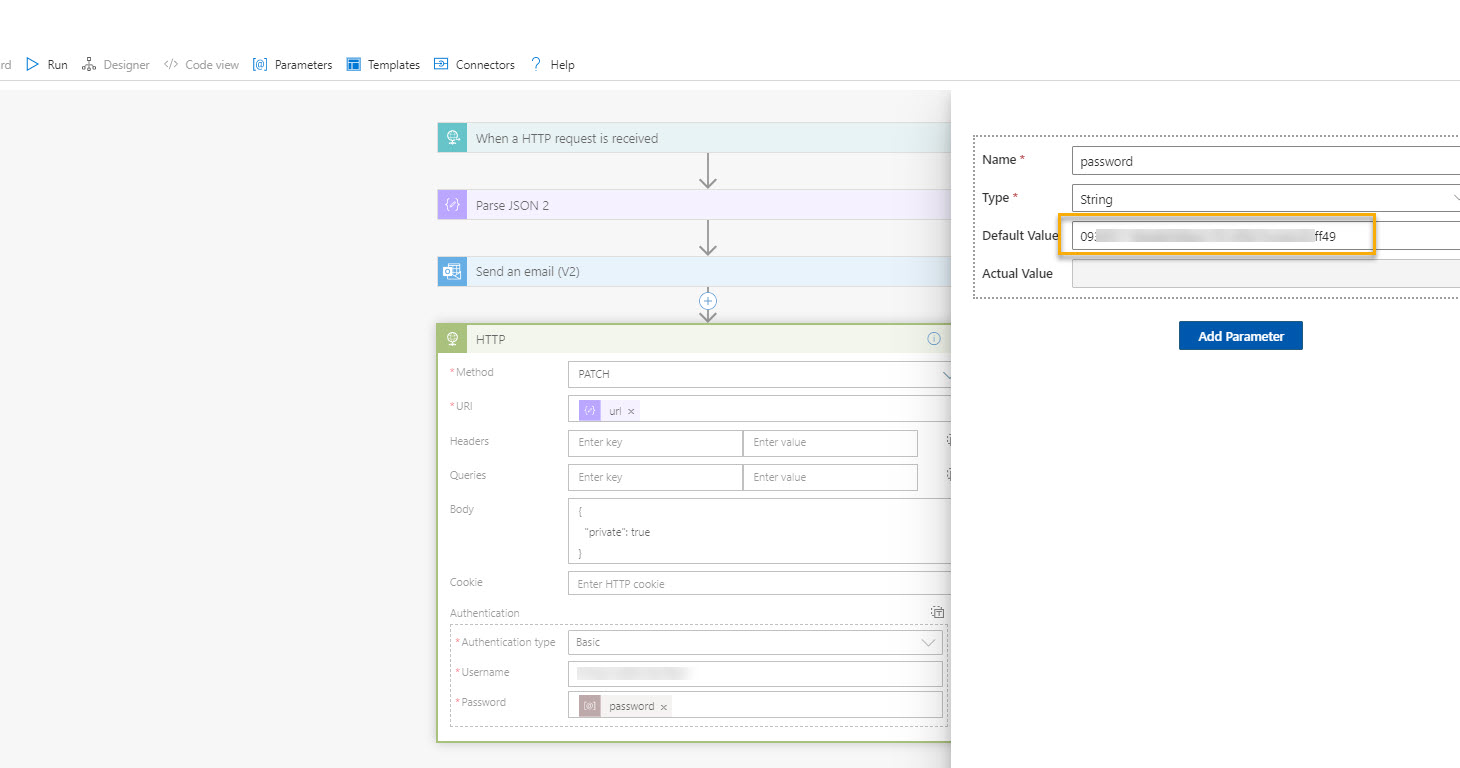

I hope the answer helps. Please let me know if you any further queries.

Hi @MayankBargali-MSFT , Thank you for your response. I'm facing a similar issue. I have a logic app flow with an API token connection, but I'm unable to know the token due to I could access to sensitive information. I could, but it's not advisable. Is it possible to connect via an encrypted parameter or perhaps through a pivot resource? The token is provided by our external partner, and it's crucial that they don't have access to our logic app, and vice versa. I hope I've explained myself clearly.
You can use obfuscation to secure the input and output in the designer: https://learn.microsoft.com/en-us/azure/logic-apps/logic-apps-securing-a-logic-app#obfuscate
Please review the consideration when securing input and output: https://learn.microsoft.com/en-us/azure/logic-apps/logic-apps-securing-a-logic-app#obfuscation-considerations
Access to run history data: https://learn.microsoft.com/en-us/azure/logic-apps/logic-apps-securing-a-logic-app#secure-run-history
Updated:
If you are creating the parameter of type string or securestring then the value will be visible in the designer and code view.
To protect passwords, keys, secrets, and other sensitive information define secured parameters at the template level and workflow definition level by using the securestring or secureobject type using ARM template. You can then store these values in the Azure Key Vault and use the parameter file to reference the key vault and secret. Your template then retrieves that information at deployment: https://learn.microsoft.com/en-us/azure/logic-apps/logic-apps-securing-a-logic-app#secure-parameters-in-azure-resource-manager-templates
You can leverage this ARM template: https://learn.microsoft.com/en-us/azure/logic-apps/logic-apps-securing-a-logic-app#secure-parameters-in-azure-resource-manager-templates
While deploying the ARM template it will ask you all the parameter that you have mentioned in the ARM template as below
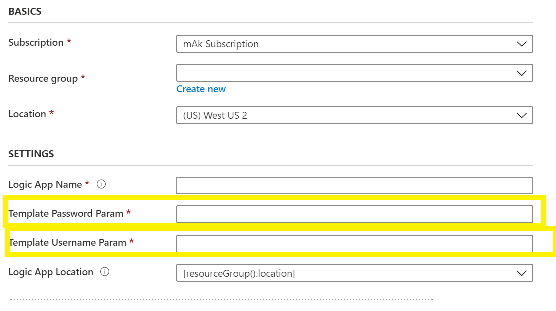
Once the deployment is completed. In the designer view, you will see two parameters are added
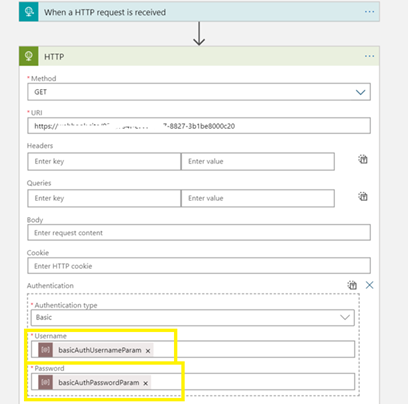
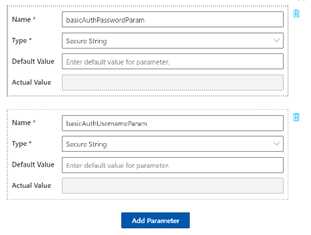
You can run the trigger and see that the username and password are passed correctly and in the code or designer view, you value not see any default value as this is set at the ARM template parameter level.
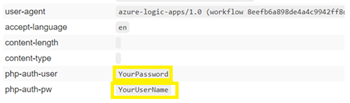
Hope the above helps.
I have enabled that secure on the step, but I am not able to see the lock on the Parameter. Also, when I click parameter, I am still able to see the password. Please suggest.
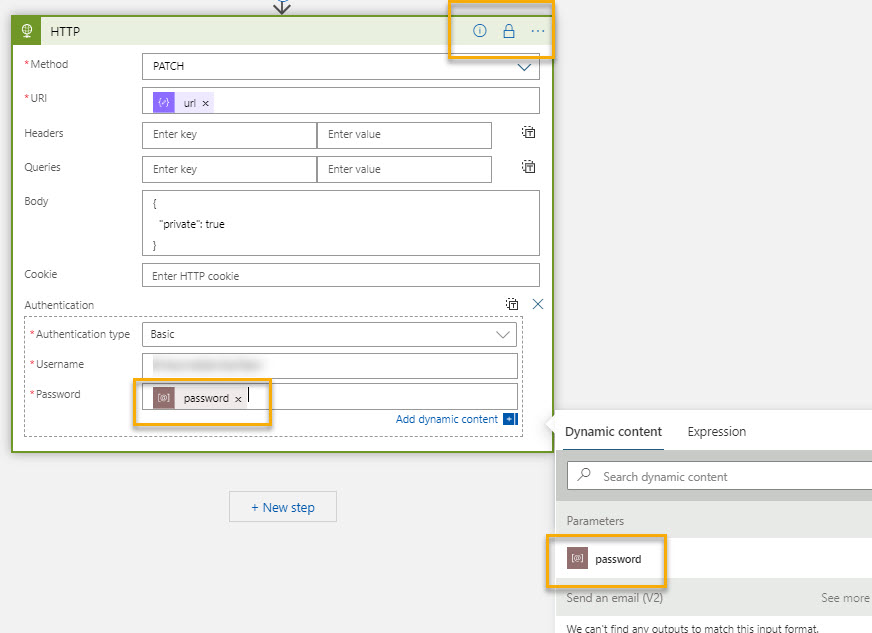
I have updated my answer. Let me know if you need any clarification.
Please 'Accept as answer' if it helped so that it can help others in the community looking for help on similar topics.