Microsoft 365 and Office | SharePoint | For business | Windows
A group of Microsoft Products and technologies used for sharing and managing content, knowledge, and applications.

This browser is no longer supported.
Upgrade to Microsoft Edge to take advantage of the latest features, security updates, and technical support.

I'm trying to add a field to an existing list content type using PowerShell SharePoint PNP.
Non of the add-pnpfield commands have a list switch. How do you update a content type in a list?
' cx='32' cy='32' r='32' /%3E%3Ctext x='50%25' y='55%25' dominant-baseline='middle' text-anchor='middle' fill='%23FFF' %3EED%3C/text%3E%3C/svg%3E)
When you use following Add-PnPField PowerShell, you will add the column to the default list content type.
$SiteURL = "https://crescenttech.sharepoint.com"
$ListName= "Team Projects"
$ColumnName= "ProjectStartDate" #Internal Name

$Cred = Get-Credential

Try {
    Connect-PnPOnline -Url $SiteURL -Credentials $Cred

    Add-PnPField -List $ListName -Field $ColumnName -ErrorAction Stop
    Write-host "Site Column '$ColumnName' Added to List Successfully!" -f Green
}
catch {
    write-host "Error: $($_.Exception.Message)" -foregroundcolor Red
}
For another list content type, add column in it through PnP PowerShell is not available. You could add the column in it manually. Here're steps:
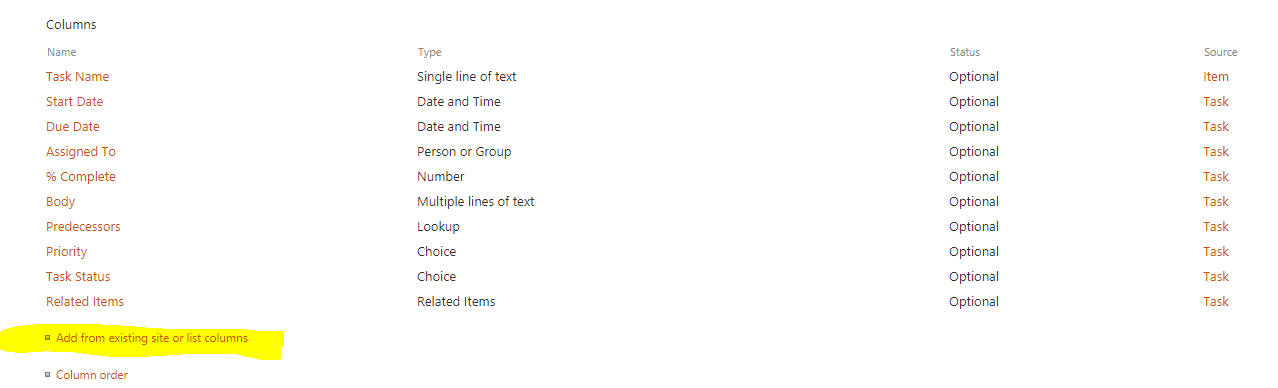
1.Go to list settings -> Content types section -> Select the content type.

2.Add from existing site or list columns.
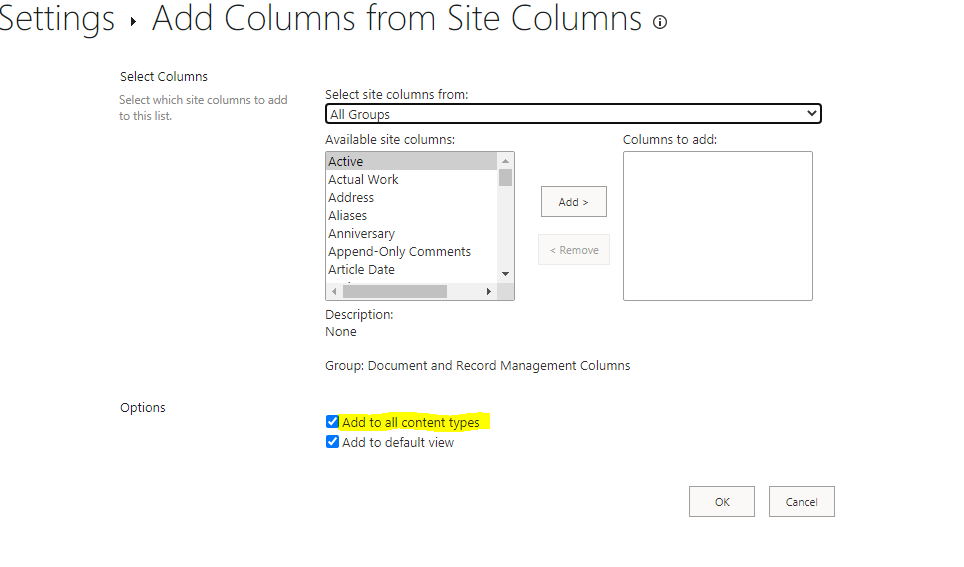
Or you could add a column to the list manually, click "Add to all content types".
If an Answer is helpful, please click "Accept Answer" and upvote it.
Note: Please follow the steps in our documentation to enable e-mail notifications if you want to receive the related email notification for this thread.
Yeah I specifically need to be able to add the columns as described in the screenshots. I'm working with backup software and attempting restores. It seems the content types don't properly restore and I was hoping to get by just adding the columns.
For some columns missing in the content type, I suggest you add them back manually.
I’m checking how the things are going on about this issue. If there is any problem with this issue, feel free to let me know.
Still a problem. The issue is after restore the sites content types are not all restored. The lists have the content type in them but they aren't tied to the site content types.
I think the site has some sort of issues as well. I was attempting to use the Sharepoint PNP commands to export the site. The fields will not export.
When I created the site I used SharePoint PNP to create all the content types and metadata. I must have done something wrong or the current pnp export commands just fail.
Currently I working towards replacing some of the metadata in the content types with text boxes instead of lookups. I've been trying use PowerApps but I come up with the limit for lookup columns.
Based on your description, I understand that you want to backup and restore a site collection including some custom content types with lookup columns.
I suggest you use "Save site as a template" to backup and restore the site collection. Please refer this article.
If an Answer is helpful, please click "Accept Answer" and upvote it.
Note: Please follow the steps in our documentation to enable e-mail notifications if you want to receive the related email notification for this thread.