Dear Nick,
Greetings! Thank you for posting in Microsoft forum.
When you say “PPTX 365 dashboard”, I believe you mean the Home/Open tab in PowerPoint as shown below, right?
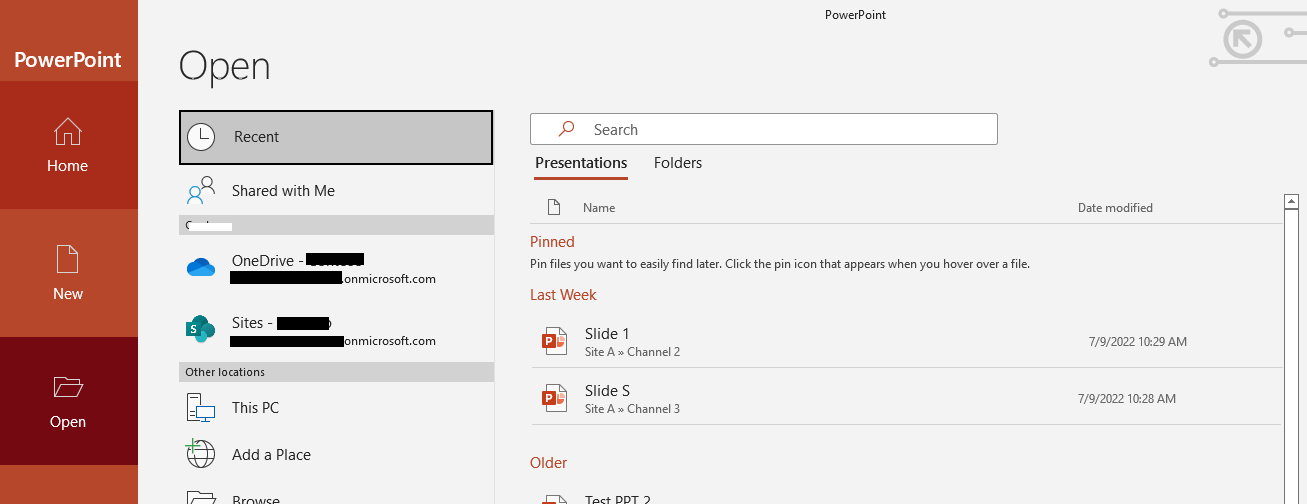
There could be several reasons behind this behavior. Your recently used files list synchronizes with your Microsoft Account. It means that if you sign in on multiple devices (desktop and laptop, for example) you have the same files listed in both places for easy access. Even if you access any PowerPoint file in browser that file will start appearing in Recent list in PowerPoint desktop application.
If you have an older machine that hasn't been turned on in a while, however, when you bring it online it may synchronize and it's possible that some of the documents from its old list might end up on your current recently used list.
Another way we sometimes see this happen is if somebody else, like a family member, uses your computer. If they're signed in as you, any documents they work on would then appear on your recently used list.
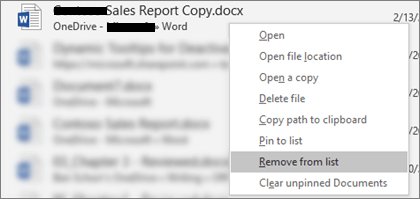
These were the possible scenarios that could manipulate your Recently accessed file list. The best way to remove these unexpected files is to follow the procedure above, under "Remove an individual file from the recently used file list". Right-click the unexpected files and choose **Remove from list. Caution:**Make sure you click Remove from List and not Delete file unless you want to actually remove the file from your entire system.
Now regarding “I cannot get the dashboard to sync so I can make edits to a file that someone just shared with me”, the Shared with me section in Office desktop app will show the files shared with you. Don’t worry, we will help you figure this out. Shared with me section in PowerPoint app will show the shared files that you see in the Shared section of your PowerPoint for the web. To confirm, go to Office 365 portal and sign in with your work or school account, click PowerPoint from the app launcher and compare the files that see in Shared section of PowerPoint for the web to the one that see in your PowerPoint desktop application. Are these the same shared PPTs or different?
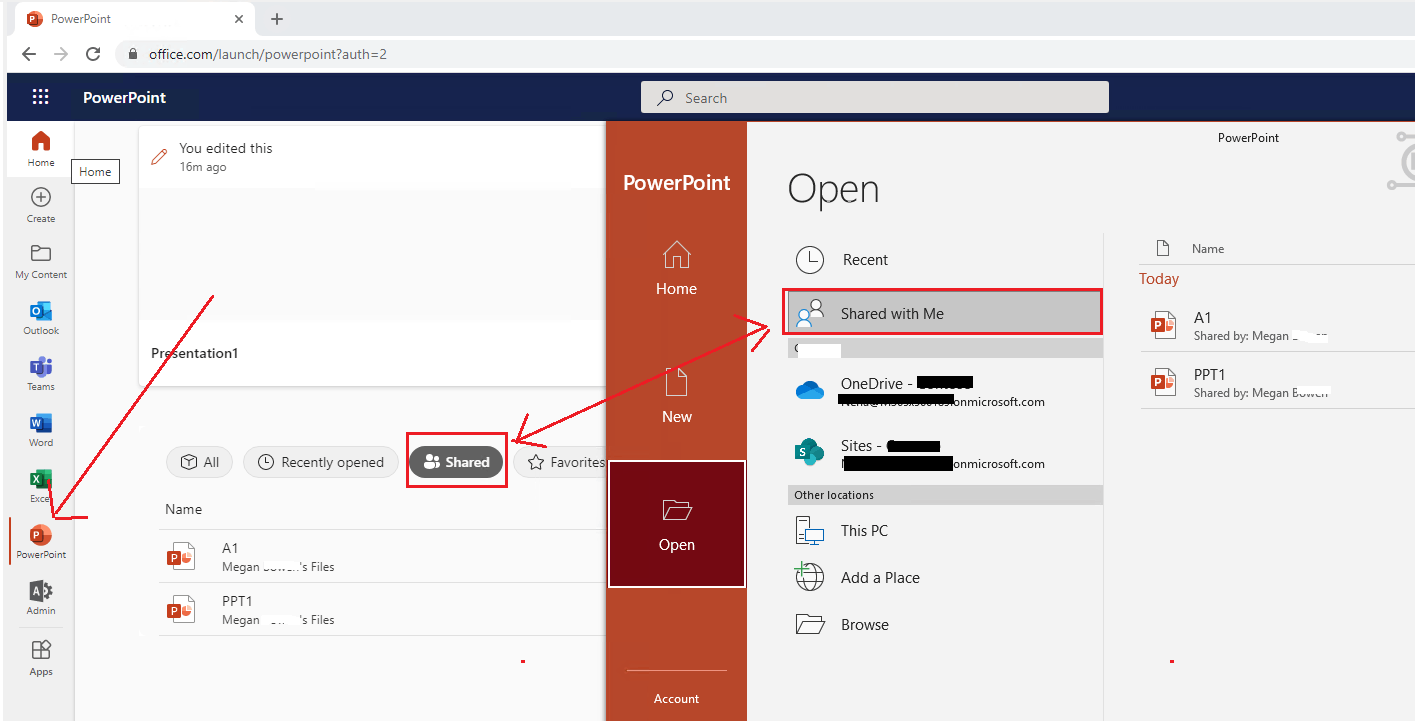
In case the shared files are different in PowerPoint for the web than the desktop ap, please provide us with the following information so we can understand the situation and help your further:
- Please provide the screenshot of Microsoft 365 Product Information. To get this screenshot, open PowerPoint, click File>Account, capture the screenshot of all the information mentioned under Product Information.
- May I know if the files are stored in your personal OneDrive or OneDrive for business?
- Could you please provide us with the screenshot of the shared section from browser and desktop app (Please mask any sensitive information from the screenshot).
We will look forward to your reply. Stay safe and stay healthy.
With sincerest regards,
Neha Singh | Microsoft Community Moderator
***Note: In the event that you're unable to reply to this thread, please ensure that your Email address is verified in the Community Website by clicking on Your Account Name > "My Profile" > "Edit Profile" > Add your Email Address > tick "Receive email notifications" checkbox > click on "Save".***
' cx='32' cy='32' r='32' /%3E%3Ctext x='50%25' y='55%25' dominant-baseline='middle' text-anchor='middle' fill='%23FFF' %3EA%3C/text%3E%3C/svg%3E)
