Microsoft 365 and Office | Word | For business | Windows
A family of Microsoft word processing software products for creating web, email, and print documents.

This browser is no longer supported.
Upgrade to Microsoft Edge to take advantage of the latest features, security updates, and technical support.
' cx='32' cy='32' r='32' /%3E%3Ctext x='50%25' y='55%25' dominant-baseline='middle' text-anchor='middle' fill='%23FFF' %3EA%3C/text%3E%3C/svg%3E)
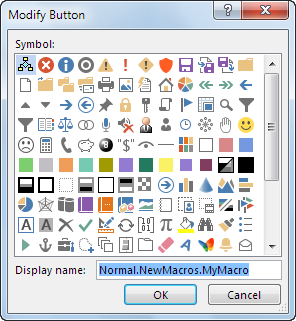
Nothing happens when I click the Modify button to try to modify a Macro on the Quick Access Toolbar. I would expect to be able to rename it and choose as a button as shown in the image here from from this MS support page.
Check out this video to see that nothing happens when I click the Modify button.
I'm using Microsoft® Word for Microsoft 365 MSO (Version 2301 Build 16.0.16026.20002) 64-bit.
A family of Microsoft word processing software products for creating web, email, and print documents.
Locked Question. This question was migrated from the Microsoft Support Community. You can vote on whether it's helpful, but you can't add comments or replies or follow the question.

For macros on the QAT, you are restricted to the one image if just using Modify the QAT in the user interface.
You can rename it and likely should.
You should be able to use the Modify button. You will be limited to certain images, though.
However, you are not limited to making changes through the user interface.
To change the image, you will need to get into the XML.
You can also expand the text that shows up.
Here is an example of mine that you can download and examine what was done:
Here is the XML that produces this:
<mso:qat>
mso:documentControls<mso:separator idQ="doc:sep1" visible="true"/><mso:button idQ="doc:RandForm_1"visible="true"label="Show Random Text Dialog"imageMso="FrameCreateLeft"screentip="Open dialog to insert dummy text"supertip="This gives you a choice of three different kinds of dummy or filler text to give text to yourdocument to test structure or appearance - Help or marketing text from Microsoft - fairly uniform sentence and paragraph length - Lorem Ipsum traditional filler text - very different sentence and paragraph length - The quick brown fox jumped over the lazy dog. The default is 6 paragraphs of 3 sentences each. You are allowed to choose the number of paragraphs and sentences."onAction="RandForm"/><mso:button idQ="doc:InsertRandomText_1"visible="true"label="Insert 6 paragraphs (3 sentences each) of Microsoft Help/Marketing Text"imageMso="SlidesPerPageSlideOutline"screentip="Insert dummy text from Microsoft"supertip="6 paragraphs 3 sentences each. Text from Help or Marketing Files"onAction="InsertRandomText"/><mso:button idQ="doc:InsertLoremText_1"visible="true"label="Insert 'Lorem Ipsum' dummy text"imageMso="SetPertWeights"screentip="Insert 'Lorem Ipsum' dummy text"supertip="6 paragraphs 3 sentences each. Lorem ipsum dolor sit amet, consectetuer adipiscing elit... Nunc viverra imperdiet enim. Fusce est. Vivamus a tellus."onAction="InsertLoremText"/><mso:separator idQ="doc:sep2" visible="true"/></mso:documentControls> </mso:qat>
Look at the imagemso, label, and screentip. The onAction identifies the macro being called. Read the linked pages for details on how to do this.
This answer has been deleted due to a violation of our Code of Conduct. The answer was manually reported or identified through automated detection before action was taken. Please refer to our Code of Conduct for more information.
Comments have been turned off. Learn more
Thanks. The Modify button works if I open Word as Administrator. I expect that was the issue. It's odd that it shows up but nothing if it is not opened as administrator.
Thanks, but this isn't correct. I am now able to change the image, but I needed to open Word as Administrator.

You copy of Word is not installed correctly, please try an Online Repair, then see if the Modify button works as expected.