How to disable image compression 'permanently and automatically' in Powerpoint?

Anonymous
2023-03-17T02:56:04+00:00

I usually handle some images on powerpoint because of its convinience.

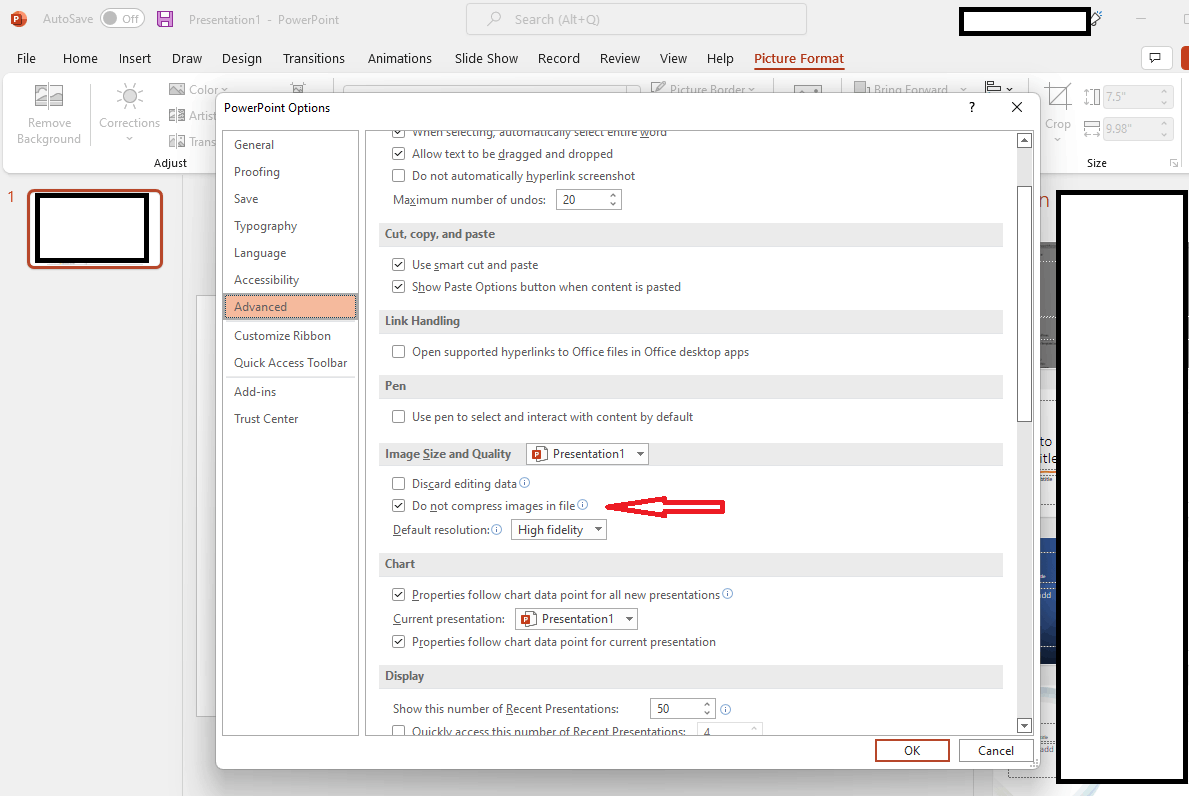
In default settings of powerpoint, "Do not compress images in file" checkbox is unchecked.

So, I have to manually click that checkbox each time I create a new file.

And that is quite annoying.

Is there any possible way to set the checkbox to be checked by default?

Microsoft 365 and Office | PowerPoint | For education | Windows

Locked Question. This question was migrated from the Microsoft Support Community. You can vote on whether it's helpful, but you can't add comments or replies or follow the question.

0 comments No comments
Answer accepted by question author
Anonymous
2023-03-17T05:55:09+00:00

Dear respected KHLee1,

Good day! Thank you for posting to Microsoft Community. We are happy to help you.

As per your description, generally, the option, " Do not compress images in file" check box. This setting applies to only the document that you selected.

You may try to Disable Image Compression Permanently in PowerPoint via registry key.

Adding a small item can make this feature disabled for all. if you are interested and if you want to compress.

1.Type regedit in the Run box

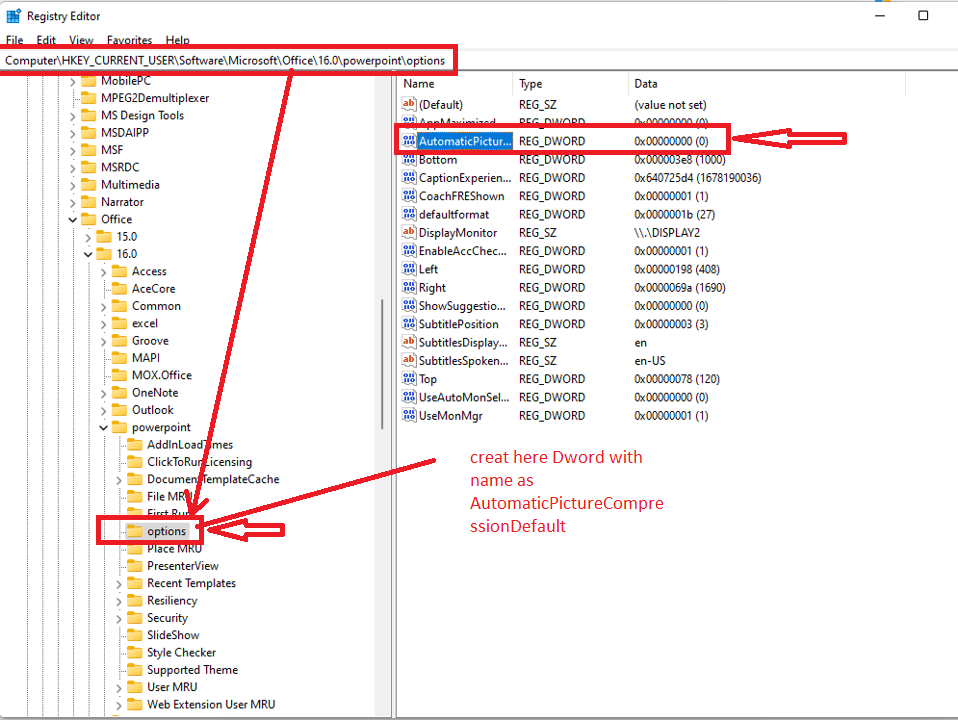
2.Follow this path HKEY_CURRENT_USER\Software\Microsoft\Office\16.0\PowerPoint\Options

3.Now on the right pane, right-click and add a Dword with name as AutomaticPictureCompressionDefault

4.For this Dword, if you set the value 0((zero is the same in decimal and Hex)), the image compression feature will select.
Image

WARNING*: Using Registry Editor incorrectly can cause serious problems that may require you to reinstall your operating system. Microsoft cannot guarantee that problems resulting from the incorrect use of Registry Editor can be solved. Use Registry Edit at your own risk.*

Result:
Image

We appreciate your understanding that sometimes the initial suggestions may not resolve the problem very soon. However, we can work together to narrow down and resolve the situation.

Appreciate your patience and understanding and thank you for your time and cooperation.

Sincerely,

Waqas Muhammad

Was this answer helpful?

4 people found this answer helpful.
0 comments No comments
Answer accepted by question author
Anonymous
2023-03-17T05:47:02+00:00

You CAN do this but it entails editing the registry. Is this something you are able to do?

Don't go there if you are not confident!

CLOSE POWERPOINT

Key HKEY_CURRENT_USER\Software\Microsoft\Office\16.0\PowerPoint\Options

Create a new DWord (32) and name it AutomaticPictureCompressionDefault

Make sure the value is zero

OK out and open a new presentation. Check the tick box.

Was this answer helpful?

1 person found this answer helpful.
0 comments No comments

2 additional answers

Sort by: Most helpful
  1. Anonymous
    2023-07-25T16:34:30+00:00

    This also works for Microsoft Word if you put the same dword in the Word Options in regedit

    Was this answer helpful?

    0 comments No comments
  2. Anonymous
    2023-03-18T01:37:10+00:00

    Hi respected KHLee1,

    I'm writing a follow up this case, and I haven’t received any information from you, may I know have you checked above reply? Feel free to post back if you need further assistance.

    Have a good day and stay safe 😊

    Sincerely,

    Waqas Muhammad

    Was this answer helpful?

    0 comments No comments