Developer technologies | .NET | Xamarin
A Microsoft framework for building cross-platform mobile apps using .NET and C# with native performance and user interfaces.
This browser is no longer supported.
Upgrade to Microsoft Edge to take advantage of the latest features, security updates, and technical support.
' cx='32' cy='32' r='32' /%3E%3Ctext x='50%25' y='55%25' dominant-baseline='middle' text-anchor='middle' fill='%23FFF' %3EH%3C/text%3E%3C/svg%3E)
I'm a new to xamarin forms, I want 
' cx='32' cy='32' r='32' /%3E%3Ctext x='50%25' y='55%25' dominant-baseline='middle' text-anchor='middle' fill='%23FFF' %3EWZ%3C/text%3E%3C/svg%3E)
Do you mean the bar above, or the whole page? Do you want to scroll the page? You can have a try to use carouselview .
whole page and no scrolling. when i hit next then it should ask for SPACES entry
Hello,
Welcome to our Microsoft Q&A platform!
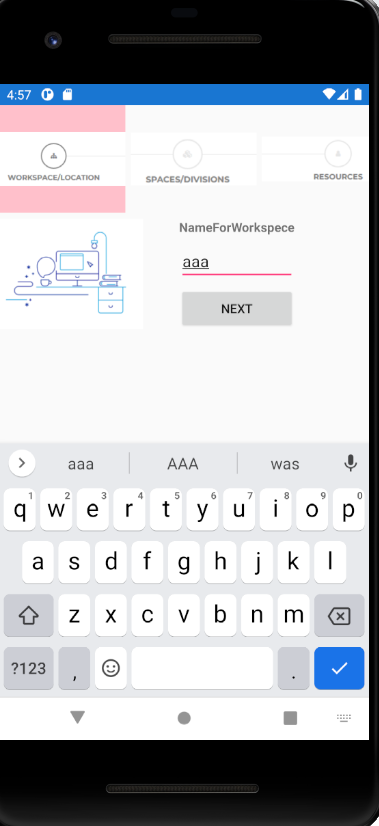
You could use image to display the bar above,and change the source of image when click button. I change the backgroundcolor of the image to show this effect, you could also add other logic codes when click the button. You can refer to the following code:
xaml
<StackLayout >
        <StackLayout Orientation="Horizontal">
            <Image x:Name="FirstImg" BackgroundColor="Pink" Source="first.png" WidthRequest="140" HeightRequest="120"></Image>
            <Image x:Name="SecondImg" Source="second.png" WidthRequest="140" HeightRequest="120"></Image>
            <Image x:Name="ThirdImg" Source="third.png" WidthRequest="140" HeightRequest="120"></Image>
        </StackLayout>
        <StackLayout Orientation="Horizontal"  Spacing="40">
            <Image Source="left.png" WidthRequest="160"></Image>
            <StackLayout >
                <Label x:Name="TitleLabel" Text="NameForWorkspece" FontAttributes="Bold"></Label>
                <Entry x:Name="MyEntry" Placeholder="Workspece"></Entry>
                <Button Text="Next" Clicked="Button_Clicked"/>
            </StackLayout>

        </StackLayout>

    </StackLayout>
cs
private void Button_Clicked(object sender, EventArgs e)
        {
            var entryText = MyEntry.Text;
            var lableText = TitleLabel.Text;
            if (entryText == null)
            {
                return;
            }else if( lableText == "NameForWorkspece")
            {
                FirstImg.BackgroundColor = Color.White;
                // FirstImg.Source = "lightFirst.png"; // you could change the image
                SecondImg.BackgroundColor = Color.Pink;
                //SecondImg.Source = "DarkSecond.png";
                MyEntry.Text = null;
                TitleLabel.Text = "Spaces";
            }else if (lableText == "Spaces")
            {
                SecondImg.BackgroundColor = Color.White;
                ThirdImg.BackgroundColor = Color.Pink;
                MyEntry.Text = null;
                TitleLabel.Text = "Resoures";
            }


        }


Best Regards,
Wenyan Zhang
If the response is helpful, please click "Accept Answer" and upvote it.
Note: Please follow the steps in our documentation to enable e-mail notifications if you want to receive the related email notification for this thread.