Change default video shape in Record Presentation in Powerpoint

Anonymous
2023-09-12T12:02:58+00:00

When I Record Presentation in Powerpoint it now defaults to a circular video recording/camera shape of my face. This is no good for me but I cannot establish how I change this. It's really frustrating as I need my new videos to match my old ones in formatting etc. and all my previous video presentation feature rectangular videos (the old default).

Does anyone know how to change this?

I know Powerpoint has a new Cameo feature which gives me control over video shape, but this is not quite the same as the old Record Presentation function I am used to.

Help.

Microsoft 365 and Office | PowerPoint | For business | MacOS

Locked Question. This question was migrated from the Microsoft Support Community. You can vote on whether it's helpful, but you can't add comments or replies or follow the question.

0 comments No comments

7 answers

Sort by: Most helpful
  1. Jim G 134K Reputation points MVP Volunteer Moderator
    2023-09-14T16:27:10+00:00

    Hi Time,

    Please ignore the ridiculous advice provided by Rhoda.

    Uninstall/reinstall will have absolutely no effect.

    You can change the Cameo shape. Select the shape, then use the Ribbon > Camera Format > Camera Styles options to choose how you want the camera object to look.

    Was this answer helpful?

    7 people found this answer helpful.
    0 comments No comments
  2. Anonymous
    2023-10-16T13:35:04+00:00

    I agree. Or least why can't your choice on slide 1 then be persistent throughout and you can edit the ones you want? I will give feedback to Microsoft. This is making me crazy and taking way too much time to edit each slide. One workaround that I did find is to set it the way that you want and then you can copy/paste it to all the other slides. Still a pain, but slightly less time consuming. Otherwise, even if you set it the way you want on slide 1, it defaults to the ugly circle on slide 2 :(

    Was this answer helpful?

    3 people found this answer helpful.
    0 comments No comments
  3. Jim G 134K Reputation points MVP Volunteer Moderator
    2023-09-15T19:09:33+00:00

    Hi

    I think you've discovered a bug, or something that got overlooked. I followed your steps and had the same result. I think the icon is supposed to be a Cameo object. It could be they are still working on this new feature.

    Use the Menu Bar and choose Help > Feedback > I Don't Like Something. It will let Microsoft know people are using the feature and it's not working as expected.

    Oddly, when I did my test, Designer showed the circle as a rectangle.

    Was this answer helpful?

    2 people found this answer helpful.
    0 comments No comments
  4. Jim G 134K Reputation points MVP Volunteer Moderator
    2023-10-16T16:08:15+00:00

    Hi

    When I tried today, when I recorded and added a video in presentation mode, it was a circle.

    When I switched back to Normal view, Designer provided rectangular shapes of my video. I chose one of the Desginer suggestions and then cut the rectangle from that slide and then used undo to return the slide to the way it was. Then I pasted the rectangular video into the slide and deleted the circular one. It's an awkward work-around, but maybe it will help.

    Was this answer helpful?

    1 person found this answer helpful.
    0 comments No comments
  5. Anonymous
    2023-09-14T19:01:51+00:00

    Hi Jim,

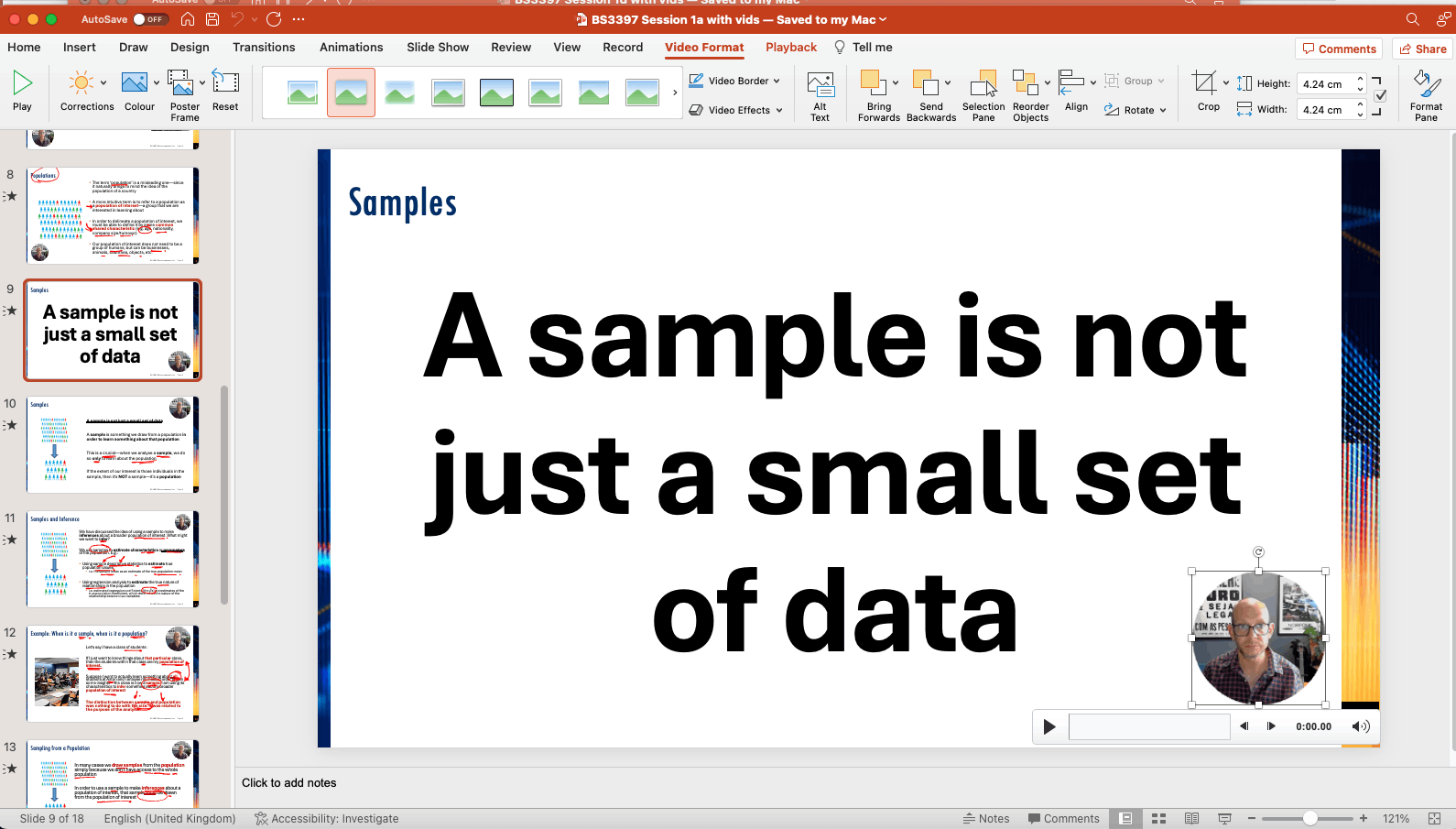
    Thank you for your help. The advice you have provided concerns the manipulation of Cameos, but the Record Presentation function creates a video which does not have the full range of options which are available for Cameos.

    As you can see in the image below. Record Presentation now makes an excessively ugly circular video, where it used to just record a 16:9 thumbnail in the bottom right corner (which could be moved, resized, cropped, etc.). Clicking on the round video does not give me the Camera Format option on the ribbon which is available if I use Cameos (such as manually inserting a cameo on every slide, which would be really time consuming). I tried tinkering with the Slide Master and adding a Cameo to every slide, but I'm not an expert, and the video ended up always at the back.

    All i would like to do is just set it so that the Record Presentation leads to the old rectangular video, not this horrorshow.

    PS - There's pretty good reasons for wanting the rectangle as it allows my hands to be seen in shot--useful for explaining things.
    Was this answer helpful?

    1 person found this answer helpful.
    0 comments No comments