Microsoft 365 and Office | Excel | For business | Windows
A family of Microsoft spreadsheet software with tools for analyzing, charting, and communicating data

This browser is no longer supported.
Upgrade to Microsoft Edge to take advantage of the latest features, security updates, and technical support.
' cx='32' cy='32' r='32' /%3E%3Ctext x='50%25' y='55%25' dominant-baseline='middle' text-anchor='middle' fill='%23FFF' %3EA%3C/text%3E%3C/svg%3E)
Hello,
I have got an issue. My VBA macros has been disabled ever since we have upgraded to 365 offices since Jan'23. All macros from share-drives cannot run but only when i move or copy the file to a desktop then macros work. The question of a trust center. I have done all settings under trust center and i have exhausted all ability of trust center settings. Meaning that I have tried adding the share-drive path to a trusted location, removing unnecessary add-ins, no macros unchecked box appears in my property unfortunately. My IT have also really assisted to try to solve this issue, but it seems like this issue is big and requires a close look by 365 Microsoft development team. If this can be solved. It will be a great improvement in the world of Microsoft office application.
In the interim, what more do we really need to do with this macro enabling. We really need to run some of the important file at work and now we only perform manual work because macros are disabled.
Locked Question. This question was migrated from the Microsoft Support Community. You can vote on whether it's helpful, but you can't add comments or replies or follow the question.
Macros from the internet are blocked by default in Office - Deploy Office | Microsoft Learn
Files centrally located on a network share or trusted website
If you have your users access files from a trusted website or an internal file server, you can do either of the following steps so that macros from those locations aren't blocked.
For example, if users are accessing a network share by using its IP address, macros in those files are blocked unless the file share is in the Trusted sites or the Local intranet zone.
Tip
For example, you could add a file server or network share as a trusted site, by adding its FQDN or IP address to the list of trusted sites.
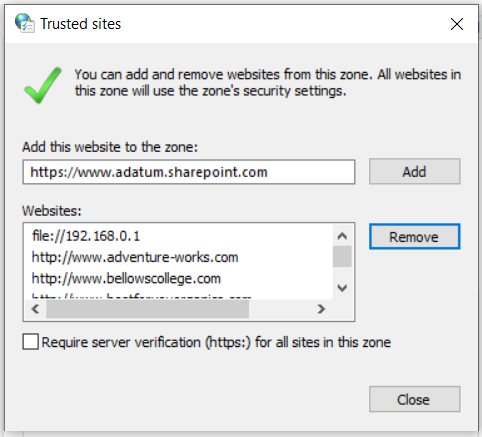
If you want to add URLs that begin with http:// or network shares, clear the Require server verification (https:) for all sites in this zone checkbox.