Microsoft 365 and Office | OneDrive | For home | Windows
A Microsoft file hosting and synchronization service.

This browser is no longer supported.
Upgrade to Microsoft Edge to take advantage of the latest features, security updates, and technical support.
' cx='32' cy='32' r='32' /%3E%3Ctext x='50%25' y='55%25' dominant-baseline='middle' text-anchor='middle' fill='%23FFF' %3EA%3C/text%3E%3C/svg%3E)
So I have monitoring software on my 2nd monitor at all times, this includes my drive usages. I noticed a couple days ago that there is a very persistent "spike" in my C drive's usage, which turned out to be spikes in writes. These spikes are very consistent, happening around every 30 seconds. So I checked Resource Monitor to see if anything pops up with high writes, and sure enough the second another spike pops up, I see a few files pop up way higher than the rest.
One is AppData\Local\Microsoft\OneDrive\settings\Personal\SyncEngineDatabase.db and SyncEngineDatabase.db-wal, both with 100s of MB of writes used (I assume over the course of 60 seconds? I believe that's how Resource Monitor works)
Another few that have small reads and less writes than the aforementioned files, but still higher than anything else, is AppData\Local\Temp\etilqs_[random chain of characters].
I know for a fact it's OneDrive causing this issue, simply cause if I turn OneDrive off it stops spiking. My C drive is an SSD, so I'd rather not have constant writes being used up for no reason. Also of note: my OneDrive folder is not on my C drive, it's on my E drive. And also there is nothing syncing while these spikes are happening, the OneDrive window says "Your files are synced". I'm not sure if it had an update recently that borked or what. (I am on the most recent windows 11 client and whatever updates that includes with OneDrive)
Any ideas?
A Microsoft file hosting and synchronization service.
Locked Question. This question was migrated from the Microsoft Support Community. You can vote on whether it's helpful, but you can't add comments or replies or follow the question.
I'm glad your issue was resolved, please feel free to contact the Microsoft community if you need help with any other issues.
Best regards
Miyeon - MSFT |Microsoft Community Support Specialist
I sincerely apologize (for what I consider a waste of time), as randomly today, after turning my computer on, the issue has suddenly stopped. I'm not sure if an update happened in the meantime or what, but as of today the issue has stopped.
It's a bit annoying cause I don't like making these posts unless I've tried everything I can and typically wait a while before resorting to something like this, I swear this issue had been happening for days before my post. And even more annoying as "it just fixed itself" is the most unhelpful "answer" to come across when having issues.
Dear Dorraj,
Thanks for visiting Microsoft Community.
I understand that there is a very persistent "spike" in your C drive's usage, which turned out to be spikes in writes. I understand exactly what you are experiencing and would be happy to help you.
Is your OneDrive account a personal or business account? You mentioned that your OneDrive folder is on the E drive, did you change the location of your OneDrive folder?Before you get back to me, you can try the following:
Perform a clean boot in Windows:
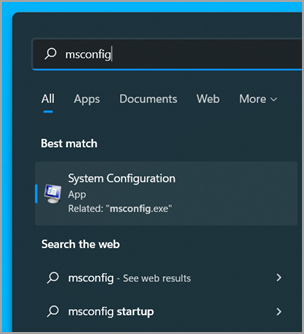
**Important:**If the computer is connected to a network, network policy settings might prevent you from following these steps. Only use the System Configuration utility to change the advanced boot options on the computer with guidance from a Microsoft support engineer. Using the System Configuration utility might make the computer unusable.
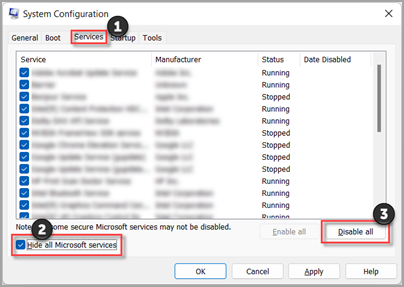
3. On the Servicestab of System Configuration, select Hide all Microsoft services, and then select Disable all. Select Apply.
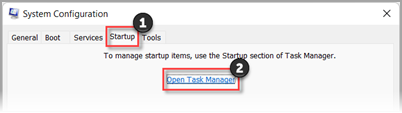
 4. On the Startuptab of System Configuration, select Open Task Manager.
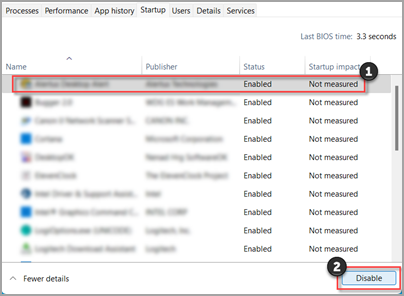
 5. On the Startuptab in Task Manager, for each Enabledstartup item, select the item and then select Disable. (Keep track of which items have been Disabled. You will need to know this later.)
 6. Close Task Manager.
7. On the Startuptab of System Configuration, select OK. When you restart the computer, it will be in a clean boot environment. Follow troubleshooting steps to install, uninstall, or run your application. Your computer might temporarily lose some functionality while in a clean boot environment. Reset the computer to start normally after clean boot troubleshooting and resume functionality.
6. Close Task Manager.
7. On the Startuptab of System Configuration, select OK. When you restart the computer, it will be in a clean boot environment. Follow troubleshooting steps to install, uninstall, or run your application. Your computer might temporarily lose some functionality while in a clean boot environment. Reset the computer to start normally after clean boot troubleshooting and resume functionality.
Disclaimer: A “clean boot” starts Windows with a minimal set of drivers and startup programs. It helps to determine whether a background program is interfering with your game or program and to isolate the cause of a problem.
These steps of "clean boot" might look complicated at first glance. However, to avoid any trouble for you, please follow them in order and step-by step so that it will help you get you back on track.
Create a local administrator account:
Open Settings and create another account
Please feel free to contact me if you need further assistance.
Best regards
Miyeon - MSFT |Microsoft Community Support Specialist