How do I wrap axis text for a chart in PowerPoint

Anonymous
2024-04-10T14:58:54+00:00

I want to wrap the text in a chart. Right now the label of axis is too long so it shows ... at the end.

Another chart is wrapped well and I didn't find any setting differences. I don't know this chart can't be wrapped. The "wrap text in shape" is greyed out.

Microsoft 365 and Office | PowerPoint | Other | Windows

Locked Question. This question was migrated from the Microsoft Support Community. You can vote on whether it's helpful, but you can't add comments or replies or follow the question.

0 comments No comments
{count} votes

5 answers

Sort by: Most helpful
  1. Anonymous
    2024-04-10T18:50:32+00:00

    Hello,

    Welcome to Microsoft Community.

    To wrap the axis text in a chart in PowerPoint, you can try the following steps:

    1. Click on the chart to select it.
    2. Click on the axis label that you want to wrap.
    3. In the Home tab, click on the "Alignment" dropdown in the "Paragraph" section.
    4. Select "Wrap Text" from the dropdown menu.
    5. If the "Wrap Text" option is greyed out, it may be because the axis label is not a text box. In this case, you can try converting the axis label to a text box by right-clicking on it and selecting "Format Axis Label".
    6. In the "Format Axis Label" pane, select "Text Box" and then check the "Wrap text in shape" option.

    If these steps do not work, please let me know and I can provide further assistance.

    Thank you for your patience and understanding!

    Regards,

    Manson |Microsoft Community Support Specialist

    0 comments No comments
  2. Anonymous
    2024-04-10T19:13:24+00:00

    It still doesnt work. I'm stuck at step 4.

    I don't have "Alignment" dropdown in the "Paragraph" section.

    I expanded 'Paragraph", under "Alignment" it's left, centered, right, justified, distributed, no "wrap text".

    ![](https://learn-attachment.microsoft.com/api/attachments/d493f3be-46a7-438d-858f-ccc2fb17e580?platform=QnA"https://learn-attachment.microsoft.com/api/attachments/2c170257-7451-40d6-b8bb-35ff31b1c311?platform=QnA" title="filestore.community.support.microsoft.com" rel="ugc nofollow">

    10 people found this answer helpful.
    0 comments No comments
  3. Anonymous
    2024-04-11T09:08:31+00:00

    Hi,

    I have sent you a private message. If possible, please send us the PowerPoint document you are currently editing and having problems with, and let us check the problem for you.

    *Considering that the document may contain your private information, you can modify the text and data in the document at will. We only need the format of the document and the type of chart.

    On the other hand, you can try to select the text that is incomplete or "..." on the

    0 comments No comments
  4. Anonymous
    2024-04-12T04:28:34+00:00

    I modified the document slightly and sent it to you again by private message.

    I found that because of the large amount of X-axis text in the chart you used, there was indeed a situation that could not be wrapped. I tried to reduce the font size of the text to barely make them appear wrapped, but it did not look as good as your original editing.

    0 comments No comments
  5. Anonymous
    2024-04-14T14:51:34+00:00

    Hello, Sherry Lu

    Hope you are doing well.

    Your requirement can be achieved by following the steps below.

    1-> Right-click the data you need to adjust and click Edit Data - Edit Data in Excel - It will jump out an Excel window.
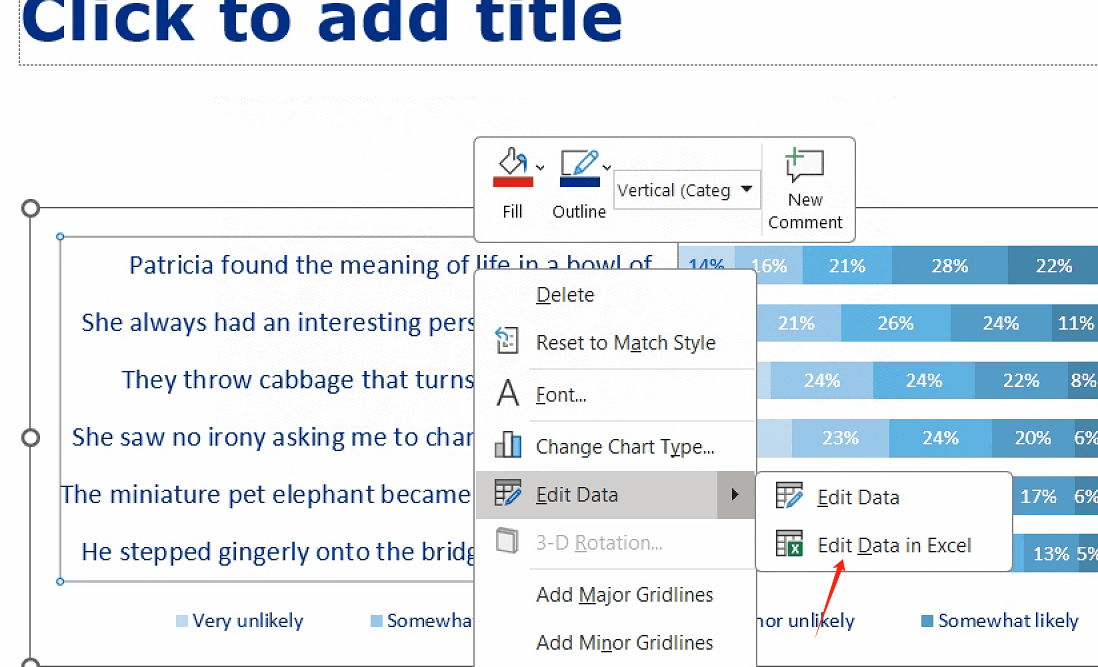
    2-> Now, place the cursor on the data that needs to be wrapped, and hold down the shortcut key ALT+Enter to force the text to wrap, as shown in the figure:

    3-> Next, close the Excel and go back to your PowerPoint Chart, Drag your table to a corresponding size to accommodate your wrapped text space, as shown in the figure:
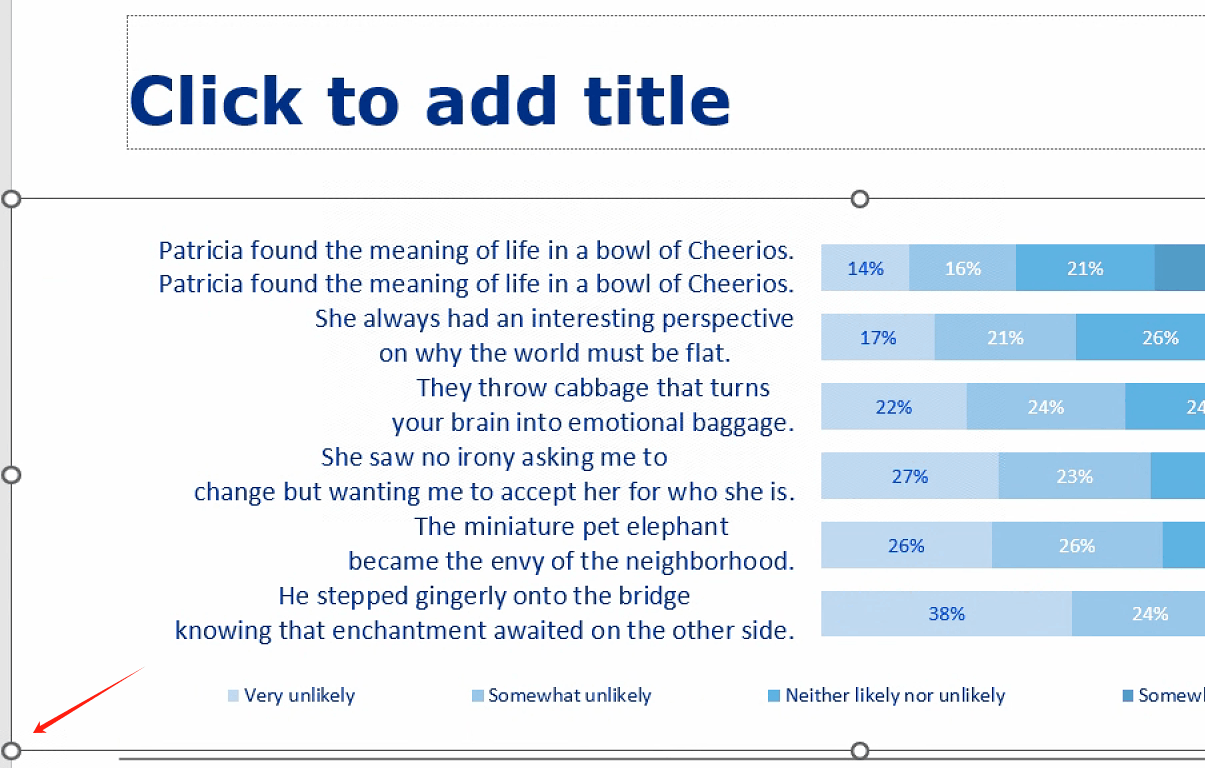
    Feel free to let me know if anything unclear.

    Regards,

    Icelynn

    9 people found this answer helpful.
    0 comments No comments