Microsoft 365 and Office | Excel | Other | Windows
A family of Microsoft spreadsheet software with tools for analyzing, charting, and communicating data.

This browser is no longer supported.
Upgrade to Microsoft Edge to take advantage of the latest features, security updates, and technical support.
' cx='32' cy='32' r='32' /%3E%3Ctext x='50%25' y='55%25' dominant-baseline='middle' text-anchor='middle' fill='%23FFF' %3EA%3C/text%3E%3C/svg%3E)
for example,
Locked Question. This question was migrated from the Microsoft Support Community. You can vote on whether it's helpful, but you can't add comments or replies or follow the question.
Hi Muhammad Usamn,
Thanks for your post in Microsoft Community.
Could you please specify what exactly happens when you delete one of the spaces? Could you share complete screenshots before and after removing the spaces?
Additionally, this issue could be due to Excel not being compatible with proprietary formats from Word. You might consider, when pasting into Excel, selecting the 'Match Destination Formatting' option from the Paste Options. This will clear the proprietary formatting from Word and format the text according to Excel's proprietary format, which might meet your needs.
I hope my explanation makes sense, and I look forward to your reply!
Best Regards,
Thomas C - MSFT | Microsoft Community Support Specialist
When copying from Word.
Before removing space in excel.
Hello THomas.C MSFT
Thanks for your response.
The trick you told me actually it is working, but the problem is I have a lot of data pasting from word to excel and sometimes I have ten numbering data and sometimes more have, on this scenario this trick is not suitable for me.
And one more thing. Before I was using excel version 2016. but this issue occurs when I installed M365.
(After removing space).
The differences you observed between Excel 2016 and Microsoft 365 for Excel are normal. Microsoft removed the "Paste and Match Destination Formatting" shortcut after the Excel 2019 update. Frankly, I don't understand why they made this change either. As a member of the support team, I do not have the authority to participate in the design and development of Excel. I can only share alternative solutions that I know of, hoping they will meet your needs.
At this point, this option will appear at the very top of the Excel application. Press and hold ALT to enter the quick action mode. Observe the shortcut key for the paste option; in my case, it is 5.
[
- Method 2: Paste a cell with "Match Destination Formatting" as a template, for example, place it in cell A1.
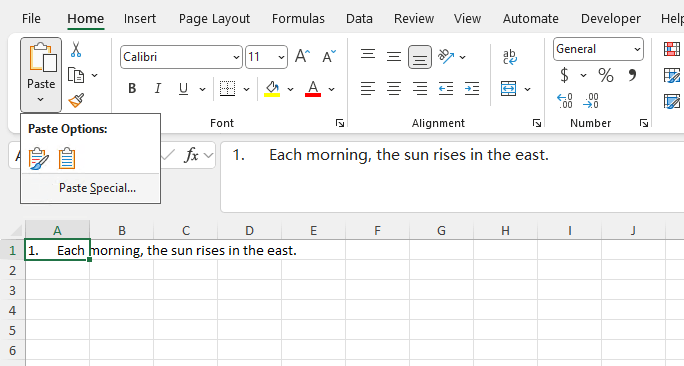
Now, press CTRL + V to normally paste your text into other cells.
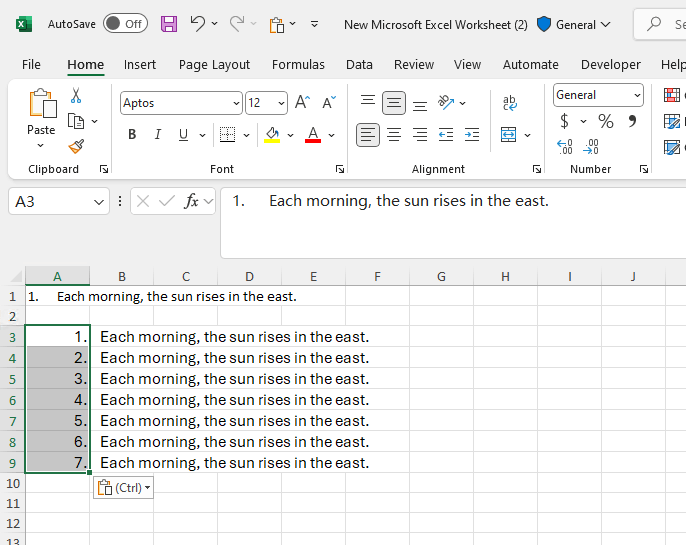
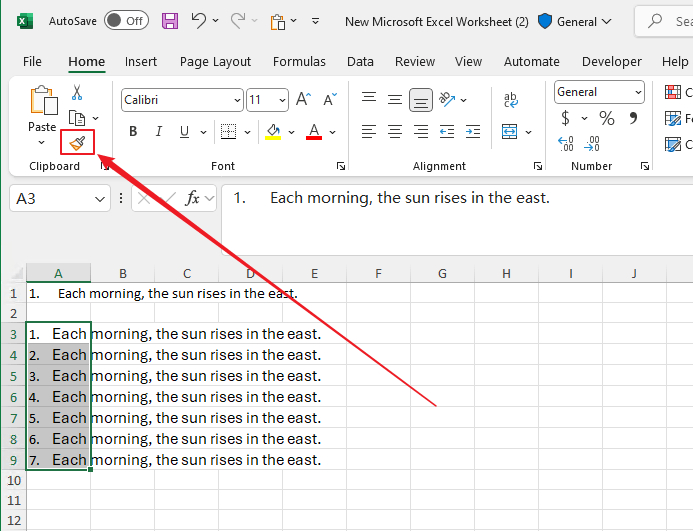
Select cell A1 > Home tab > Format Painter. The cursor will turn into a brush. Select the unformatted text you just pasted into Excel to quickly apply the existing format to the unformatted cells.
I hope you find these alternative methods effective.
Thomas