Azure SQL Database
An Azure relational database service.
This browser is no longer supported.
Upgrade to Microsoft Edge to take advantage of the latest features, security updates, and technical support.
' cx='32' cy='32' r='32' /%3E%3Ctext x='50%25' y='55%25' dominant-baseline='middle' text-anchor='middle' fill='%23FFF' %3ER%3C/text%3E%3C/svg%3E)
Hi there,
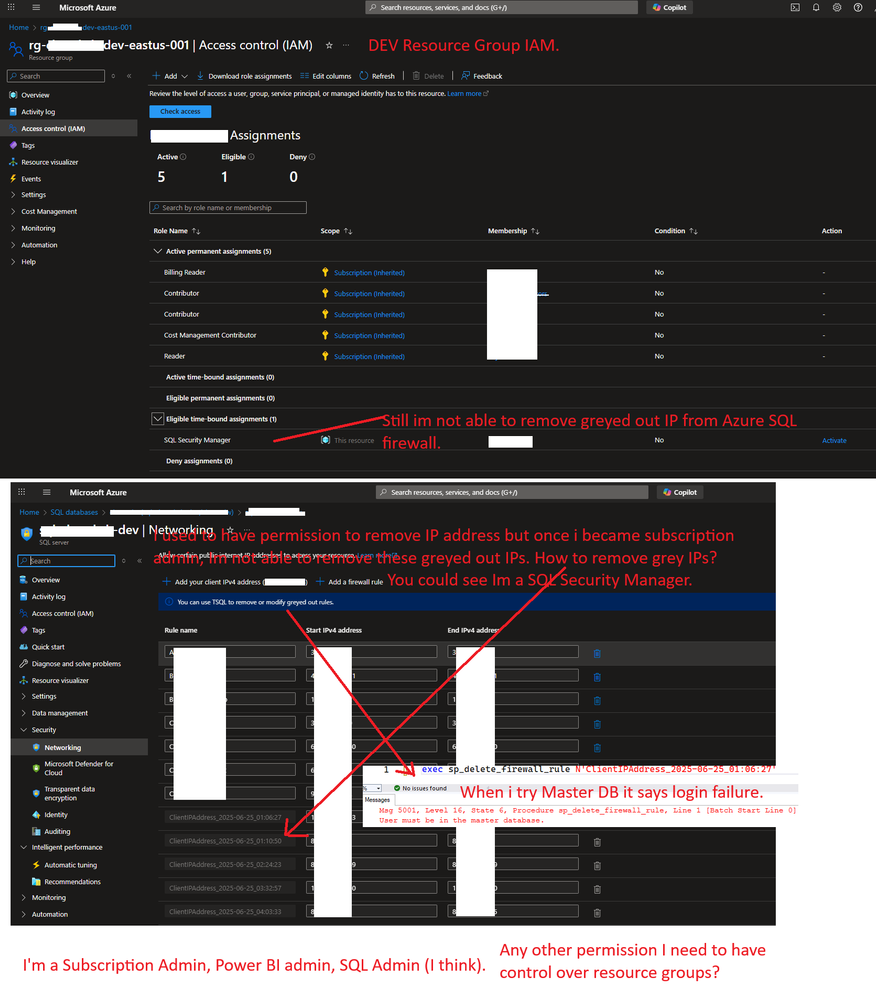
I have 2 environments. I'm more of admin on Azure environment (recently made as subscription admin) after which Dev issue - Azure SQL I'm having difficulty to remove IP from Azure SQL Firewall. (Earlier i was able to) today my manager granted me subscription admin and as SQL Security Manager and it still not able to remove grayed out IPs.
Thanks. Those grey IPs are my own IPs created when I logged into SSMS. I was able to delete it myself for many months earlier. Once I got subscription level admin, later on i got to know my ips are greyed out and now want to clean up. Does it mean once i become S-Admin i lost server-level principal login. im still able to login and continue db development activities with no issues. Anyway what should be done to so i become server level principal login again? I still follow the above step?
I remember i was sql contributor. I never had any admin access till last 2 weeks and many months i was still able to add/remove SQL IPs under firewall. Im not sure seeking S-Admin, AAD admin is all necessary to delete the SQL firewall. I dont want unnecessary admin access when i was able to delete IPs without admin access earlier. All i need is full control of Azure SQL. Not SAdmin, not AAD admin,etc.. Can you please guide me to get full of Azure SQL but dont want my ID to be as admin unnecessarily to avoid any unknown breaches.
' cx='32' cy='32' r='32' /%3E%3Ctext x='50%25' y='55%25' dominant-baseline='middle' text-anchor='middle' fill='%23FFF' %3EKK%3C/text%3E%3C/svg%3E)
Hi @RJ,
Thanks for the detailed information, I understand your concern having Azure AD admin access. can you please check with someone who is having Azure AD admin access are able to delete the ip addresses or not.
if you are still not able to delete ip address, could you please confirm below details
Please go through this Microsoft document for more details:
Please let us know if you need further information.
Thanks,
Kalyani
Hello @RJ,
Hope you have great day!
Could you please confirm if you have gone through my response and if that worked for you? Do let me know if you have any further questions on this.
If the provided information helpful, please click "Upvote", it will help others who might be facing similar challenges.
Thanks
Kalyani
Hi @RJ,
Greetings for the day!
Could you please confirm if you have gone through my previous response and if that worked for you? Any update?
Thanks!
Kalyani

To my knowledge, you need "Contributor" or "Owner" on the logical server resource.
About the error with sp_delete_firewall_rule, it should be executed on master database for server-level rules. The rules you are trying to change have been defined on logical server.
I have attached screenshot above. Am i missing anything else.
If the permission of Security Manager did not work, try the 2 other permissions I mentioned that are specified on the Azure SQL documentation https://learn.microsoft.com/en-us/azure/azure-sql/database/firewall-configure?view=azuresql#permissions
Hello @RJ,
Thanks for reaching out on Microsoft Q&A! let me try to help with some steps
Why You Can't Delete Grayed-Out Ips:
Even though you have roles like SQL Security Manager and Subscription Admin, those roles do not give you permission to manage server-level firewall rules stored in the master database.
These rules can only be modified by.
The server-level principal login (the original SQL admin created during server setup)
Or an Azure Active Directory (AD) admin assigned to the SQL server
Become the Azure AD Admin for the SQL Server
You must be set as the Active Directory admin on the SQL logical server-not just the database.
Delete the Grayed-Out IPs via Portal
In Azure Portal:
In T-SQL (SQL Server Management Studio or Azure Data Studio):
--Connect to master database
USE master;
--Delete the rule
EXEC sp_delete_firewall_rule @name = N'ClientIPAddress_2023-06-28_01:06:27';
--Optional: Refresh cache
DBCC FLUSHAUTHCACHE;
If you get the error “User must be in the master database,” it means you're connected to the wrong database. Switch to master before running the command.
Note: Grayed-out firewall rules in Azure SQL Database can only be deleted by the server-level principal login or an Azure Active Directory (AD) admin.
Please refer this document:
Let me know if you need more details, happy to assist you further
Thanks,
Kalyani