Azure SQL Database
An Azure relational database service.
This browser is no longer supported.
Upgrade to Microsoft Edge to take advantage of the latest features, security updates, and technical support.
' cx='32' cy='32' r='32' /%3E%3Ctext x='50%25' y='55%25' dominant-baseline='middle' text-anchor='middle' fill='%23FFF' %3EDZ%3C/text%3E%3C/svg%3E)
How to request access SQL managed Instance region access.
An Azure relational database service.
' cx='32' cy='32' r='32' /%3E%3Ctext x='50%25' y='55%25' dominant-baseline='middle' text-anchor='middle' fill='%23FFF' %3EMK%3C/text%3E%3C/svg%3E)
Hi Dezhen Zheng,
Just checking in to see if the below answer helped. If this answers your query, do click Accept Answer and Yes for was this answer helpful. And, if you have any further query do let us know.
Answer accepted by question author
Hi Dezhen Zheng,
Greetings!!
To create a SQL Managed Instance in a region that is currently not supported,
you can send a support request via the Azure portal.
sql and choose the appropriate product:
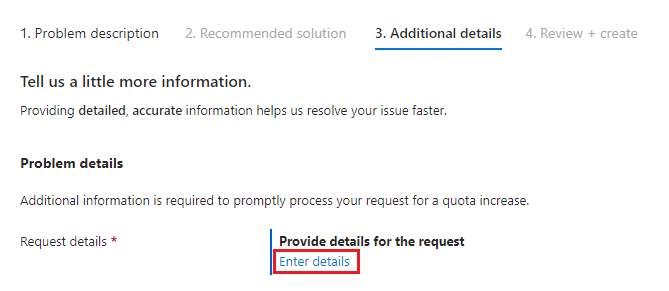
Selecting Enter details displays the Quota details window that allows you to add additional information. The following sections describe the different options for SQL Database and SQL Managed Instance quota types.
Enable subscription access to a region
Use Region access to request creating a resource in a selected region since some subscriptions have limits to where they can create resources. You might see an error such as:
Your subscription does not have access to create a server in the selected region.
Consumption is calculated in vCores, regardless of your purchasing model, so if you're using the DTU-based purchasing model, use the following formula to convert your expected DTU consumption to vCores:
1 vCore ~ 100-125 DTU.
To request region access, follow these steps:
Hope this helps. Do let us know if you have any further queries.
If this answers your query, do click Accept Answer and Yes for was this answer helpful. And, if you have any further query do let us know.

Hi,
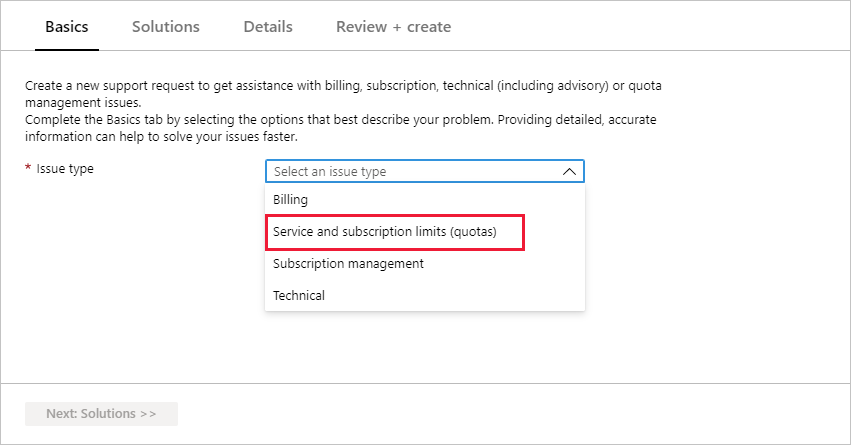
Please carefully follow my instructions below to create a new Service and subscription limits (quotas) request quota increase to allow access to deploy SQL Database Managed Instance.
1. Navigate to this link to start the process:
https://portal.azure.com/#create/Microsoft.Support
2. Enter quota in the box and click Go
3. Select Others / Service and subscription limits (quotas) and click Next
4. Click Create a support request button, as shown
5. Select Issue type: Service and subscription limits (quotas), Subscription, Quota type: SQL Database Managed Instance, click Next
6. Now you should be on Additional details tab. Click Enter details
7. Select Region, enter new limits for Subnet and vCore, and then click Save and continue
8. Finish filling out Additional details tab, click Next, review and click Create. You should receive an automated email within a few minutes.
Please click Accept Answer and upvote if the above was helpful.
Thanks.
-TP