Hello James Beck,
Welcome to Microsoft Q&A!
The "X" on the speaker icon often indicates that Windows isn't detecting any audio output devices. To better help you, I'd like to ask for your Windows version (e.g. W10 or W11). In the meantime, let's try to restore system sound (assuming for Windows 11, but it should be similar in older Windows versions):
1 - Run the built-in troubleshooter:
- Right-click speaker icon in the Taskbar > choose Troubleshoot sound problems
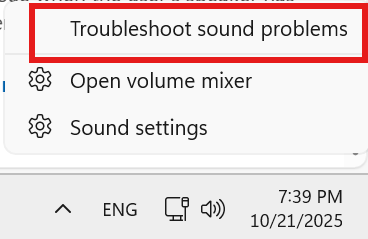
- Or choose Sound settings instead > scroll down and click Output devices under Advanced

- Follow the on-screen prompts to let Windows automatically detect and fix issues
- If you couldn't find the path, open Settings and type
Troubleshoot in the Search bar
2 - Check if Audio is disabled
- Still in Sound settings, scroll to the top to Output
- Under this section, make sure a device is selected
- If it says "No output device found", continue to the next steps
3 - Check audio drivers
- Open Device Manager > turn on View hidden devices in View tab
- Expand Sound, video and game controllers > look for devices:
- With a yellow warning icon
- Or being grayed out
- Suspicious
- Right-click it > choose Update driver and let it search automatically
- If nothing is found, choose Uninstall device then restart your PC
4 - Check Audio services
- Press Win + R > type
services.msc > press Enter
- Search and right-click these services (if found):
- Windows Audio
- Windows Audio Endpoint Builder
- Remote Procedure Call (RPC)
- If they are Running, right-click and choose Restart
- Make sure Startup Type is also set to Automatic
If the issue persists, let me know your Windows version, and if this issue started recently after a system change (e.g. Windows Update). I'll give more suggestions based on that.
If the answer is helpful, please click "Accept Answer" and kindly upvote it. If you have extra questions about this answer, please click "Comment".
Note: Please follow the steps in our documentation to enable e-mail notifications if you want to receive the related email notification for this thread.
' cx='32' cy='32' r='32' /%3E%3Ctext x='50%25' y='55%25' dominant-baseline='middle' text-anchor='middle' fill='%23FFF' %3EJB%3C/text%3E%3C/svg%3E)

' cx='32' cy='32' r='32' /%3E%3Ctext x='50%25' y='55%25' dominant-baseline='middle' text-anchor='middle' fill='%23FFF' %3ELN%3C/text%3E%3C/svg%3E)