Windows Security shows blank and Security Center (wscsvc) is missing / won’t start

saleh 0 Reputation points
2025-11-07T11:11:35.6266667+00:00

Hello,

My Windows Security platform on Windows 11 is completely broken after installing a malicious application. Here are the symptoms:

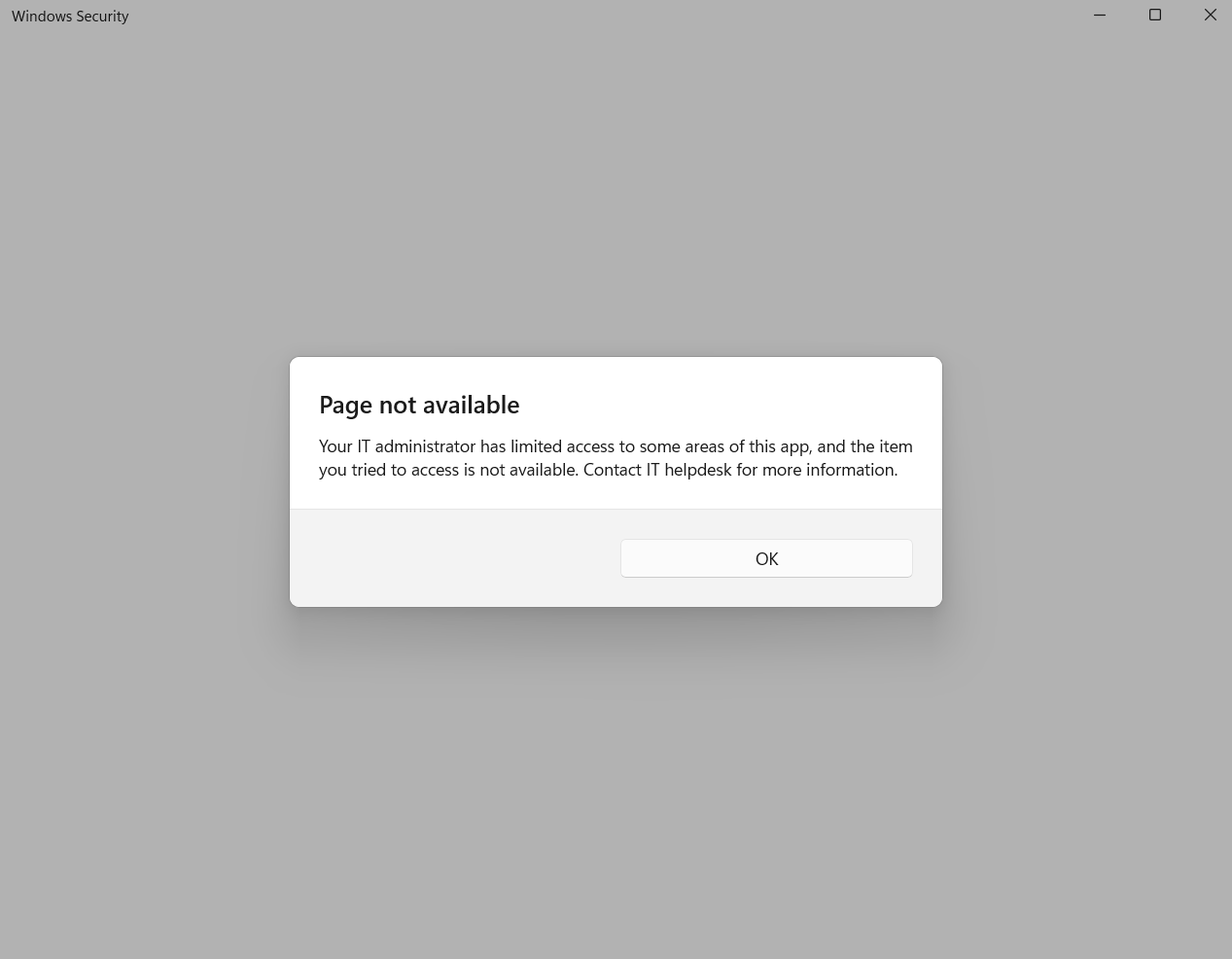
  1. When I try to open the Windows Security app from the Start Menu, it opens to a completely blank page.

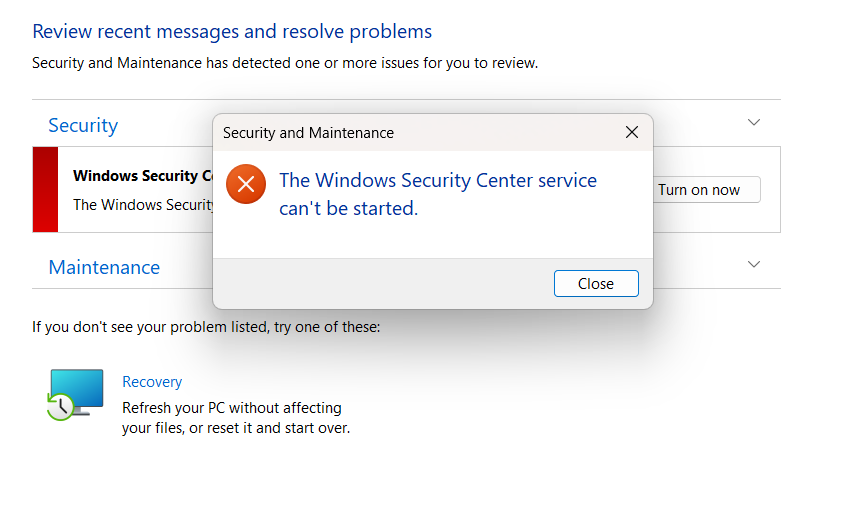
When I go to the old Control Panel > Security and Maintenance and click "Turn on now" for virus protection, I get the error: "The Windows Security Center service can't be started."

I have checked the Services console (services.msc), and the "Security Center" service (wscsvc) is completely missing from the list, along with other core Defender services.

This issue started after I installed a game from an untrusted source, which I now know contained malware. The malware also appears to have removed my admin privileges, although my account is still listed as an administrator.

Troubleshooting steps I have already taken:

I successfully regained full admin privileges by activating the built-in administrator account and re-adding my own user account to the administrators group.

From an elevated command prompt, I have run both DISM /Online /Cleanup-Image /RestoreHealth and sfc /scannow. Both commands completed successfully, and sfc reported that it "found corrupt files and successfully repaired them."

Despite these repairs and multiple reboots, the issue persists. The Windows Security app remains blank, and the services are still missing.

My primary question is: Since the standard system file repair tools (sfc, DISM) did not restore the missing services, what is the official or recommended procedure to completely rebuild and reinstall the Windows Security platform on Windows 11?

Is there a way to do this without performing a PC Reset that would remove all my installed applications?

Thank you for your assistance.Hello,

My Windows Security platform on Windows 11 is completely broken after installing a malicious application. Here are the symptoms:

When I try to open the Windows Security app from the Start Menu, it opens to a completely blank page.

When I go to the old Control Panel > Security and Maintenance and click "Turn on now" for virus protection, I get the error: "The Windows Security Center service can't be started."

I have checked the Services console (services.msc), and the "Security Center" service (wscsvc) is completely missing from the list, along with other core Defender services.

This issue started after I installed a game from an untrusted source, which I now know contained malware. The malware also appears to have removed my admin privileges, although my account is still listed as an administrator.

Troubleshooting steps I have already taken:

I successfully regained full admin privileges by activating the built-in administrator account and re-adding my own user account to the administrators group.

From an elevated command prompt, I have run both DISM /Online /Cleanup-Image /RestoreHealth and sfc /scannow. Both commands completed successfully, and sfc reported that it "found corrupt files and successfully repaired them."

Despite these repairs and multiple reboots, the issue persists. The Windows Security app remains blank, and the services are still missing.

My primary question is: Since the standard system file repair tools (sfc, DISM) did not restore the missing services, what is the official or recommended procedure to completely rebuild and reinstall the Windows Security platform on Windows 11?

Is there a way to do this without performing a PC Reset that would remove all my installed applications?

Thank you for your assistance. User's image
User's image

{962AF07F-BB4A-4FDB-86CC-C714C7E05434}

Windows for home | Windows 11 | Security and privacy
0 comments No comments

2 answers

Sort by: Most helpful
  1. Virginia M 41,560 Reputation points Independent Advisor
    2025-11-07T11:57:01.81+00:00

    Hello, I’m Virginia a fellow Windows user.

    Are you a home or business user? You screenshot show that your IT dept has limited access to Defender, so you’d need to contact them if you are a business.

    If a Home user then try running these cmds:

    1. Open command prompt with admin permission
    2. Execute these commands then restart the computer

    reg delete "HKCU\Software\Microsoft\Windows\CurrentVersion\Policies" /f

    reg delete "HKCU\Software\Microsoft\WindowsSelfHost" /f

    reg delete "HKCU\Software\Policies" /f

    reg delete "HKLM\Software\Microsoft\Policies" /f

    reg delete "HKLM\Software\Microsoft\Windows\CurrentVersion\Policies" /f

    reg delete "HKLM\Software\Microsoft\Windows\CurrentVersion\WindowsStore\WindowsUpdate" /f

    reg delete "HKLM\Software\Microsoft\WindowsSelfHost" /f

    reg delete "HKLM\Software\Policies" /f

    reg delete "HKLM\Software\WOW6432Node\Microsoft\Policies" /f

    reg delete "HKLM\Software\WOW6432Node\Microsoft\Windows\CurrentVersion\Policies" /f

    reg delete "HKLM\Software\WOW6432Node\Microsoft\Windows\CurrentVersion\WindowsStore\WindowsUpdate" /f

    If that doesn’t fix the problem, try an in-place repair:

    In a nutshell you just download the Windows 11 .iso, right click & choose Mount, then double click on setup & follow instructions to continue with the install.

    Ensure keep apps & files is automatically selected.

    Please note a repair install is not a reset, this is a last attempt at repairing a PC without a clean install. If this fails to repair the problem then usually a clean install is required.

    Download here:

    https://www.microsoft.com/software-download/windows11

    If this doesn’t work then a clean install or reset may be required.

    Was this answer helpful?

    0 comments No comments

  2. AI answer

    2025-11-07T11:11:56.6033333+00:00

    To address the issue with Windows Security showing a blank page and the Security Center service (wscsvc) being missing, you can follow these steps to attempt to restore the Windows Security platform without performing a full PC reset:

    1. Re-register Windows Security: You can try re-registering the Windows Security app using PowerShell. Open PowerShell as an administrator and run the following command:
         Get-AppxPackage -allusers Microsoft.SecHealthUI | Foreach {Add-AppxPackage -DisableDevelopmentMode -Register "$_.InstallLocation\AppXManifest.xml"}
      
      This command will re-register the Windows Security app, which may help restore its functionality.
    2. Check for Malware: Since the issue began after installing a malicious application, ensure that your system is free of malware. Use the Microsoft Safety Scanner to perform a thorough scan. You can download it from the Microsoft website.
    3. Restore Missing Services: If the Security Center service is missing, you can attempt to restore it by running the following command in an elevated Command Prompt:
         sc config wscsvc start= auto
         sc start wscsvc
      
      This will set the Security Center service to start automatically and then attempt to start it.
    4. Repair Windows: If the above steps do not resolve the issue, you may consider performing a repair install of Windows 11. This can be done using the Windows 11 installation media. You can create a bootable USB drive with the Windows 11 installation files and choose the option to "Repair" your installation. This method should preserve your installed applications and files.
    5. Check Group Policy Settings: If you are in a managed environment, ensure that no Group Policy settings are preventing the Security Center from starting. You can check this by running gpedit.msc and navigating to Computer Configuration > Administrative Templates > Windows Components > Windows Security.

    If these steps do not resolve the issue, you may need to consider more advanced recovery options or consult Microsoft Support for further assistance.


    References:

    AI-generated content may be incorrect. Read our transparency notes for more information.

    Was this answer helpful?

Your answer

Answers can be marked as 'Accepted' by the question author and 'Recommended' by moderators, which helps users know the answer solved the author's problem.