Microsoft Security | Intune | Configuration Manager | Deployment
Deploying software and updates using Configuration Manager

This browser is no longer supported.
Upgrade to Microsoft Edge to take advantage of the latest features, security updates, and technical support.
' cx='32' cy='32' r='32' /%3E%3Ctext x='50%25' y='55%25' dominant-baseline='middle' text-anchor='middle' fill='%23FFF' %3EBS%3C/text%3E%3C/svg%3E)
Hello,
I am creating a new boot image. I need to add the drivers mentioned in the below image to new boot image.
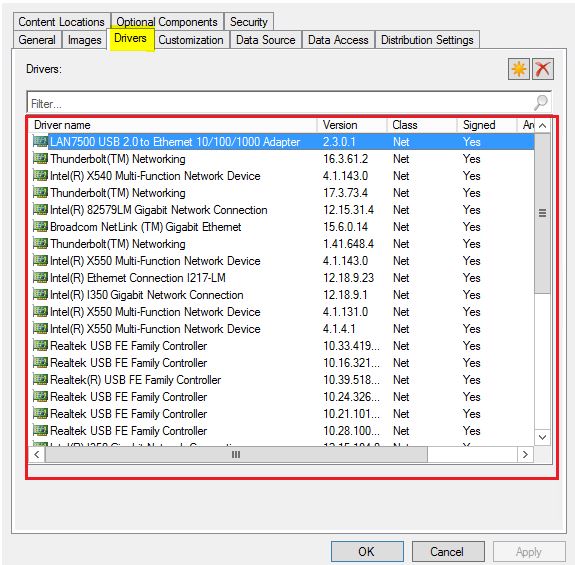
How to extacct Driver Name, Vesion details from it. Please help.

Use PowerShell: https://learn.microsoft.com/en-us/powershell/module/configurationmanager/get-cmbootimage?view=sccm-ps. Each returned object from this cmdlet has a ReferencedDrivers attribute.

Hi @Boopathi S ,
Haven't heard from you for some time, is Jason's answer helpful to you? If it is helpful, please accept answer. It will make someone who has the similar issue easily find the answer.
If you have any other issues, please don't hesitate to let us know.
Thanks and have a nice day.
If the response is helpful, please click "Accept Answer" and upvote it.
Note: Please follow the steps in our documentation to enable e-mail notifications if you want to receive the related email notification for this thread.
Hello @Amandayou-MSFT and @Jason Sandys ,
Thanks for your help.
I have used the below command to get the drives in the boot image. Because I cannot get the exact command using Get-CMBootImage to get the drivers in a boot image.
Dism /Get-Drivers /Image:D:\
I tried to use the "Copy-FBBootImageDrivers.ps1" from https://github.com/fredbainbridge/ConfigMgrScripts as per below URL .
https://fredbainbridge.com/2016/08/09/import-boot-image-drivers-from-existing-boot-image/
Steps provided in the above URL did not help.
Hi @Boopathi S ,
Thank you for posting in Microsoft Q&A forum. I have discussed this issue with my collage, here is the solution.
Please try the simple script, note to change the "Set-Location -Path" to your site code, "$bimg_src" to your existing boot image name, "$bimg_dst" to your new boot image name.
Import-Module ($Env:SMS_ADMIN_UI_PATH.Substring(0,$Env:SMS_ADMIN_UI_PATH.Length-5) + '\ConfigurationManager.psd1') -Verbose:$false
 Set-Location -Path "PRI:"

 $bimg_src = "Boot image (x64)"
 $bimg_dst = "winpe"

 $BIdrivers = Get-CMBootImage -Name $bimg_src

 $BIdriverIDs = (Get-CMBootImage -Name $bimg_src).ReferencedDrivers.ID
 foreach ($ID in $BIdriverIDs)
 {
  $BIdrivers = Get-CMDriver -Id $ID


  foreach ($BIdriver in $BIdrivers)
  {

  #Set-CMDriverBootImage -SetDriveBootImageAction AddDriverToBootImage -DriverName "Adaptec Embedded SCSI HostRAID Controller" -BootImageName "Boot image (x64)"
  Set-CMDriverBootImage -SetDriveBootImageAction AddDriverToBootImage -DriverName $BIdriver.LocalizedDisplayName -BootImageName $bimg_dst

  }

 }
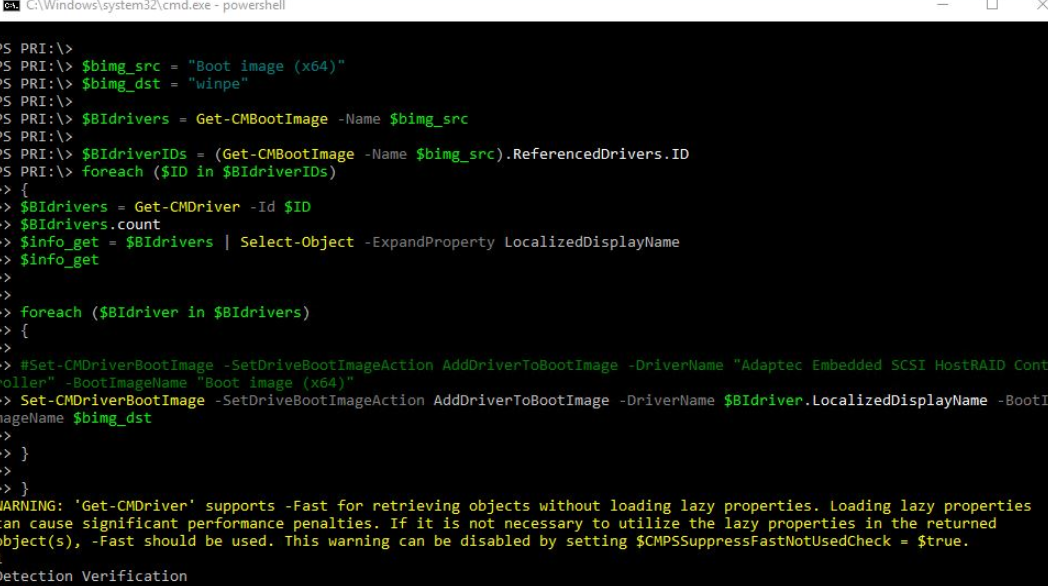
Here is the test screenshot:
If the response is helpful, please click "Accept Answer" and upvote it.
Note: Please follow the steps in our documentation to enable e-mail notifications if you want to receive the related email notification for this thread.
Hello @AllenLiu-MSFT
Thank you for the script. I will execute it and give you feedback.