Share via

LocalServiceNoNetworkFirewall disk usage causing severe stuttering

Cyrus W 0 Reputation points
2026-05-02T02:43:46.1533333+00:00

Lately, my laptop has been experiencing severe intermittent lags and stuttering across the entire system for seemingly no reason. After some investigation into both other forums and the Windows Task Manager and Resource Monitor, I believe the issue stems from the svchost.exe (LocalServiceNoNetworkFirewall) process performing very regular disk access (on the order of every 15 seconds or so) with MB/sec data transfer, because every time my computer seems to hang, the disk usage from this process skyrockets (see attached image - orange is the LocalServiceNoNetworkFirewall, other high disk usage processes are primarily from System and Registry which I assume are related to this).
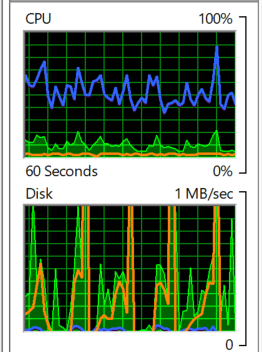
diskusage

I suspect this is due to the Windows Firewall conflicting with the Norton 360 Firewall installed on this laptop, but my attempts to fix this also do not seem to have worked because the issue has still persisted despite:

  • Restarting computer
  • Deactivating the Norton 360 Firewall
  • Restarting the Norton 360 Firewall
  • Setting the Norton 360 Firewall to "Windows mode" (suggested in a separate forum and should align the firewall rules)
  • Resetting the Windows Firewall to default settings

The Norton 360 firewall does not show even remotely the same level of CPU, disk, or memory usage as this process, despite the fact that having the third party firewall makes the Windows defender firewall claim to be "off."

I am currently running Windows 11 (version 25H2) on an MSI Pulse 15 laptop, and can provide more details if needed.

Is there anything that can be done to fix this? Or someone I can contact about it in more detail?

Thank you.

Windows for home | Windows 11 | Performance and system failures
0 comments No comments

2 answers

Sort by: Most helpful
  1. Carl-L 14,725 Reputation points Microsoft External Staff Moderator
    2026-05-05T08:59:14.1266667+00:00

    Hello Cyrus W,

    Welcome to Microsoft Q&A forum.

    You have done a great job discovering the main source of the spike and stutter. To point out more details in this, I'll need a few more information and test.

    • May I know if you have tried the Safe Mode yet? If you did, may I know if the stutters appear there?
    • In Resource Monitor, go to the "Disk" tab
    • Focus on svchost.exe and note the top file path when the spike appears.

    I'm waiting for your reply.

    Was this answer helpful?


  2. AI answer

    2026-05-02T02:44:04.38+00:00

    The symptoms match system-wide stutters caused by a Windows service (svchost.exe hosting LocalServiceNoNetworkFirewall) doing frequent disk I/O, likely related to firewall and/or security scanning activity. With a third‑party security suite (Norton 360) installed, conflicts or duplicated scanning are common causes of high resource usage.

    Based on the available information, the following targeted steps can help isolate and reduce the stuttering:

    1. Check for security software conflicts
      • When non‑Microsoft security software is installed (antivirus, firewall, VPN, etc.), it can conflict with Microsoft Defender components and cause high CPU/disk usage.
      • Add mutual exclusions between Norton 360 and Microsoft Defender components (paths and processes) so they are not scanning each other. For Defender, the binaries list is described under “Configure your network environment to ensure connectivity with Defender for Endpoint service” in the Defender documentation.
      • Ensure that only one real‑time firewall/AV engine is actively filtering traffic at a low level. If Norton is the primary security suite, verify that its own settings are not causing aggressive scanning of system folders.
    2. Reduce Defender real‑time scanning impact (if still active)
      • Microsoft Defender Antivirus can perform scans after each security intelligence update, which can cause periodic CPU/disk spikes.
      • To reduce this behavior, use Group Policy or another management tool to disable the post‑update scan:
        • Open Group Policy Editor → Computer Configuration → Administrative Templates → Microsoft Defender Antivirus → Security Intelligence Updates.
        • Set Turn on scan after security intelligence update to Disabled.
      • This reduces background scanning frequency and can lower recurring disk activity, at the cost of slightly less aggressive protection.
    3. Check for large or redirected files being scanned repeatedly
      • If large files (for example, .iso, .vhd, .vhdx) are stored in user profile locations that are redirected or synced (such as Desktop, Documents, Downloads, OneDrive, or other network‑backed folders), security scans take longer and consume more disk I/O.
      • Move any large, rarely used images or archives out of redirected/synced profile folders to a local, non‑redirected path so they are not repeatedly scanned.
    4. Temporarily disable firewall for testing only
      • To confirm whether firewall filtering is directly involved in the stutters, temporarily disable the Windows Firewall for testing:
      • Retest during gaming or other heavy use:
        • If the stuttering stops, the firewall (or its rules) is likely contributing. Review application‑specific rules and timeouts.
        • If the stuttering continues, the cause is likely elsewhere (for example, antivirus scanning or another driver/service).
      • Re‑enable the firewall immediately after testing; firewalls should always be on in normal operation.
    5. Use Windows Security “Firewall & network protection” advanced options
      • Open Windows Security → Firewall & network protection.
      • Use Network and Internet troubleshooter to detect general connectivity issues that might be causing repeated retries.
      • Use Advanced settings (Windows Defender Firewall with Advanced Security) only if comfortable, to inspect inbound/outbound rules and monitoring logs for excessive blocked/allowed traffic related to Norton or other apps.
      • If firewall settings have been heavily modified, use Restore firewalls to default to reset them, then let Norton manage its own rules.
    6. If the issue persists
      • Collect Event Viewer logs (System and Application) around the time of stutters to see if there are disk, driver, or security‑related warnings.
      • Check Norton’s own logs for repeated scans or blocked connections at the same timestamps.
      • If necessary, contact Norton support with those logs, since the interaction between Norton 360 and Windows networking/firewall stack may require vendor‑specific configuration.

    These steps focus on reducing duplicated security scanning, limiting Defender’s background scan behavior, and verifying whether firewall filtering is directly responsible for the periodic disk spikes.


    References:

    AI-generated content may be incorrect. Read our transparency notes for more information.

    Was this answer helpful?

Your answer

Answers can be marked as 'Accepted' by the question author and 'Recommended' by moderators, which helps users know the answer solved the author's problem.
