
20,221 questions
This browser is no longer supported.
Upgrade to Microsoft Edge to take advantage of the latest features, security updates, and technical support.
' cx='32' cy='32' r='32' /%3E%3Ctext x='50%25' y='55%25' dominant-baseline='middle' text-anchor='middle' fill='%23FFF' %3EC%3C/text%3E%3C/svg%3E)
Hi. I'm having an issue with setting a lock screen in my domain. I have created the image and placed it on one of our network shared drives which is \server\folder\folder\image.png (this is an example path, but same formatting.
I have also created and set up the parameters for a new object under Group Policy Objects --> New. Then Policies --> Administrative Templates --> Control Panel --> Personalization (seen below)
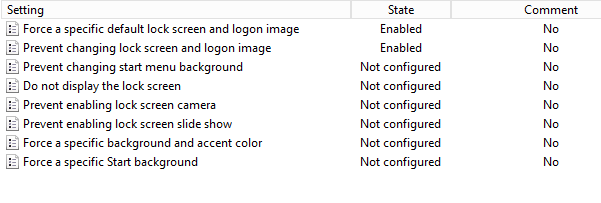
Now at this part is where I'm a bit confused. I know I have to link the GPO somewhere in the domain, but I'm not sure where to. Should I link it directly to our domain under domain.local (again, example see screenshot). Or should it go under the destinations where to workstations are? I've tried both and did a gpupdate/force on my computer and restarted but the lock screen isn't changing. Does the whole server have to be restarted for it to take effect? I appreciate any help.
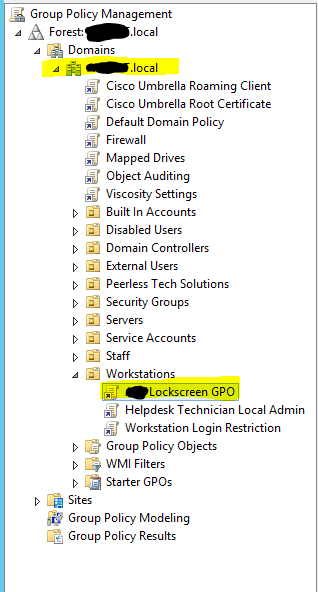
' cx='32' cy='32' r='32' /%3E%3Ctext x='50%25' y='55%25' dominant-baseline='middle' text-anchor='middle' fill='%23FFF' %3EAH%3C/text%3E%3C/svg%3E)
Try to change the picture name
' cx='32' cy='32' r='32' /%3E%3Ctext x='50%25' y='55%25' dominant-baseline='middle' text-anchor='middle' fill='%23FFF' %3EA%3C/text%3E%3C/svg%3E)
Hi,
Since the group policy is under Computer Configuration, we have to link the GPO to the OUs containing the workstations or the domain level.
If you link the GPO to the domain level , all the workstations in the domain will apply the policy.
If you link the GPO to the OU level, only workstations in the OU will apply the policy, workstations not in the OU will not effected by the policy.
When you edit the GPO and define the path for the image, type the fully qualified path and name of the file that stores the default lock screen and logon image. You can type a local path, such as C:\windows\web\screen\lockscreen.jpg or a UNC path, such as \Server\Share\Corp.jpg.
Then on the client run cmd as administrator and type command:
Gpupdate /force
Gpresult /h report.html confirm if the policy was applied.
If the policy was applied in the gpresult, then go into the Registry and verified that the String Value is pointing the the correct path where the custom image is located.
Hive HKEY_LOCAL_MACHINE
Registry Path Software\Policies\Microsoft\Windows\Personalization
Value Name LockScreenImage
Value Type REG_SZ
Welcome to share here if you have any progress.
Best Regards,
Okay, so I've followed your instructions and linked the GPO to the entire domain, but still having an issue. In the GP report I don't see the policy being applied anywhere. I would assume it's under Preferences --> Windows Settings? Or under Applied GPOs? It's not there either.
However, when I check the registry path you specified, I do see that the LockScreenImage is displaying the correct path. But, when I lock the computer, I'm still getting the windows spotlight lock screen. Any other thoughts?

Hi,
The settings in the gpresult can be seen under the computer settings>administrative >control panel >

If the policy was applied but not showing correctly , may be a version problem.If it is WIN10 ,it only apply to Windows 10 Enterprise and Education.
https://learn.microsoft.com/en-us/windows/configuration/windows-spotlight
And in this situation , GPO startup script can be used to do this.
https://gallery.technet.microsoft.com/scriptcenter/Change-Lock-Screen-and-245b63a0
Best Regards,
Thanks for providing the script. The machines here at my organization are Windows 10 professional. Unfortunately I'm just local IT and I have no background in coding, so I honestly have no idea how to edit that code to make it work, or how I should go about implementing it. Do you possibly know which values I need to replace and with what so I can make this work?
Thank you,
' cx='32' cy='32' r='32' /%3E%3Ctext x='50%25' y='55%25' dominant-baseline='middle' text-anchor='middle' fill='%23FFF' %3ESS%3C/text%3E%3C/svg%3E)
Hi I do not find the script. Please help me
Hi,
Download the Powershell script, and save it under a location you can find it easily.
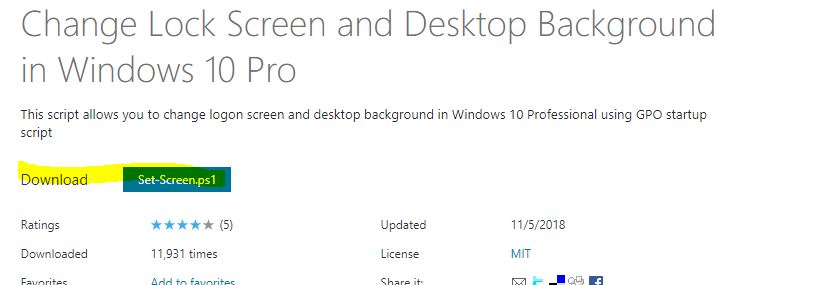
You don't need to change anything in the script. When you deploy the Startup script GPO, we just need to put different parameters into it as following (4 types),you can select one as your requirement:
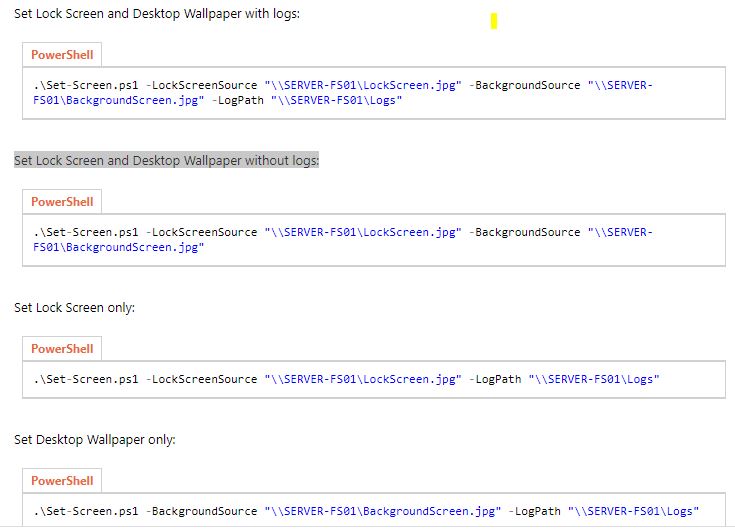
Create a GPO ,Llink it to the OU containing the computers
Under Computer Configuration -> Policies -> Windows Settings -> Scripts (Startup / Shutdown).Double click it.
Under the Powershell script click add
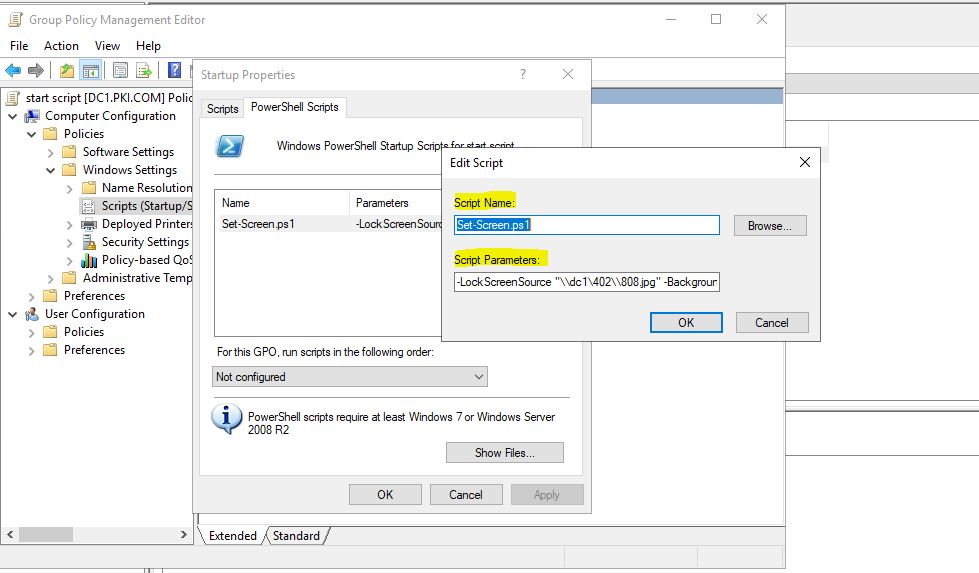
Script Name:Set-Screen.ps1
Script Parameters:(change it to your own lock image and background image path):
-LockScreenSource "\SERVER-FS01\LockScreen.jpg" -BackgroundSource "\SERVER-FS01\BackgroundScreen.jpg"
Click Show files, and copy the script you download into this location.
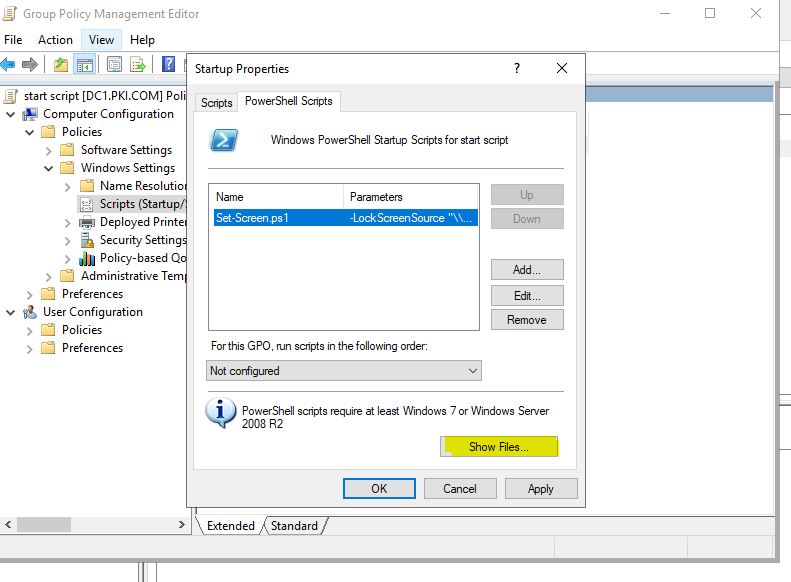
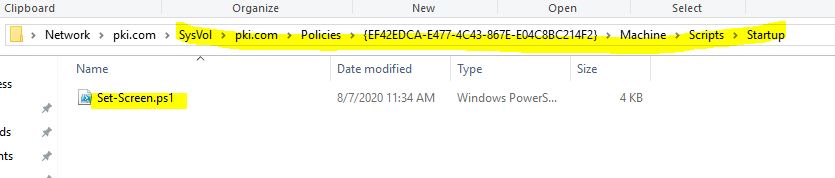
Also other steps are needed to be done, you can refer to the following link:
http://woshub.com/running-powershell-startup-scripts-using-gpo/
=======================
Hi,
Just checking in to see if the information provided was helpful.
If the reply helped you, please remember to mark it as an answer.
If no, please reply and tell us the current situation in order to provide further help
Best Regards,
' cx='32' cy='32' r='32' /%3E%3Ctext x='50%25' y='55%25' dominant-baseline='middle' text-anchor='middle' fill='%23FFF' %3EFF%3C/text%3E%3C/svg%3E)
Hi FanFan-MSFT,
Where do i get the link of the ps1 script that you showed in the picture? Can you post it here?
Thanks
' cx='32' cy='32' r='32' /%3E%3Ctext x='50%25' y='55%25' dominant-baseline='middle' text-anchor='middle' fill='%23FFF' %3EIP%3C/text%3E%3C/svg%3E)
How do I revert these changes to restore the default lock screen?
' cx='32' cy='32' r='32' /%3E%3Ctext x='50%25' y='55%25' dominant-baseline='middle' text-anchor='middle' fill='%23FFF' %3EAO%3C/text%3E%3C/svg%3E)
Hello Fanfan
Kindly send me 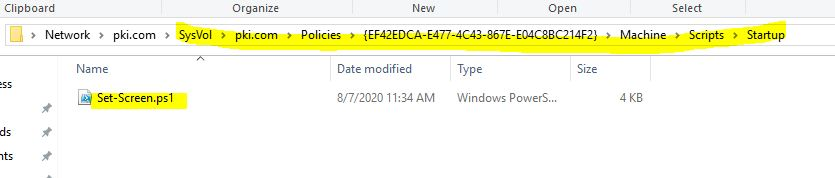 the set-screen .ps1
script for logon screen
ayodele.olafare@harsh.com .com
' cx='32' cy='32' r='32' /%3E%3Ctext x='50%25' y='55%25' dominant-baseline='middle' text-anchor='middle' fill='%23FFF' %3ER%3C/text%3E%3C/svg%3E)
This powershell has no effect on GPO for windows 10 22H2 Pro and windws11 23H2 Pro