Developer technologies | .NET | Xamarin
A Microsoft framework for building cross-platform mobile apps using .NET and C# with native performance and user interfaces.
This browser is no longer supported.
Upgrade to Microsoft Edge to take advantage of the latest features, security updates, and technical support.
' cx='32' cy='32' r='32' /%3E%3Ctext x='50%25' y='55%25' dominant-baseline='middle' text-anchor='middle' fill='%23FFF' %3ES%3C/text%3E%3C/svg%3E)
This has been asked a LOT of times but some of them doesn't apply to what I want, anothers simply don't work with me
It is something extremely simple, so I don't know what is happening
I have a ListView. Every item has two Rows. The first is for a Text and the second is for an Image
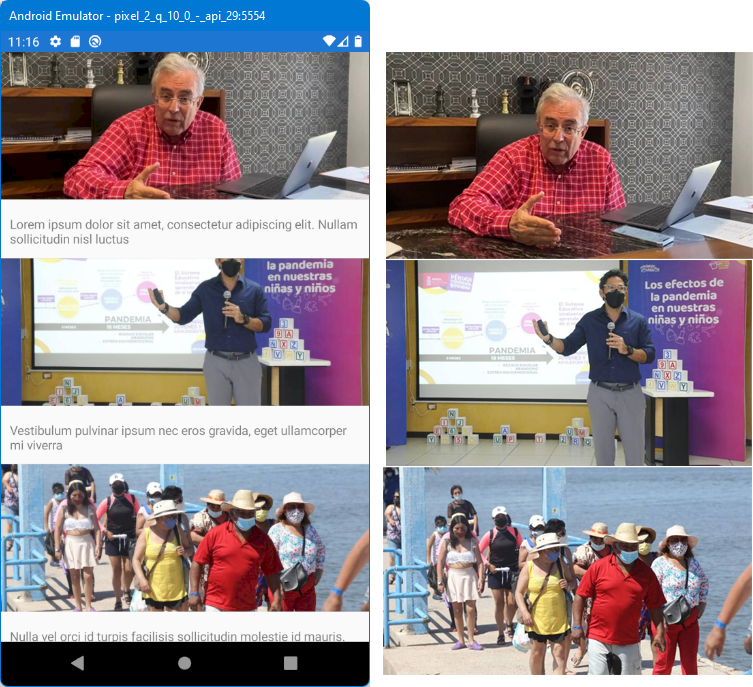
The issue is that the Image got clipped
I can't set a fixed Height for the Images because the Images are not equal. Also because the Width of viewports/cellphones are different. The best thing I guess is to calculate a ratio, but I'm bery newbie in binding stuff
The Text row sometimes is two rows, and sometimes is three rows. So no fixed Height either
As I said, I have test a lot of mods but none works for me
I have tested FillAndExpand, AspectFit, AspectFill, Grid with Rows in Auto, etc.. The ListView uses HasUnevenRows = True
This is in a Xamarin Forms project. I'm using VS 2019 16.11.5 - Xamarin 5.0.0.2012
Edit: in fact, I don’t know if ListView is the Better control for this. Just want text, images and scroll. Also, must have two kind of designs
<ListView.ItemTemplate>
 <DataTemplate>
 <ViewCell>

 <!--<ViewCell.View>
 <Grid x:Name="grid" RowSpacing="0">
 <Grid.RowDefinitions>
 <RowDefinition Height="Auto" />
 <RowDefinition Height="Auto" />
 </Grid.RowDefinitions>

 <Frame Grid.Row="0">
 <Image  HorizontalOptions="FillAndExpand" VerticalOptions="FillAndExpand" Aspect="AspectFit">
 <Image.Source>
 <UriImageSource Uri="{Binding Imagen}" CacheValidity="1" CachingEnabled="true"/>
 </Image.Source>
 </Image>
 </Frame>

 <Grid Grid.Row="1">
 <Grid.RowDefinitions>
 <RowDefinition Height="*" />
 <RowDefinition Height="*" />
 </Grid.RowDefinitions>
 <Label Text="{Binding Texto}"/>
 </Grid>
 </Grid>
 </ViewCell.View>-->

 <!--<Grid Padding="5">
 <Grid.ColumnDefinitions>
 <ColumnDefinition Width="Auto"/>
 <ColumnDefinition/>
 </Grid.ColumnDefinitions>
 <Grid.RowDefinitions>
 <RowDefinition Height="Auto"/>
 </Grid.RowDefinitions>

 <Label Text="{Binding Texto}" TextColor="#7f7f7f" Padding="10,12,10,12" />
 <Image Grid.Column="1" Source="{Binding Imagen}" Aspect="AspectFill"/>
 </Grid>-->

 <StackLayout>
 <Image Source="{Binding Imagen}" Aspect="AspectFill" />

 <Label Text="{Binding Texto}" TextColor="#7f7f7f" Padding="10,12,10,12" />
 </StackLayout>

 <!--<Frame Padding="0" Margin="0">
 <Grid Padding="0"
 Margin="0"
 VerticalOptions="FillAndExpand"
 HorizontalOptions="FillAndExpand"
 BackgroundColor="Red">
 <Grid.RowDefinitions>
 <RowDefinition Height="auto"/>
 </Grid.RowDefinitions>
 <Image Source="{Binding Imagen}" Aspect="AspectFill"/>
 </Grid>
 </Frame>-->

 </ViewCell>
 </DataTemplate>
</ListView.ItemTemplate>
' cx='32' cy='32' r='32' /%3E%3Ctext x='50%25' y='55%25' dominant-baseline='middle' text-anchor='middle' fill='%23FFF' %3EA%3C/text%3E%3C/svg%3E)
Hello,
Welcome to our Microsoft Q&A platform!
I used your image, then add several text to label. here is running screenshot(This site cannot upload again, So I cannot post image directly),
Here is my code, Just use Image and Label in the StackLayout of ViewCell. If you still have issue, Could you share your DataSource that I can reproduce this issue.
   <StackLayout>
           <ListView ItemsSource="{Binding Items}" HasUnevenRows="True">
               <ListView.ItemTemplate>
                   <DataTemplate>
                       <ViewCell>
                           <StackLayout>

                               <Image Source="{Binding ImagePath}"/>
                               <Label Text="{Binding MYName}" Padding="5"></Label>

                           </StackLayout>
                       </ViewCell>
                   </DataTemplate>
               </ListView.ItemTemplate>

           </ListView>
       </StackLayout>
==============================
Update===================================
If you want to caclulate the ratio, you can use FFImageLoading to achieve it.
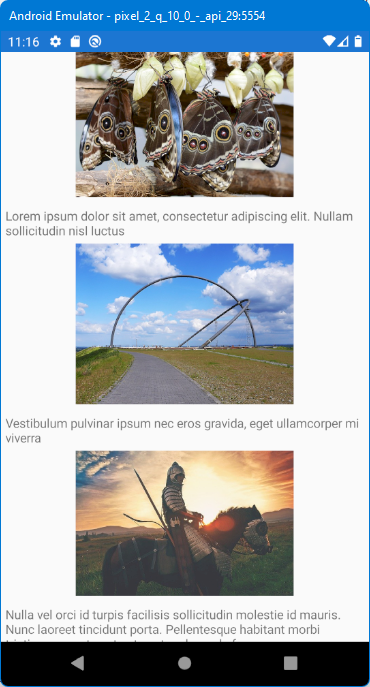
Here is running screenshot.
Here is Layout.
   <CollectionView ItemsSource="{Binding datosItems}">

               <CollectionView.ItemTemplate>
                   <DataTemplate>
                       <StackLayout>
                           <Grid
                             HorizontalOptions="FillAndExpand"
                            VerticalOptions="FillAndExpand"
                            >


                               <ffimageloading:CachedImage

   			                        DownsampleToViewSize="true"
                                       Aspect="Fill"

                                  HeightRequest="{Binding MyImageHeight}"
                                   Success="CachedImage_Success"
   			                        Source="{Binding Imagen}">
                               </ffimageloading:CachedImage>
                           </Grid>


                           <Label Text="{Binding Texto}" Padding="5"></Label>

                       </StackLayout>
                   </DataTemplate>
               </CollectionView.ItemTemplate>

           </CollectionView>
Here is my background code. I use data-binding to achieve it. I can cacluate the ratio, then based the current page's height. You can create a new project, copy my code to it.
   using FFImageLoading.Forms;
   using System;
   using System.Collections.Generic;
   using System.Collections.ObjectModel;
   using System.ComponentModel;
   using System.Linq;
   using System.Text;
   using System.Threading.Tasks;
   using System.Windows.Input;
   using Xamarin.Essentials;
   using Xamarin.Forms;

   namespace AppListviewIssue
   {
       public partial class MainPage : ContentPage
       {
           public MainPage()
           {
               InitializeComponent();
               BindingContext = new MyViewModel();

           }


           public static double MyHeidht=-1;
           protected override void OnSizeAllocated(double width, double height)
           {
               base.OnSizeAllocated(width, height);


               MyHeidht = Width;
           }

           private void CachedImage_Success(object sender, FFImageLoading.Forms.CachedImageEvents.SuccessEventArgs e)
           {
               var image = sender as CachedImage;
               double width = e.ImageInformation.OriginalWidth;
               double height = e.ImageInformation.OriginalHeight;

               //get the image ratio

               var ratio = height / width;
               if (MainPage.MyHeidht != -1)
               {
                   // Change the image's height by the ratio.
                   var MyImageHeight = ratio * MainPage.MyHeidht;
                   var model = image.BindingContext as Datos;
                   model.MyImageHeight = MyImageHeight;
               }
           }
       }

       public class MyViewModel
       {
           public ObservableCollection<Datos> datosItems { get; set; }

           public MyViewModel()
           {

               datosItems = new ObservableCollection<Datos>();

               datosItems.Add(new Datos() { Texto = "Lorem ipsum dolor sit amet, consectetur adipiscing elit. Nullam sollicitudin nisl luctus", Imagen = "https://randomwordgenerator.com/img/picture-generator/55e6d5414b52a414f1dc8460962e33791c3ad6e04e507440752f78d0944ec4_640.jpg" });
               datosItems.Add(new Datos() { Texto = "Vestibulum pulvinar ipsum nec eros gravida, eget ullamcorper mi viverra", Imagen = "https://randomwordgenerator.com/img/picture-generator/54e2d0444a53a814f1dc8460962e33791c3ad6e04e507440762e79d7914cc6_640.jpg" });
               datosItems.Add(new Datos() { Texto = "Nulla vel orci id turpis facilisis sollicitudin molestie id mauris. Nunc laoreet tincidunt porta. Pellentesque habitant morbi tristique senectus et netus et malesuada fames", Imagen = "https://randomwordgenerator.com/img/picture-generator/54e5d3464357ab14f1dc8460962e33791c3ad6e04e50744172297cd59645c1_640.jpg" });
           }


       }

       public class Datos: INotifyPropertyChanged
       {
           public string Texto { get; set; }
           public string Imagen { get; set; }

           double _myImageHeight = 0;
           public double MyImageHeight
           {
               get
               {
                   return _myImageHeight;
               }

               set
               {
                   if (_myImageHeight != value)
                   {
                       _myImageHeight = value;
                       OnPropertyChanged("MyImageHeight");

                   }
               }

           }

           public event PropertyChangedEventHandler PropertyChanged;

           protected virtual void OnPropertyChanged(string propertyName)
           {
               PropertyChanged?.Invoke(this, new PropertyChangedEventArgs(propertyName));
           }
       }
Best Regards,
Leon Lu
If the answer is the right solution, please click "Accept Answer" and kindly upvote it. If you have extra questions about this answer, please click "Comment".
Note: Please follow the steps in our documentation to enable e-mail notifications if you want to receive the related email notification for this thread.
Thanks for your reply
Using your code, the image doesn't expand to 100% width
The only code I don't use is the ItemsSource="{Binding Items}" (don't know how to do that way, I'm newbie)
private ObservableCollection<Datos> datos { get; set; }

public MainPage()
{

InitializeComponent();

datos = new ObservableCollection<Datos>();

datos.Add(new Datos() { Texto = "Lorem ipsum dolor sit amet, consectetur adipiscing elit. Nullam sollicitudin nisl luctus", Imagen = "https://randomwordgenerator.com/img/picture-generator/55e6d5414b52a414f1dc8460962e33791c3ad6e04e507440752f78d0944ec4_640.jpg" });
datos.Add(new Datos() { Texto = "Vestibulum pulvinar ipsum nec eros gravida, eget ullamcorper mi viverra", Imagen = "https://randomwordgenerator.com/img/picture-generator/54e2d0444a53a814f1dc8460962e33791c3ad6e04e507440762e79d7914cc6_640.jpg" });
datos.Add(new Datos() { Texto = "Nulla vel orci id turpis facilisis sollicitudin molestie id mauris. Nunc laoreet tincidunt porta. Pellentesque habitant morbi tristique senectus et netus et malesuada fames", Imagen = "https://randomwordgenerator.com/img/picture-generator/54e5d3464357ab14f1dc8460962e33791c3ad6e04e50744172297cd59645c1_640.jpg" });

listView.ItemsSource = datos;

}

public class Datos
{
	public string Texto { get; set; }
	public string Imagen { get; set; }

	public Datos()
	{
	}
}
The AndroidManifest says - android:minSdkVersion="21" android:targetSdkVersion="30"
The emulator is Pixel 2 Q 10.0 - API 29 - 1080 x 1920 - density = 420
Please see my updated answer. I cannot post image again. Sorry for that.