Microsoft Teams | Microsoft Teams for business | Meetings and calls | Audio and video
Managing sound and video settings during Teams meetings and calls for optimal communication

This browser is no longer supported.
Upgrade to Microsoft Edge to take advantage of the latest features, security updates, and technical support.
' cx='32' cy='32' r='32' /%3E%3Ctext x='50%25' y='55%25' dominant-baseline='middle' text-anchor='middle' fill='%23FFF' %3ECR%3C/text%3E%3C/svg%3E)
camera doesnt work on video meetings. I don't have nothing blocking it
Managing sound and video settings during Teams meetings and calls for optimal communication
' cx='32' cy='32' r='32' /%3E%3Ctext x='50%25' y='55%25' dominant-baseline='middle' text-anchor='middle' fill='%23FFF' %3EI%3C/text%3E%3C/svg%3E)
Hi Claudia,
I hope all is well with you.
I wanted to follow up on the issue and see if there have been any developments since our last communication.
Please let me know if there are any updates or if there's anything else I can assist with.
Looking forward to hearing from you.
Hi Claudia,
Please try the following steps to troubleshoot this issue:
Check the camera selected in Teams
Run a Teams test call
Check Windows camera permissions
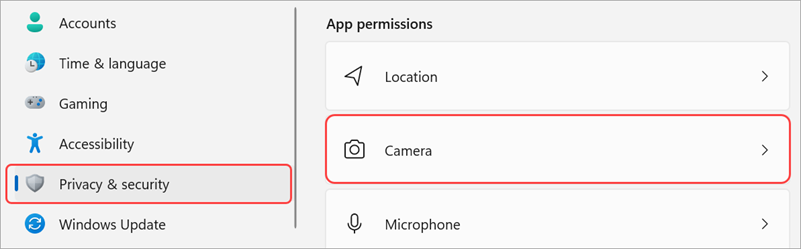

Additionally, please close applications such as Zoom, Webex, Skype, or the Windows Camera app, as another application may be using the camera.
Microsoft also provides additional troubleshooting steps here: Microsoft Support – My camera isn't working in Microsoft Teams
I hope this provides enough clarity and helps you stay inform with your current situation.
Thank you for your patience and your understanding. If you have any questions or need further assistance, please feel free to share them in the comments on this post so I can continue to support you.
If the answer is helpful, please click 'Yes' and kindly upvote it.
Note: Please follow the steps in the forum documentation to enable e-mail notifications if you want to receive the related email notification for this thread.
AI answer
Try these steps in order:
If the camera works in the Windows Camera app but not in video meetings, the most likely causes are app permissions or another app already using the camera.